




Expense Reconciliation Template: Match Receipts Fast
Month-end arrives, and your desk tells a familiar story. A bank CSV sits open on one monitor, four curled thermal receipts sit beside your keyboard, two supplier PDFs are buried in your inbox, and a colleague sent a crooked WhatsApp photo of a fuel slip three days ago. Most small business owners type the totals into a basic spreadsheet, tick off the amounts against the bank feed, and close the file.
That shortcut holds up until a missing invoice slows down a payment run or a VAT query lands two quarters later. According to a September 2024 UK government small-business support announcement, 24% of surveyed businesses attributed late payments from customers to administrative errors such as failing to log invoices, and 52% of UK small businesses (roughly 2.8 million firms) faced late payments in every quarter of 2022. Sloppy transaction records don't just irritate your bookkeeper; they blur your cash position and slow down collections.
An expense reconciliation template should do more than tally spending by category. Built properly, it acts as a VAT-evidence filter and an exception-management log, forcing every single bank line to end in one of three states: matched, matched with exception, or unmatched.
The Template Columns You Need to Copy
A workable reconciliation sheet needs one master tab split into three logical blocks: Identity, Money, and Judgement. Splitting columns this way stops you from muddling raw bank facts with tax decisions. Under the HMRC Making Tax Digital digital records guidance, self-employed taxpayers and landlords must record at least the amount and date for every expense in compatible software, and HMRC's published statistics estimate 7,020,000 sole traders and landlords fall within the population potentially affected by MTD for Income Tax. Those two statutory fields are your baseline, while the remaining columns turn a simple list into a defensible audit trail.
The table below lays out all 19 columns you should copy into Excel or Google Sheets. Each example value illustrates a hypothetical October 2026 rail trip with Northern Rail, showing how a zero-rated purchase flows cleanly from bank line to sign-off.
| Block | Field | Why it exists | Example value |
|---|---|---|---|
| Identity | Transaction date | Reconciles to the bank feed line | 14 Oct 2026 |
| Identity | VAT tax point | Confirms the VAT period the input tax falls in | 14 Oct 2026 |
| Identity | Supplier | Duplicate and pattern matching | Northern Rail |
| Identity | Receipt or invoice reference | Links the row to the source document | Ticket reference on PDF |
| Identity | Document link | Evidence for review and inspection | Scanned PDF in receipts folder |
| Money | Net amount | Accounting value that posts to the ledger | Ticket fare (matches gross on zero-rated rail) |
| Money | VAT amount | Reclaimable tax, never assumed | £0.00 |
| Money | Gross amount | Must equal net plus VAT | Total paid on bank statement |
| Money | VAT rate | Separates 20%, 5%, 0% and exempt purchases | 0% (zero-rated) |
| Money | Currency | Flags foreign-card transactions for review | GBP |
| Money | Payment account | Ties the row to the card or bank account | Business current account |
| Judgement | Expense category | Maps to the chart of accounts | Domestic Travel |
| Judgement | Business-use percentage | Required for mixed-use purchases | 100% |
| Judgement | Business purpose | Explains why the cost was incurred | Client meeting, Manchester |
| Judgement | Claimant | Shows who incurred the cost | A. Patel |
| Judgement | Approver | Second pair of eyes on exceptions | J. Reid |
| Judgement | Reconciliation status | Drives the exception report | Matched |
| Judgement | Exception reason | Explains why VAT was not reclaimed or the row is held | Zero-rated, no input tax |
| Judgement | Exception log entry | Reviewer, date, correction and reason | J. Reid, 16 Oct 2026, no change |
Adapting the layout to your own business takes five minutes. Map the Expense category drop-down directly to your accounting chart of accounts so you aren't re-coding lines later, and keep the Business-use percentage column only if you buy mixed-use items like a personal mobile plan or a dual-use vehicle.
Setting Up the Validation Rules
Data entry slips creep in when a spreadsheet accepts anything you type. Build five simple checks right beside your main table, backed by HMRC guidance on self-employed business records, which requires accurate, identifiable transactions supported by receipts, bank statements, and invoices, alongside preserved digital links whenever records move between software products.
- Arithmetic check: Add a helper column verifying that Gross amount equals Net amount plus VAT amount, flagging any penny rounding gap immediately.
- Explicit VAT zeroes: Require VAT amount to be blank or £0.00 whenever tax is non-reclaimable, and never leave £0.00 sitting unexplained without an Exception reason.
- Duplicate fingerprint: Concatenate Supplier, Transaction date, and Gross amount in a hidden column, then apply a
COUNTIFrule to highlight repeated combinations in red. - Mandatory evidence gate: Block any row from reaching Matched unless the Document link column holds a live file path or the Exception reason explains why the receipt is absent.
- Strict three-state status: Restrict the Reconciliation status drop-down to three entries only (Matched, Matched with exception, and Unmatched) so nobody invents vague labels like "Pending" or "Query".
Bookkeeper's rule: Keep a separate tab or right-hand block for your exception log, recording reviewer name, date, correction made, and reason. A bare spreadsheet cell tells an inspector what changed, never who changed it or why.
VAT Evidence That Makes or Breaks a Row
Matching a bank statement line to a supermarket or supplier slip feels productive, yet that match proves only that cash left your account. It does not prove you can reclaim the VAT. One of the costliest habits in DIY spreadsheets is treating every receipt with a total on it as a valid 20% VAT claim.
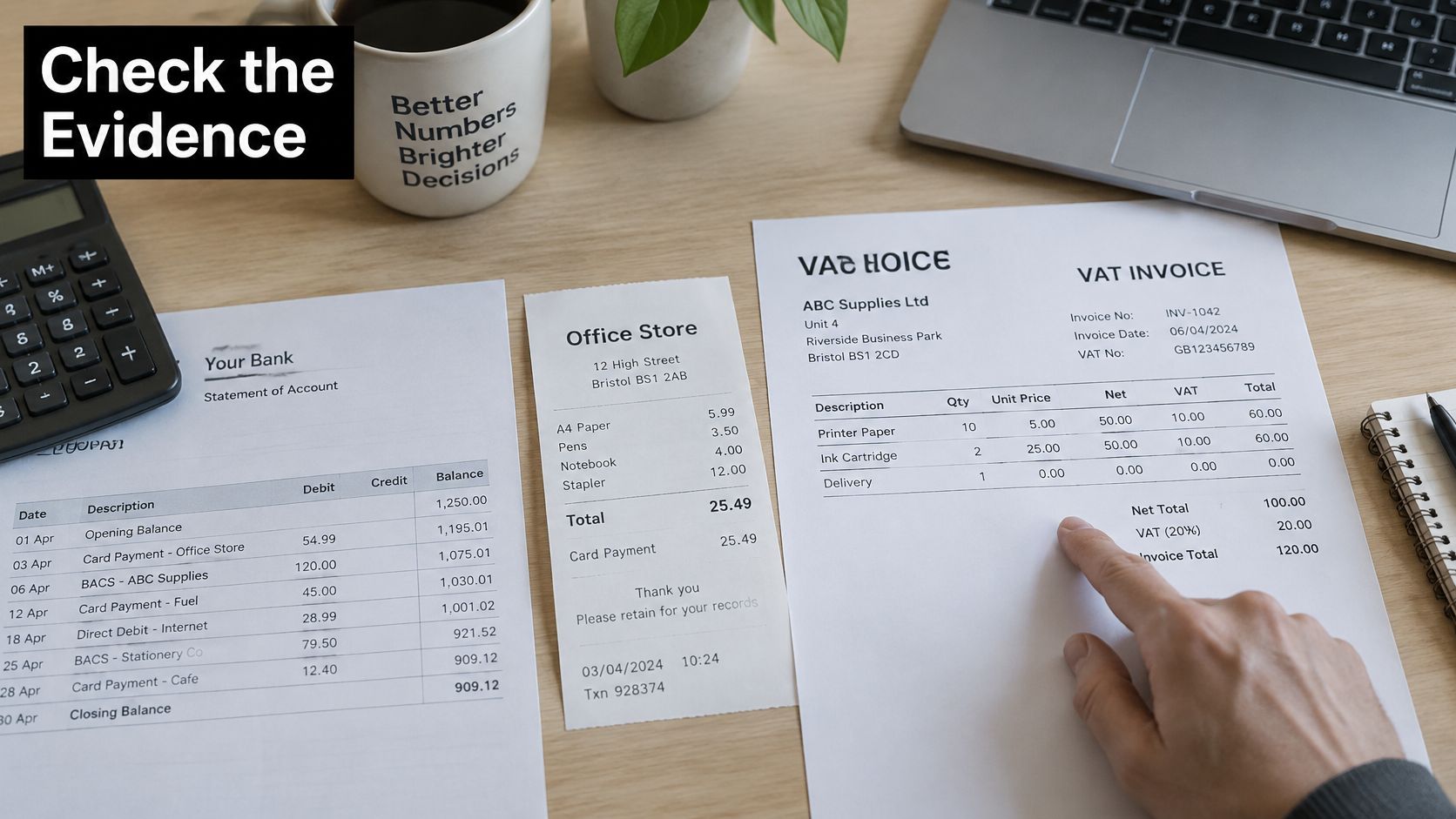
According to HMRC's rules on reclaiming VAT on business expenses, VAT-registered businesses need valid VAT invoices to support input tax claims. A simplified till receipt may be sufficient for purchases of £250 or less provided it carries the required VAT details, while larger purchases generally require a full VAT invoice. Before you type a single penny into the VAT column, check the document itself for four details: the supplier's VAT registration number, the invoice type (full versus simplified), the VAT rate, and the exact VAT amount.
If you aren't sure whether a particular slip meets the line-item standard, cross-check it against our guide to UK VAT receipt requirements before approving the row.
Three Purchases That Trip Up Manual Templates
Even tidy bookkeepers slip on edge cases where the bank line looks straightforward but the tax treatment demands extra paperwork.
- Mixed-use purchases: Buying a home broadband package or a mobile phone used partly for personal calls means you can claim only the business share. Your template needs the Business-use percentage filled in, backed by a written note showing how you worked out that split.
- Fuel claims: A petrol station till slip on its own is never enough to justify an input tax claim on fuel. You must retain detailed mileage records tying business journeys to the fuel purchased, and reference that log inside the row.
- Zero-rated, reduced-rate, exempt, and non-VAT items: Train tickets, insurance premiums, bank charges, and invoices from non-VAT-registered freelancers carry no standard-rate VAT. Leaving the VAT column blank by accident looks identical to a deliberate zero unless your VAT rate and Exception reason spell out the difference.
Recording a VAT Refusal Cleanly
When a supplier hands over a card machine slip instead of a VAT invoice, or a receipt over £250 lacks a VAT number, don't bury the problem. Set the VAT amount to £0.00, change Reconciliation status to Matched with exception, and pick a clear Exception reason such as "Absent VAT invoice", "Non-business element", or "Zero-rated purchase".
Add the reviewer's initials and the date to the exception log entry right away. Automation tools that merely scrape a grand total off a photo aren't reconciliation-ready on their own because accounting categorisation and VAT recoverability are two different decisions.
Every row you approve needs to pass one plain test: could you defend this expense during a VAT inspection, not merely match it to the bank feed?
How to Reconcile a Month Step by Step
Order matters far more than speed when you close a monthly ledger. Teams often jump straight into categorising receipts from a folder and then try to tie totals back to the bank at the end, which hides uncaptured card payments and bank fees. The workflow below fixes completeness first and balances last.
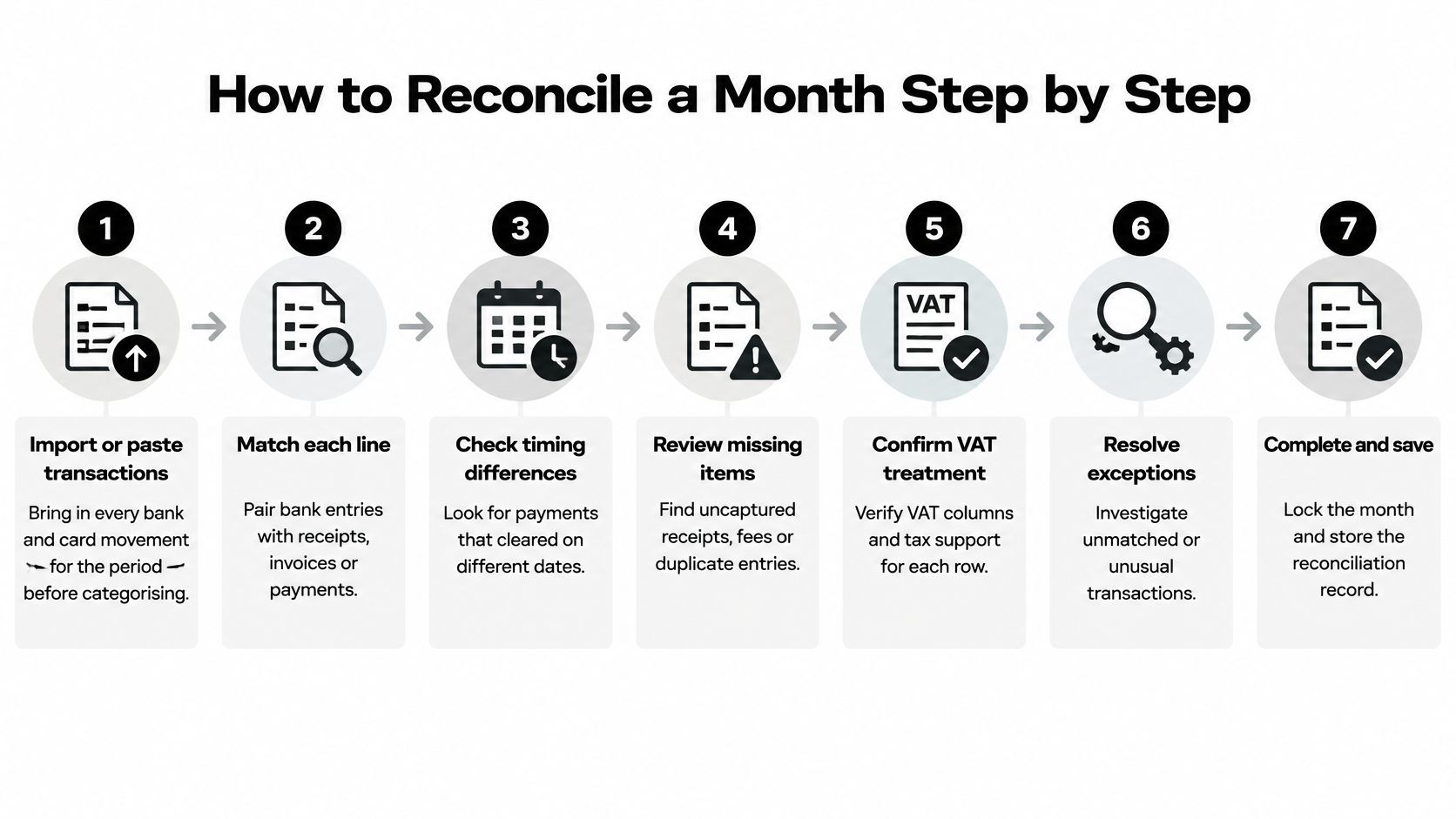
Start from the HMRC guide to keeping VAT records, which requires VAT-registered businesses to maintain digital records of the time of supply, value excluding VAT, and input tax for supplies received, retain all received invoices and expense proof, and keep VAT records for at least six years. Follow these seven steps in sequence for every payment account.
- Import every bank and card transaction for the period. Paste the full statement export into your sheet before touching a single category. Common slip: filtering out small bank charges or refunds during import, which guarantees your closing balance won't tie out later.
- Match each line to its source receipt, largest value first. Pair transactions using Supplier, Transaction date, and Gross amount, and paste the file path into Document link. Working from the biggest amounts downwards clears the highest tax risk in the first ten minutes. Common slip: accepting a date mismatch without checking whether a card payment cleared two days after the invoice date.
- Validate VAT treatment and line arithmetic. Check that Net amount plus VAT amount equals Gross amount, and inspect every receipt for zero-rated, reduced-rate, exempt, or non-VAT supplies. Common slip: dragging a 20% formula down the whole column and accidentally claiming VAT on rail travel or postage.
- Assign the accounting category. Select the right nominal code from your Expense category drop-down and note a brief Business purpose for anything non-obvious, such as travel or client subsistence. Common slip: dumping unfamiliar software tools or hardware into a catch-all "General expenses" bucket that your accountant has to unpack at year-end.
- Flag exceptions into the log. Any row that is unmatched, duplicated, missing its document, or carries an unusual amount gets tagged as Unmatched or Matched with exception, with an owner and note in the exception log. Common slip: leaving blank rows to "sort out next week", which turns small gaps into forgotten write-offs.
- Approve and lock the verified rows. Once the reviewer confirms the evidence and tax coding, enter the Approver initials and protect those rows against accidental edits. Common slip: letting team members overwrite locked figures instead of logging a formal correction.
- Reconcile the approved ledger total to the bank statement closing balance. Compare your sheet's net movement against the closing figure on the bank statement and calculate the variance. For a deeper look at resolving timing gaps and uncleared items, walk through our guide to bank statement reconciliation. Common slip: calling the month finished while a small difference still sits unexplained.
If you prefer watching the mechanics of matching statement lines and clearing variances on screen before running your own sheet, the short walkthrough below demonstrates the process step by step.
Stopping Conditions and Realistic Timing
Don't close the workbook until three stopping conditions are met: every bank line is accounted for, the closing balance difference is £0.00, and every item in the exception log has a named owner and action.
Once your column structure and drop-downs are in place, a typical small-business month of around 60 to 80 transactions generally takes 45 to 90 minutes to reconcile cleanly. If it stretches past two hours, the bottleneck is almost never spreadsheet formulas; it's hunting down missing paperwork.
When a Receipt Matches but the Row Still Looks Wrong
A green tick labelled "Reconciled" gives false comfort when the underlying transaction doesn't make sense. Fraud and internal slip-ups rarely announce themselves with a missing receipt; often a receipt is attached, the total matches the bank feed, and the problem hides in the supplier name, the handwriting, or a second claim submitted three weeks later.
UK firms are operating in a harsher fraud environment than even a few years ago. The Office for National Statistics Crime Survey for England and Wales estimated about 4.2 million fraud incidents in the year ending March 2025, up 31% from roughly 3.2 million the previous year, with around 3 million involving a financial loss. Treating your reconciliation sheet as a cash-control gate, rather than a passive ledger, protects both your bank balance and your VAT return.
Use the diagnostic table below whenever a row passes a basic amount check but still raises an eyebrow. Every action is specific enough to carry out the same day.
| Exception | What it looks like | Action in the template |
|---|---|---|
| Duplicate posting | Same supplier, date and amount twice | Run duplicate fingerprint, hold both rows until one is proven |
| Altered or handwritten amount | Total on image differs from keyed figure | Attach source image, query claimant, correct with exception log entry |
| Suspicious or one-off supplier | New payee with no prior history | Flag for approver, verify against invoice and payment method |
| Private spending on the business account | Groceries, personal travel, household items | Reclassify to drawings or private, remove VAT claim |
| Split transaction | One card line covers several receipts | Break the bank line into parts, match each receipt separately |
| Claim after reimbursement | Expense submitted after the payment already cleared | Reverse and re-approve, record reason and approver |
| Missing document | Approved row with no linked file | Downgrade to unmatched until the document arrives |
| Invalid VAT evidence | No VAT number or full invoice over £250 | Set VAT to zero, record the exception reason |
Tracking Ageing and Operational Metrics
Exceptions lose their punch if they sit idle in a spreadsheet tab for three months. Add a simple Ageing by owner summary at the top of your exception log showing how many open rows belong to each claimant or approver and how many days each item has been waiting. Unresolved expenses obscure real liabilities, delay staff reimbursements, and force rushed approvals right before a VAT deadline.
Instead of chasing a single vague "accuracy percentage", track five operational numbers at the end of every month:
- Match rate: Percentage of bank lines cleared cleanly as Matched on the first pass.
- Exception rate: Share of rows landing in Matched with exception or Unmatched. A rising rate usually points to receipts arriving late or staff misunderstanding your category policy.
- Duplicate rate: Count of repeated supplier, date, and amount fingerprints caught before posting.
- Average days outstanding: How long an exception sits open between flagging and resolution.
- VAT adjustments per period: Number of rows where claimed VAT had to be stripped out or corrected after review.
Lock approved rows and keep an immutable change history so nobody can quietly edit a figure before review. Any unresolved fraud signal should follow a written escalation route straight to the approver or company director, never sit silently in a junior bookkeeper's inbox.
Spreadsheet or Automated Capture for Your Receipts
A well-built spreadsheet is easy to inspect and under your control. The cost is your time: every paper slip, emailed PDF and phone photo needs its details entered and checked. As receipts accumulate, typing competes with reviewing VAT evidence and resolving exceptions. Automated capture reduces that entry work, but someone still needs to decide whether the document supports the transaction and its VAT treatment.
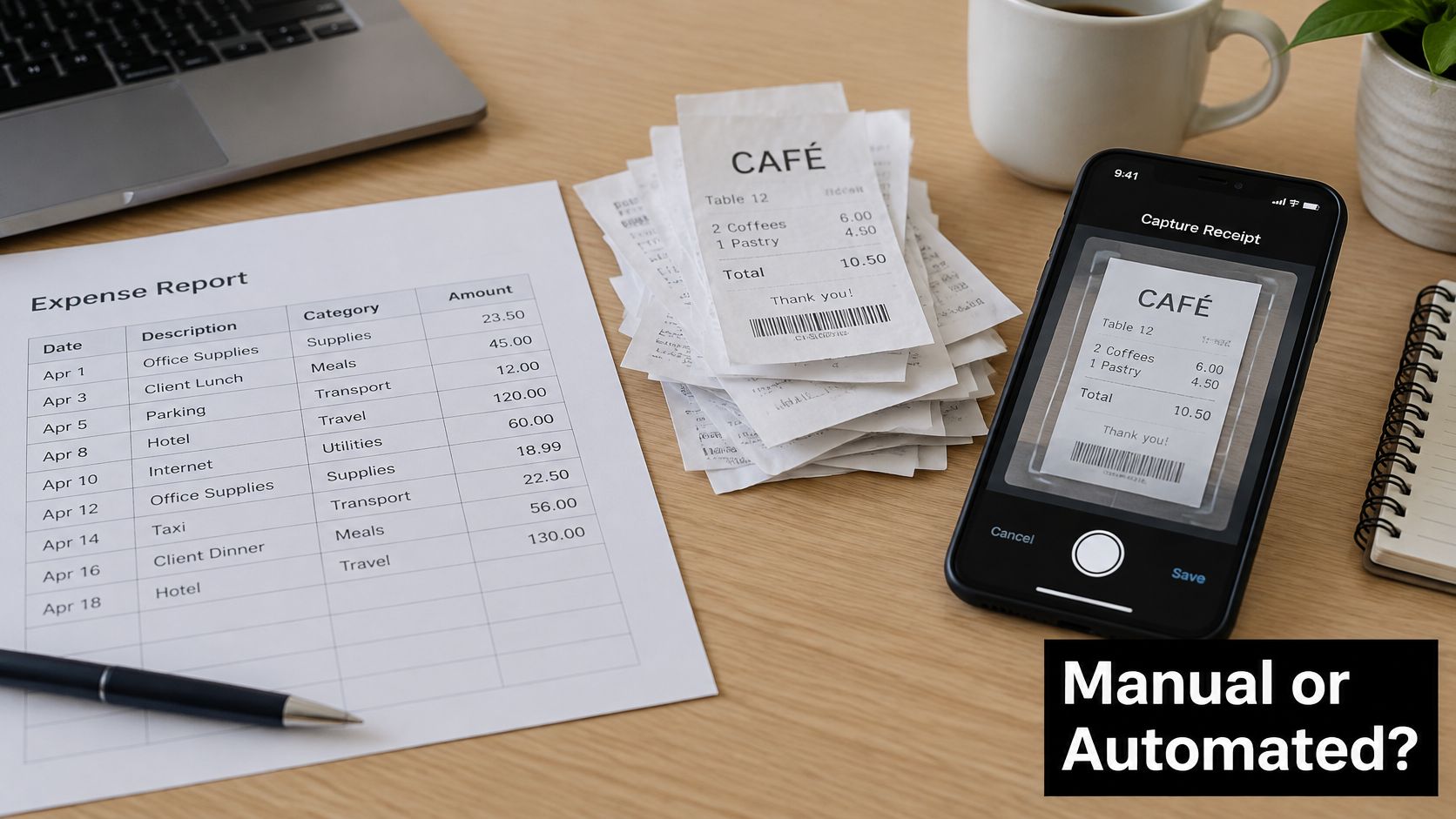
Compare the work each option leaves with you, rather than treating extraction as completed reconciliation.
| Criterion | Manual spreadsheet | Automated capture |
|---|---|---|
| Setup time | Build columns, formulas and checks | Configure capture and accounting connections |
| Monthly cost | Your time, using existing spreadsheet software | A small monthly subscription fee |
| Keying effort | Every line entered by hand | Extracted, then reviewed |
| VAT field accuracy | Manual checks against the receipt | Check extracted VAT against the original evidence |
| Handwritten or blurry receipts | Read and keyed manually | Review extraction against the original |
| Duplicate detection | Manual fingerprint check | Automatic flags if the tool supports them |
| Multi-currency | Manual conversion | Check whether currency capture also includes conversion |
| Audit trail | Maintain a change history | Check whether the tool records edits |
| Reviewer view | Exception list and linked receipt | Original image beside extracted data |
Where the Switching Threshold Sits
I wouldn't rush to buy software while receipt volumes are manageable, foreign-currency purchases are rare and mixed-use expenses are straightforward. A disciplined spreadsheet can handle that workload. The practical threshold is whether entering and locating documents leaves enough time to judge the rows properly.
Scattered receipts change that calculation. When documents sit across WhatsApp messages, inbox threads and camera rolls, collecting them becomes a separate job. Automated email receipt capture can bring emailed receipts into the capture workflow without retyping their details. For broader accounts payable processes, this guide explains how to replace manual invoice data entry. That addresses document entry, while reconciliation still requires checking the resulting records against payments.
Keep the template as your exception-management layer. Whether details arrive by hand or through software, each row should end as matched, matched with exception, or unmatched. Extracted figures alone do not establish that VAT is reclaimable.
Before choosing a tool, check:
- Full VAT field coverage: Confirm which VAT fields reach your ledger, including tax amounts. Check how VAT rates and business-use splits will be reviewed or recorded rather than assuming extraction handles every judgement.
- Side-by-side image review: The reviewer needs the original document beside the extracted figures to assess the evidence, not just a populated spreadsheet cell.
Snyp accepts receipts through WhatsApp, forwarded email or web upload, extracts their details and automatically assigns expense categories. Each receipt has a review page showing the original image alongside the extracted data. After review and confirmation, approved receipts sync to Xero or QuickBooks, where the data is categorised and formatted for reconciliation. That reduces manual entry while leaving the evidence and exception decisions available for review.
Build the Sheet and Reconcile One Month
Don't spend a whole weekend designing the perfect financial system. Set aside 30 minutes this week to put the three column blocks (Identity, Money, and Judgement) into a fresh spreadsheet, add the arithmetic and duplicate checks, and import last month's bank and card lines. Reconcile that single completed month from top to bottom so you can feel where your current paperwork breaks down.
Your First-Run Targets and Monthly Rhythm
Measure that first trial run against three concrete pass marks:
- Zero unallocated lines: Every single transaction on your bank and card statements appears in the sheet with a clear status.
- Reviewed exception log: Every Unmatched and Matched with exception row carries a named owner, a reason, and a target fix date.
- Exact closing balance tie-out: Your approved ledger total matches the bank statement closing balance to the exact penny, leaving a variance of £0.00.
Once that first month closes cleanly, lock in a repeatable routine. Put a recurring reminder on the same calendar day every month, maintain your long-term document storage archive so VAT and expense files stay accessible for inspection, and hand only the exception list (rather than a 200-row workbook) to whoever reviews or approves the books.
Knowing When to Drop Manual Keying
Pay close attention to what turns up in your exception log over two or three cycles. If missing documents, foreign-currency card charges, or mixed-use VAT splits keep clogging your review queue every single month, manual keying has outlived its usefulness.
At that point, moving to an automated pipeline saves hours without sacrificing control. Snyp's process follows four steps: snap or upload the receipt, let AI extract the details, review and confirm the data, and sync the approved records straight to Xero or QuickBooks. Your review stays focused on genuine judgement calls instead of typing supplier names by hand.
Take one concrete step before Friday: build the sheet, run last month's statements through it, and log every single exception you find. When the closing balance hits zero, scan the approved rows and ask yourself the only question that matters: could you defend every single one of them under an inspection?
If chasing scattered receipts across WhatsApp, email, and paper slips is turning your monthly reconciliation into a chore, we built Snyp to take the typing out of the job without taking away your control. Snap a photo, forward an email, or send a receipt via WhatsApp, review the extracted UK VAT and category fields side by side with the original image, and sync clean, reconciliation-ready data straight into Xero or QuickBooks. Try it on this month's receipts and spend your review time on genuine exceptions instead of manual data entry.