




How to Read Email Receipt Data Automatically and Save Hours
Digital receipts were meant to make life easier, but for many small businesses, they’ve just shifted the clutter from a physical desk to a digital inbox. If you’re tired of digging through emails to find expense data, this guide will show you how to set up a system that reads your receipt emails automatically, turning a tedious chore into a hands-off process.
Why Manual Receipt Processing Is Holding You Back
For freelancers and small business owners, the paperless dream often looks more like a chaotic inbox. Important receipts from suppliers like Amazon or travel confirmations from Uber can easily get buried under a mountain of other messages.
This admin headache isn't just an annoyance—it's a real, hidden cost. In the UK, an incredible 8.3 billion emails are sent every single day. If you're managing your own books in Xero or QuickBooks, you’re likely sifting through around 95 emails daily, many containing vital expense details. You can find more on UK email habits here.
Manually opening each email, pulling out the key information, and typing it into your accounts is slow and full of opportunities for mistakes. This gets even trickier when you’re trying to stay on top of UK VAT compliance.
The real cost of manual entry isn't just the hours you lose; it's the focus you divert from growing your business. Every minute spent on administrative tasks is a minute not spent on what truly matters.
Switching to an automated tool like Snyp completely changes the game. Instead of hunting for receipts, you can set up a system to read email receipt data for you. This simple change saves hours, guarantees accuracy, and keeps your financial records perfectly up-to-date without you lifting a finger.
Getting Your Automated Email Forwarding Workflow Up and Running
Setting up a system that automatically handles your receipt emails is surprisingly quick. The whole idea is to create a simple, hands-off workflow that catches every important receipt and pings it straight over to Snyp for processing. Think of it as a 'set it and forget it' solution that just works in the background.
The heart of this setup is a forwarding rule you'll create in your email client, whether that’s Gmail or Outlook. Instead of you having to hunt down each receipt and forward it manually, you’ll teach your inbox to spot them and do the job for you. It's a lifesaver for making sure no expense gets missed, even when you're swamped.
Finding Your Unique Snyp Address
First things first, you need to know where to send your receipts. Head into your Snyp account, and you'll find a unique email address made just for you. This is your personal digital postbox for everything expense-related.
Make sure you copy this address perfectly—a single typo will break the whole system. This address is the final destination for all the receipts your new rule is about to catch.
Crafting a Smart Forwarding Rule
Alright, let's build the rule itself. In Gmail or Outlook, you’re going to create a new filter. The real power here comes from being smart with your criteria. You don't want to forward your entire inbox, just the emails that are actually receipts.
A brilliant place to start is by filtering based on the subject line. Most companies use fairly standard language for their digital receipts.
Here are a few effective filter conditions you can mix and match:
- Subject contains: "receipt", "order confirmation", "invoice", "booking confirmation"
- From address: You can target frequent suppliers directly, like
receipts@amazon.co.ukornoreply@uber.com. - Has the words: Look for phrases commonly found in the body of the email, such as "Thank you for your order" or "Your payment was successful".
This is how the system starts to intelligently read email receipt content without you having to lift a finger.
Pro Tip: I usually recommend starting with broad keywords like "receipt" and "invoice." Watch what gets forwarded for the first week. You can then fine-tune the rule by adding specific sender addresses or even negative keywords (like "-newsletter") to make it incredibly accurate.
Below is an example of what this setup achieves, essentially turning your inbox into an automated data entry assistant.
This gives you a clear picture of the end-to-end process, from an email being forwarded to the structured data popping up in your account, ready for your books. You can learn more about the specifics of our Gmail integration and see how it really simplifies this whole process.
Once you’ve set your rule live, send a quick test email that matches the criteria. You should see it appear in your Snyp dashboard within moments, which is the green light that your new automated workflow is good to go.
Tips and Tricks for Flawless Receipt Capture
You’ve set up your forwarding rules, which is a massive time-saver. But to get the most out of Snyp, the quality of the receipts you send over really matters. Think of it like this: good data in, good data out. A few simple habits can make a huge difference, ensuring the AI has the best possible information to work with and cutting down the time you spend on manual checks.
The number one rule? Always forward the original email receipt. It can be tempting to just snap a screenshot and fire it off, but this actually loses a ton of valuable information. When you forward the original message, Snyp can see all the underlying code and hidden metadata, giving it crucial context that a flat image just doesn't have. This is how the system can read email receipt details with such high precision.
This workflow shows exactly how it all works behind the scenes—your email travels from your inbox, gets filtered, and then lands in Snyp for processing.
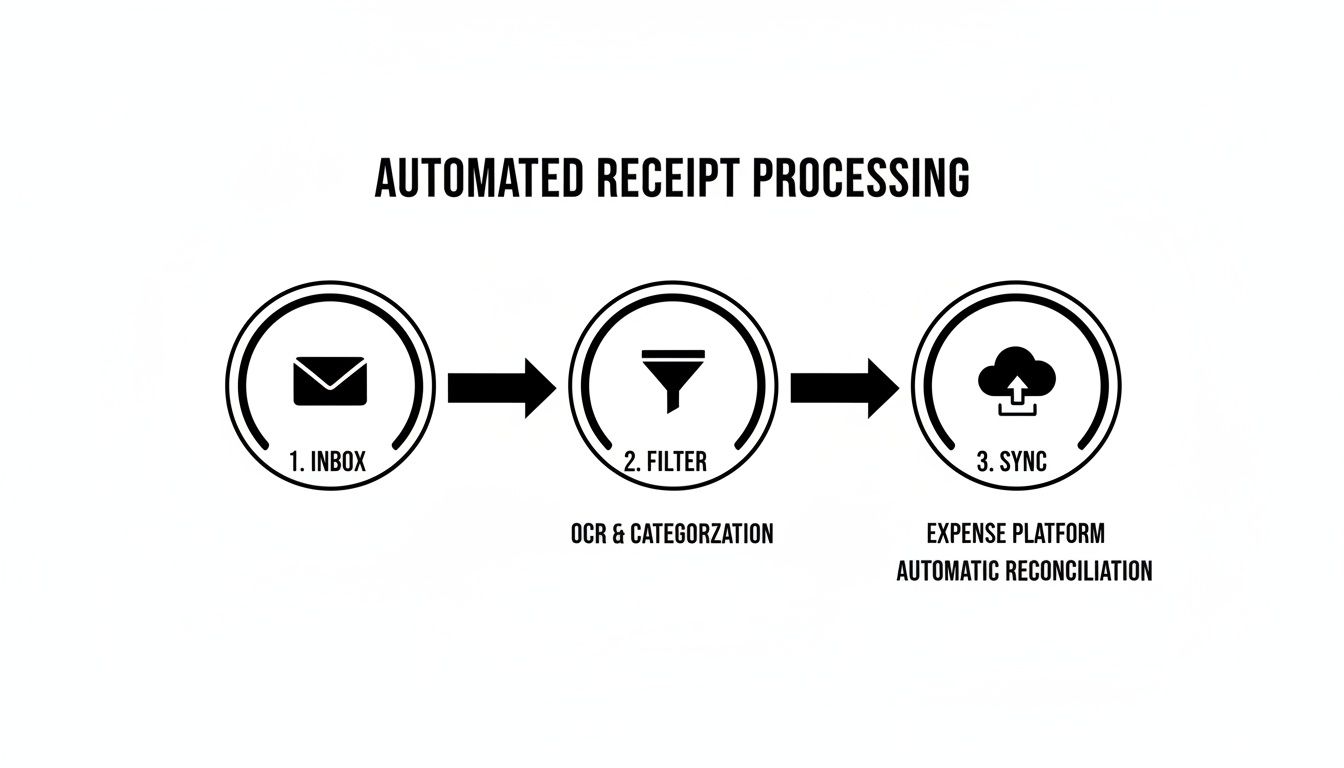
As you can see, that filter is the secret sauce. It makes sure only the important stuff gets to the automation engine.
Working With Different Receipt Formats
Let's be honest, not all digital receipts are the same. You'll get PDFs, receipts buried in the email body, and sometimes several at once.
Here’s a quick guide on how to handle each type for the best results:
- PDF Attachments: This is the gold standard. PDFs are structured documents, which makes them incredibly easy for AI to read accurately. If your receipt comes as a PDF attachment, your forwarding rule will handle it perfectly.
- Embedded Receipts: Think about those receipts from Amazon or Uber that are just part of the email's main text. For these, just forward the whole email. Snyp is built to scan the message and pull out the important details.
- Multiple Receipts in One Email: Got an email with several different receipts attached? No problem. Forward the entire email, and Snyp will intelligently process each valid attachment as a separate item. You don't need to split them up yourself.
To make this even easier, here’s a quick-reference table to ensure every receipt you forward is primed for success.
Email Receipt Forwarding Checklist
| Checklist Item | Why It Matters | Best Practice |
|---|---|---|
| Forward Original Email | Preserves hidden data and email structure, which boosts extraction accuracy. | Always use the "Forward" option in your email client. Avoid screenshots. |
| Keep It Clean | Unnecessary text, signatures, or long email chains can confuse the parser. | If possible, remove long conversational threads before forwarding. |
| Send High-Quality Files | Clear, legible documents are essential. Blurry or low-res files lead to errors. | Send PDFs whenever you can. They are almost always perfect for extraction. |
| One Receipt Per Forward (if possible) | While Snyp handles multiple, single forwards are simpler to track and verify. | If an email contains unrelated files, consider forwarding only the receipt. |
Sticking to these points helps create a seamless, reliable flow of financial data right into your account.
Ultimately, the goal is to feed the system clean, clear information. If you're curious about the tech that makes this all possible, you can learn more about how our AI extraction feature interprets all this data. By following these best practices, you’re setting yourself up for perfectly automated receipt capture every single time.
Connecting Your Receipts to Your Accounting Software
This is where all that setup really comes together. Once an email receipt has been forwarded and processed by Snyp, it pops up in your dashboard with all the critical data neatly organised. You'll see merchant names, dates, total amounts, and even VAT, all extracted and verified for you.
Think about it: you’ve just bought a new bit of software for the business and forwarded the confirmation email from your phone. In an instant, that transaction is no longer just another email clogging up your inbox. It’s now structured, categorised data, just waiting for the final nod.
This is what you'll see in your Snyp dashboard after the system has worked its magic on your forwarded email, showing just how smoothly it all connects.
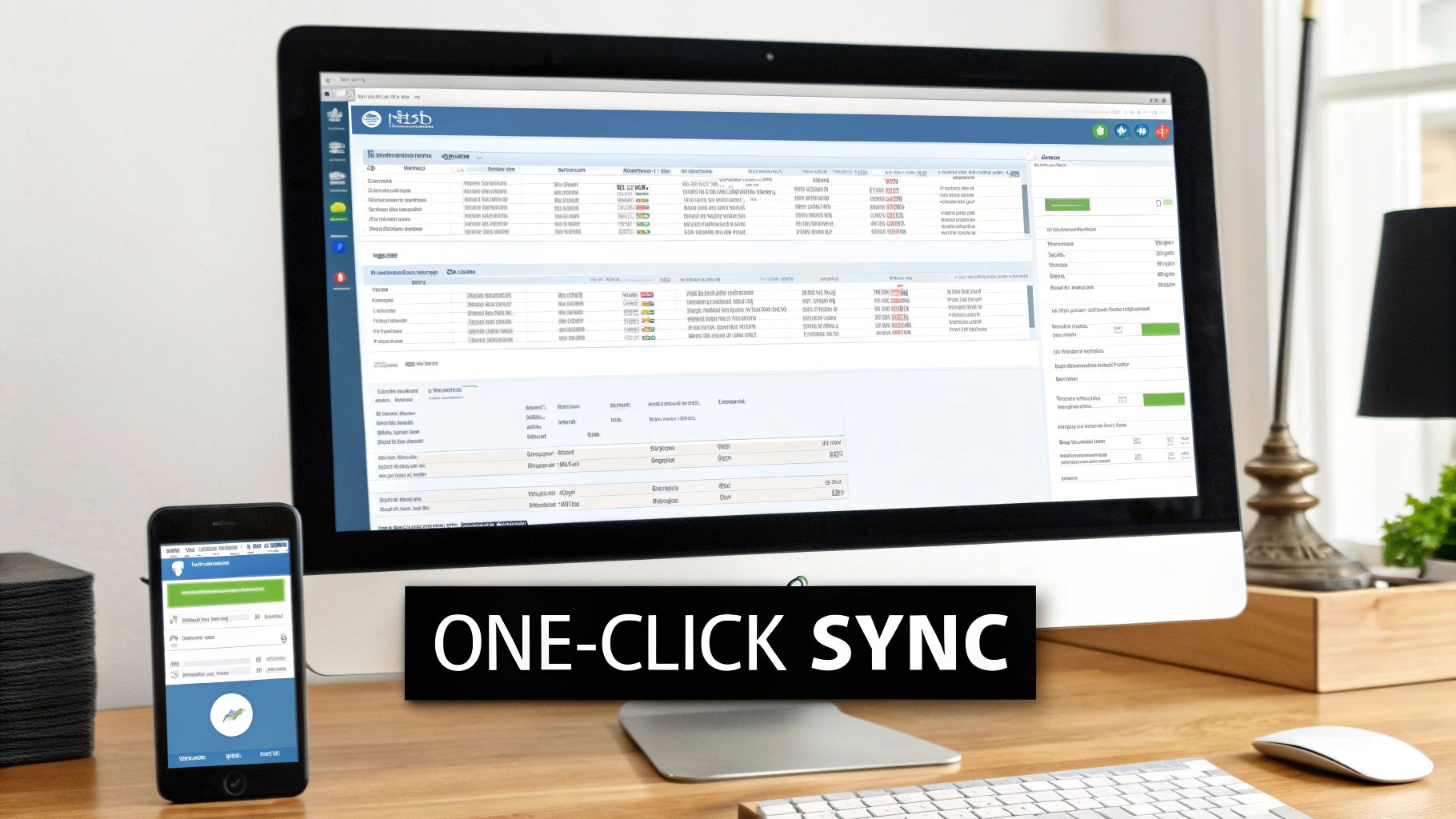
From here, things get even easier. The system has already done the heavy lifting to read email receipt information, so you don't have to.
One-Click Syncing to Your Books
With your accounting software already connected, sending this clean data over to your books is literally just a single click. Whether you're a Xero or QuickBooks user, the integration is designed to be completely frictionless. You can sync receipts one by one as they come in, or save them up and approve them in batches.
This direct connection does away with the risk of manual data entry errors. It's easy to forget that typos and mis-keyed numbers can really throw off your financials. By automating the sync, you’re guaranteeing that the figures in your accounting platform perfectly match the source receipt, every single time.
This final step is the most satisfying. It transforms a chaotic jumble of emails into an organised, audit-proof record in your accounts, ready for reconciliation without you having to type a thing. This is how you get your time back.
The real beauty here is the combination of simplicity and speed. You're not just clawing back a few minutes on data entry; you're building a reliable, hands-off system that keeps your financial records accurate and up-to-date, almost in real-time. If you’re keen on the details, you can learn more about our seamless Xero integration and see exactly how it works. This direct pipeline from your inbox to your accounts is the key to truly effortless bookkeeping.
Troubleshooting Common Email Forwarding Issues
Even the best-laid plans for automation can hit a snag. If you've forwarded a receipt but it hasn't popped up in your Snyp dashboard, don't panic. The solution is almost always straightforward and quick to fix.
From experience, the most frequent culprit is a simple typo. It's surprisingly easy to mistype one character in your unique Snyp address when setting up the rule. Head back into your Gmail or Outlook settings and give that forwarding address a careful once-over.
Another thing to check is whether the rule itself is still active. Sometimes a system update or a random settings change in your email client can pause or disable custom rules without you realising it.
Refining Your Forwarding Rules
Now, what about the opposite problem? Sometimes a forwarding filter can be a bit too eager, pulling in newsletters, marketing fluff, and other random messages along with your actual receipts. If your Snyp account is getting cluttered, it’s time to tighten up that rule.
The goal is to create a filter that is precise enough to catch every single expense, but smart enough to ignore the noise. This refinement is key to a truly hands-off system.
A great way to do this is by adding negative keywords. For instance, you could tell your filter to forward emails that include the word "receipt" but to exclude any that also contain "-promotion" or "-newsletter". This simple tweak teaches your inbox what to leave behind, ensuring you only read email receipt data that matters.
You can also get more specific by focusing on sender addresses. Think about your regular suppliers. Adding trusted sender emails like invoices@amazon.co.uk or receipts@uber.com directly to your rule is a powerful way to boost accuracy. This makes sure that only genuine financial documents land in your Snyp account, keeping your workflow clean and your data reliable.
Got Questions About Automating Your Receipts?
Setting up a new automated workflow always brings up a few questions. Let's walk through some of the most common ones we hear from users, so you can get started with confidence.
Can I forward receipts from different email addresses?
Absolutely. We know most business owners juggle multiple inboxes—maybe a personal one that gets the odd business expense, and a dedicated one for client work. You can easily add several approved sender email addresses in your Snyp account settings.
This way, it doesn't matter where a receipt lands. As long as you forward it from an approved address to your unique Snyp email, it'll get processed without a hitch. It’s all about making the system work for you, not the other way around.
What happens if I accidentally forward the same receipt twice?
This is a really common worry, but it's something you don't need to stress about. Snyp has a pretty clever duplicate detection feature built right in.
If you send through a receipt it has already seen, the system will recognise it and simply ignore the duplicate. This keeps your account tidy and, more importantly, stops double entries from messing up your books in Xero or QuickBooks. It saves you the headache of manually hunting down and deleting those duplicates later.
Snyp is designed to intelligently read email receipt data, identifying duplicates by looking at key details like the merchant, date, and total amount. Think of it as a reliable safety net for your bookkeeping.
How secure is forwarding my receipts?
We take security incredibly seriously. When you forward an email to Snyp, your data is protected by end-to-end encryption every step of the way—from the moment it leaves your inbox to when it’s fully processed.
Your financial information is handled with the same level of care you'd expect from your bank, ensuring your data stays private and secure at all times.
Stop chasing paper and start automating your expenses. With Snyp, you can turn your inbox into a powerful, hands-off bookkeeping tool. Try Snyp for free and see how much time you can save.