




Expense Tracker Excel: How to Build One That Works
You've got receipts in your van, invoices in your inbox and an Excel workbook that almost agrees with your bank statement. The category chart looks tidy, but you can't immediately explain which document supports each total.
A useful expense tracker in Excel solves that problem before it draws a chart. Build it around individual transactions, supporting documents and a repeatable review process. The result should let you trace a reported expense back to what you bought, why you bought it and how you paid.
Columns Every Expense Tracker Needs
Say a plumber buys £84 of pipe fittings for a customer's job. Months later, the useful record isn't a total under supplies. It's a transaction that identifies the supplier, job, payment and receipt without requiring the plumber to search through old messages.
Spreadsheets remain a practical choice for this work: the Administrative Burdens Advisory Board's 2026 survey of more than 10,000 small businesses and agents found that 22.6% used spreadsheets as their primary alternative to MTD-compatible accounting software, according to Zoho's guide to bridging software. Familiarity helps, but the workbook still needs a consistent structure.
Start with a transaction table
Copy these column names, in this order, into the first row of a blank sheet. The example entries together represent one hypothetical purchase, with net and VAT amounts assumed to match its receipt.
Expense tracker columns and what each one holds
| Column | Entry format | Why it matters | Example entry |
|---|---|---|---|
| Date incurred | DD/MM/YYYY | Supports monthly totals and period checks | 14/03/2026 |
| Supplier | Same spelling every time | Keeps totals and duplicate checks accurate | Screwfix |
| Description | Short free text | Explains the business purpose for a reviewer | Pipe fittings for Hill Road job |
| Category | Drop-down list | Feeds category totals and tax-return mapping | Office Supplies |
| Net amount | Number with two decimals | Records the amount before VAT | 70.00 |
| VAT amount | Number with two decimals | Records the VAT shown by the evidence | 14.00 |
| Gross total | Formula combining net and VAT | Matches the bank or card statement | 84.00 |
| Payment method | Drop-down list | Identifies the paying account and owner-paid costs | Business debit card |
| Receipt reference | Filename or document link | Connects the transaction to its evidence | TX0001-Screwfix.pdf |
| Transaction ID | Unique number | Keeps the transaction traceable | 0001 |
The example deliberately shows a category that needs judgement. Office Supplies isn't a sensible final classification for pipe fittings used on a customer's job. Add Materials to your controlled list rather than forcing purchases into the nearest available option.
Useful starting categories include Travel, Fuel and Vehicle, Software, Office Supplies, Meals and Entertainment, Insurance, Phone and Internet, and Professional Fees. Use this guide to UK expense categories to refine the list, but don't assume that assigning a category makes the whole purchase tax-deductible.
Practical rule: A reviewer should understand the business purpose from the row and open the supporting document without asking you what happened.
Keep transaction IDs fixed. Don't generate them from the current row number, because sorting or deleting rows can change a reference that already appears on a saved receipt. Keep the incurred date too, but don't assume it always determines the tax period: payment timing needs its own treatment.
Formulas That Total Expenses Automatically
Every summary should calculate from the transaction table. Don't type a monthly total into a dashboard and then maintain a separate list underneath it. You'll eventually update one without updating the other.
Select the transaction range, press Ctrl+T, confirm that it has headers and name the table Expenses. Excel Table references use column names and extend calculated columns as you add transactions, making formulas easier to inspect than long ranges of cell addresses.
Build the calculations in order
Use the following patterns. CategoryChoice, MonthStart, TaxYearStart and TaxYearEnd represent named input cells on your Summary sheet.
Core formulas for an expense tracker workbook
| Calculation | Formula pattern |
|---|---|
| Gross total per row | =[@[Net amount]]+[@[VAT amount]] |
| VAT at an illustrative 20% rate | =ROUND([@[Net amount]]*20%,2) |
| Monthly category total | =SUMIFS(Expenses[Gross total],Expenses[Category],CategoryChoice,Expenses[Date incurred],">="&MonthStart,Expenses[Date incurred],"<"&EDATE(MonthStart,1)) |
| Tax-year total | =SUMIFS(Expenses[Gross total],Expenses[Payment date],">="&TaxYearStart,Expenses[Payment date],"<"&TaxYearEnd+1) |
| Possible duplicate flag | =COUNTIFS(Expenses[Supplier],[@Supplier],Expenses[Date incurred],[@[Date incurred]],Expenses[Gross total],[@[Gross total]],Expenses[Receipt reference],[@[Receipt reference]])>1 |
The VAT percentage above is a worked calculation assumption, not a rule to apply to every purchase. Enter the VAT supported by the invoice. If you add a VAT rate column for checking calculations, use =ROUND([@[Net amount]]*[@[VAT rate]],2) rather than embedding a rate throughout the workbook.
For a hypothetical monthly test, set CategoryChoice to Travel and MonthStart to a genuine March start date. If the table contains eight matching Travel transactions, the monthly formula should include those and exclude a February fuel receipt on both date and category grounds.
The tax-year formula uses Payment date, an additional column needed for the cash-basis workflow described below. Set the boundary cells to the applicable tax-year dates rather than relying on calendar-year totals. For traditional accounting, the reporting basis needs different consideration.
Treat a duplicate flag as a review request, not permission to delete a row. Identical purchases can be genuine.
Gross spending totals help with reconciliation, but they aren't automatically allowable-expense totals. Recoverable VAT, private use and accounting adjustments require separate treatment. Protect calculated columns once you've tested them, because typing over a single formula can leave a plausible but incomplete summary.
How to Set Up the Workbook Step by Step
Build the workbook before entering your live expenses. Retrofitting controls into a partly completed file usually means correcting inconsistent names, replacing text dates and working out which totals someone typed manually.
Keep the first version deliberately modest. Transactions, Lists and Summary provide the working core; add Reconciliation and Exceptions for the monthly review, and a separate Mileage sheet if you drive for business.
Build and constrain the inputs
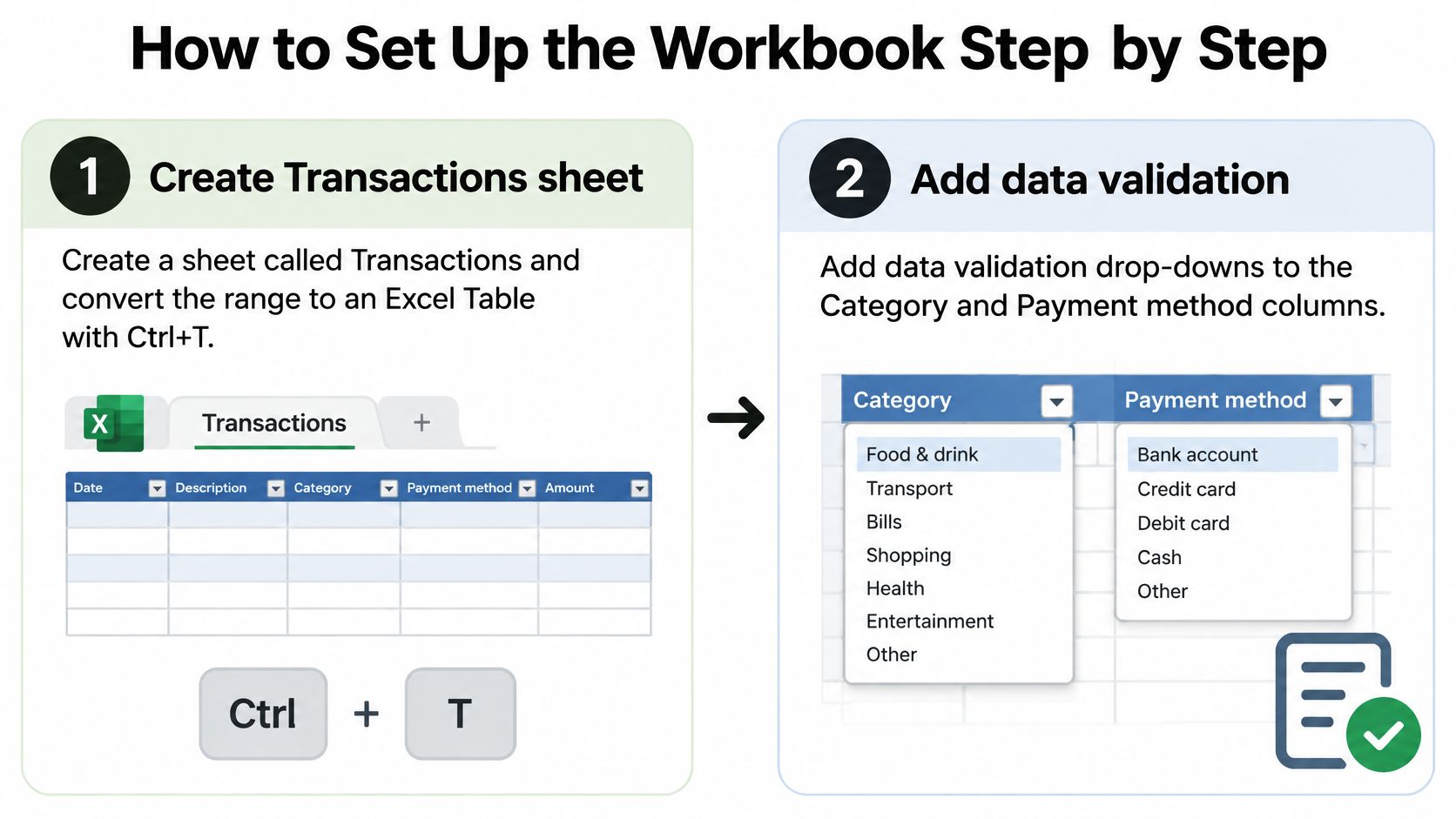
Create Transactions and its Excel Table. Enter the headers, convert the range with Ctrl+T and give the table its
Expensesname. Keep all months in this table rather than creating separate monthly transaction sheets, which make annual reporting and duplicate searches harder.Create your controlled lists. On Lists, enter the permitted categories and payment methods, then use Data > Data Validation > List for the relevant input columns. Include separate options for each business bank or card account and for owner-paid purchases, so reconciliation doesn't combine unrelated payment sources.
Validate dates and amounts. Apply Date validation with a sensible permitted period, choose the Stop error alert and format accepted dates as DD/MM/YYYY. Add numeric validation to amount columns and test pasted entries too, because validation isn't a substitute for checking imported data.
Build the Summary sheet. Put categories down the side and actual month-start dates across the top, formatted as month labels. Use SUMIFS formulas that refer to those labels and dates, rather than editing a separate formula for every cell.
Make evidence and testing part of the build
Highlight missing receipt references. Apply conditional formatting to the transaction rows using a rule such as
=AND($J2<>"",$I2=""), assuming your original headers occupy columns A to J. This highlights an entered transaction without a receipt reference, rather than colouring every unused row.Protect the working sheet. Make input cells editable, leave calculated cells locked, and then enable Review > Protect Sheet, storing the password separately. Test filtering and adding rows after protection, because settings that prevent normal use encourage people to remove the protection entirely.
Create a stable Receipts folder. Name each document with its transaction ID followed by a readable supplier description. Store it in a backed-up location that authorised reviewers can access, not a temporary phone folder or a personal download directory.
Test before going live. Enter ten hypothetical transactions covering different categories, a refund, an owner-paid purchase and a deliberate duplicate. Calculate the expected totals independently and check that the Summary agrees, the duplicate is flagged and missing evidence is visible.
Data validation stops inconsistent entries such as Travel and Travelling, but it won't stop someone selecting Software for an insurance premium. Likewise, a populated receipt reference doesn't prove that the file opens or supports the amount recorded.
The setup passes only when the Summary equals your independent hand calculation, the controls identify your deliberate errors and another authorised person can retrieve the test documents. Remove the sample transactions before recording real activity, while keeping a separate test copy for future formula changes.
Monthly Checks That Catch Duplicates and Gaps
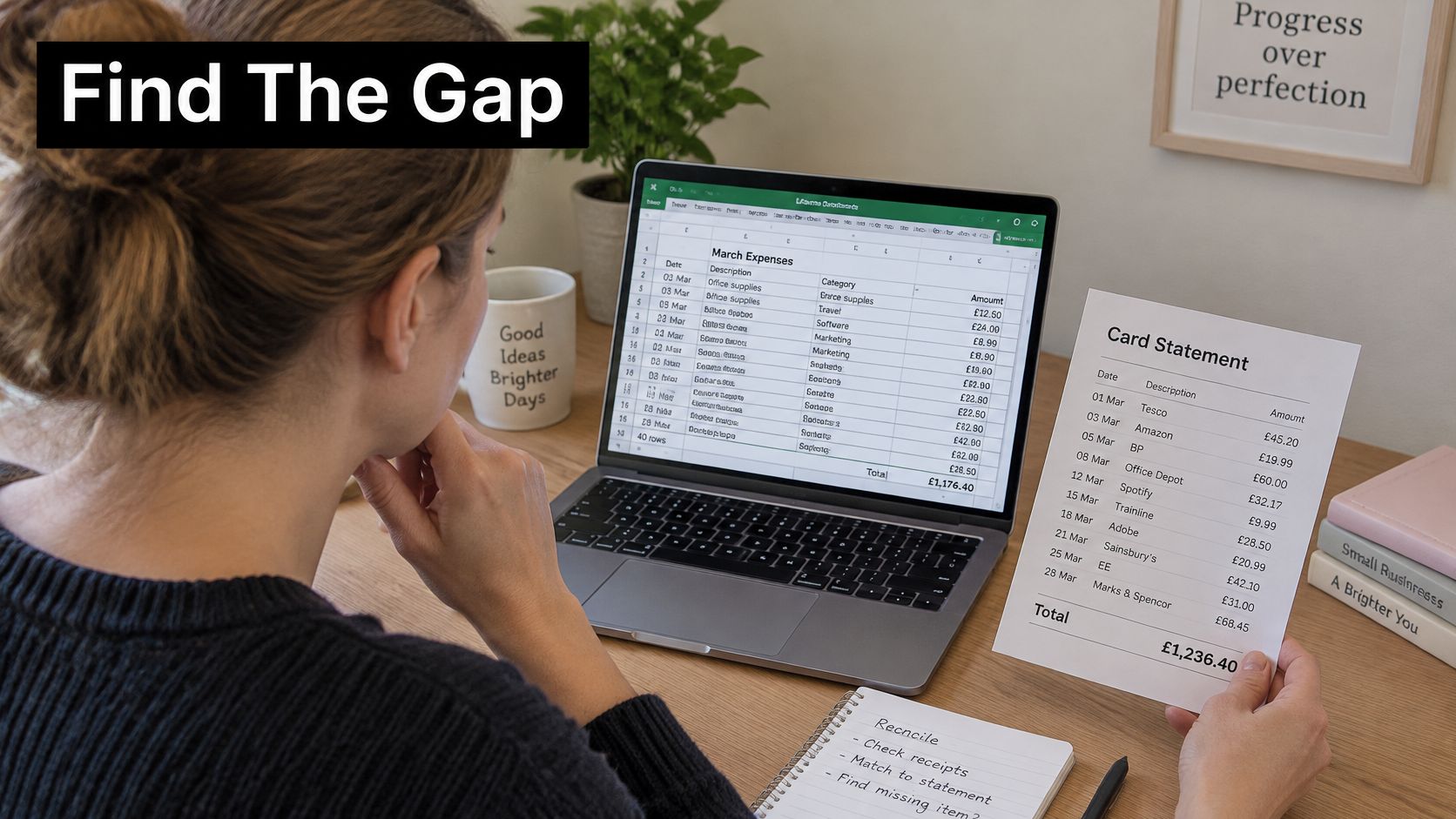
Suppose a sole trader has forty March transactions. In this hypothetical example, the relevant card-statement spending totals £1,236.40, while the workbook shows £1,176.40. The £60 difference turns out to be a purchase that never reached the transaction table.
A dashboard won't identify that omission unless someone compares the underlying records. Start the review with the statement and transaction rows, not the category chart.
Reconcile the records before reviewing the return
For VAT-registered businesses, HMRC's VAT record-keeping guidance requires digital records to be retained for at least six years, recognises linked spreadsheet cells as digital links and doesn't permit manual copying and pasting as the link between systems. A workbook can form part of a compliant process, but it isn't submission software by itself.
Use a consistent review sequence:
- Check input integrity. Filter for missing dates, text amounts, unexpected negative values and categories outside the approved list. Inspect calculated columns for hard-coded replacements.
- Investigate duplicate flags. Compare supplier, date, amount and receipt reference, then open the documents. Check near-matches too, because a differently named attachment can hide a duplicate.
- Match each payment source separately. Reconcile business-card purchases to that card and bank payments to that bank account. Identify personal spending, transfers and card repayments explicitly rather than treating every statement debit as an expense.
- Review VAT-coded transactions independently. Check the evidence, business purpose and treatment instead of accepting whatever formula produced a VAT amount.
- Resolve exceptions before closing. Record the issue, transaction ID, responsible person and action on Exceptions. Keep missing documents and unusual VAT treatment visible until someone resolves them.
In the example, line-by-line matching exposes the absent purchase. Add the transaction using its evidence and mark the reconciliation item as resolved. Don't type £60 into the Summary to force agreement.
Preserve the closed record
The usual failures are overwritten formulas, duplicate entries, missing VAT evidence and manual summary adjustments. Each requires a correction to the underlying record or documented treatment, not a cosmetic change to a total.
Keep invoices and receipts available alongside their references. Where evidence is missing, don't invent a VAT split or assume a bank entry alone establishes what VAT can be reclaimed.
Close the period only when the workbook and statement agree, with legitimate reconciling differences documented.
Save a dated audit copy and restrict editing of closed-period transactions. If a later correction is necessary, record what changed, why and who approved it rather than replacing historical values without notice.
Mileage, Owner-Paid Costs and Timing Rules
A tradesperson who puts fuel, mileage claims and van repairs into one category reaches year end with spending totals but no clear claim method. The fix is to separate the journey record from vehicle purchases and decide which treatment applies before calculating a deduction.
HMRC's guidance on creating digital records identifies amount, date and category as required expense information and says supporting records, including invoices and bank statements, must still be retained. A separate log can supply the detail that a generic transaction description can't.
Separate journeys from purchases
Your Mileage sheet should contain:
- Journey date and purpose. Identify when you travelled and the business reason.
- Origin and destination. Make the route understandable to someone reviewing it later.
- Business miles and vehicle. Record the distance and identify which vehicle you used.
Keep fuel and repair receipts in the transaction records, but don't automatically claim them alongside a mileage-based deduction. Use this practical guide to tracking business mileage to organise the journey evidence, then apply the chosen method consistently.
For owner-paid materials, enter the purchase once and select Owner-paid personal card as the payment method. Record any repayment to the owner separately as a reimbursement or owner-account movement, not another materials expense.
Use the date that matches your accounting method
HMRC's self-employed record-keeping guidance states that cash basis became the default from 2024–25, and that sole traders who don't prepare accounts must keep records for the 6 April to 5 April tax year. Add both Invoice date and Payment date where timing could otherwise be ambiguous.
| Situation | Practical cash-basis treatment |
|---|---|
| Supplier bill received but unpaid | Retain it as an outstanding bill, without including it in paid-expense totals |
| Bill received in March and paid in April | Use its actual payment date to determine the reporting period |
| Freelancer's customer pays late | Keep the unpaid invoice visible for credit control; record income when payment arrives |
| Subscription paid ahead | Record payment when made, subject to any applicable special treatment |
| Supplier refund | Enter a separate negative transaction dated when received and cross-reference the original purchase |
An April payment isn't automatically in a new tax year, so use exact dates. Don't overwrite the original expense when a refund arrives.
Check mixed-use purchases, prepayments with unusual terms and any move between cash and traditional accounting with an accountant. Retaining both dates makes the transition traceable, but formulas alone won't prevent omissions or double counting.
Decide When Your Spreadsheet Needs Replacing
Score the workbook against the work you completed this month, not its appearance. Use a simple manageable, needs attention or unreliable rating for each area:
- Transaction workload. Can you capture and review purchases without a growing backlog?
- Number of spenders. Does one person control entry, or do several people submit overlapping records?
- Reconciliation frequency. Are statements checked routinely, or only when a return is due?
- VAT evidence. Can you retrieve the document supporting each VAT-coded purchase?
- Receipt channels. Can you reliably collect documents arriving by phone, WhatsApp and email?
Keep Excel if one person can maintain a clean receipt trail and complete the review promptly. Consider replacing manual capture when missing evidence, repeated entry and unresolved differences become normal.
UK survey reporting found businesses lose an average of 53 minutes per working day on financial administration, according to IT Brief's report on SME finance administration. That's a reason to measure your workload, not a promise that switching tools will recover the same time.
Choose a workflow, not another dashboard
For personal budgeting, HearSmart's evidence-checked guide to free money apps provides a separate comparison. For business records, assess the best expense tracker options against evidence capture, review and accounting integration.
Snyp is one option when capture is the bottleneck. Users upload receipts on the web, forward them by email or send them through WhatsApp; our AI extracts the details and assigns a category from the user's chart of accounts, the user reviews and confirms them, and approved data syncs to Xero or QuickBooks.
This week, complete the checklist and write down your decision: keep and tighten the workbook, or replace manual capture. Give the decision an owner and a review date.
Snyp turns receipts from uploads, email and WhatsApp into structured expense records for review and approval before syncing them to Xero or QuickBooks. If manual entry is making your Excel evidence trail difficult to maintain, visit Snyp and assess the capture workflow using the receipts you already handle.