




Auto Forwarding Emails Setup and Receipt Pipelines
A freelancer notices the problem when an accountant asks for a supplier receipt that should be easy to find. It's somewhere in a personal Gmail inbox, mixed with travel confirmations, newsletters, client messages, and old attachments. At first, forwarding each receipt manually seems manageable. By the time the bookkeeping deadline arrives, it has become another unpaid administrative task.
Auto forwarding emails can move receipt messages from the inbox where they arrive to a dedicated bookkeeping address or capture service. The useful setup isn't “forward everything and forget it”. It's a controlled route that identifies relevant suppliers, preserves the original message, limits external exposure, and gives someone a way to review failures.
That distinction matters in the UK. A 2004 Cambridge study found that about 3.5% of incoming email at the ISP examined was auto-forwarded, and 66.0% of that auto-forwarded mail was spam that wasn't accepted. The research covered messages forwarded to 7,943 addresses used by 5,427 customers, showing that forwarding had already created material filtering and security issues before modern cloud email became standard (Cambridge University study of email forwarding).
Why Auto Forwarding Emails Matters for Small UK Businesses
A receipt from Amazon Business, Trainline, or a regular supplier usually lands in the mailbox that was convenient when the account was created. That might be a personal Gmail account, an Outlook.com address, or a shared business inbox that isn't connected to the bookkeeping workflow. Without a rule, the owner has to download the attachment, rename it, upload it, and remember whether the expense has already been recorded.
A better arrangement sends matching messages to a dedicated receipts address. That address might belong to a bookkeeping platform, a document store, or a receipt-capture tool such as Snyp. The forwarding rule becomes the handoff point between the supplier's email and the accounting process.
Start with the record, not the rule
Before opening Gmail or Outlook, decide what the destination needs to retain. A useful receipt workflow keeps the original email, its headers, the attachment, and enough context to identify the sender and transaction. A PDF without its original message may still be readable, but it gives the reviewer less evidence about where the document came from and whether the file was altered or detached from its delivery context.
HMRC record-keeping obligations should shape that decision. GOV.UK guidance says businesses generally need to keep records for at least six years from the end of the last company financial year for the relevant records (HMRC record-keeping guidance). The exact obligation depends on the business and record type, so confirm the applicable position with your accountant rather than treating an email rule as a retention policy.
Use forwarding as a control point
The practical sequence is simple:
- Identify the source inbox: Confirm where supplier receipts arrive.
- Create a controlled destination: Use a dedicated address that can be revoked without disturbing ordinary correspondence.
- Filter the traffic: Forward only likely receipts, invoices, order confirmations, or travel documents.
- Preserve the original: Keep a searchable copy until the downstream process and retention policy are clear.
- Review exceptions: Treat missing VAT details, authentication failures, and duplicate documents as review items.
This guide is for UK sole traders, freelancers, small firms, and bookkeepers who need the convenience of forwarding without turning a mailbox into an uncontrolled data mirror. The setup instructions cover Gmail and Outlook, while the later sections focus on the part generic tutorials often miss, governing forwarded receipts once they enter an accounting pipeline.
Setting Up Auto Forwarding in Gmail
Gmail's forwarding control is on the desktop web interface. Sign in, select the gear icon, choose See all settings, then open Forwarding and POP/IMAP. Select Create a forwarding address, enter the destination, and let Gmail send its verification message.
Open the destination mailbox and use the verification link or confirmation code. Return to Gmail's forwarding settings, select Forward a copy of incoming mail to, and choose what happens to Gmail's original copy. For receipt capture, keeping the copy in the Inbox or archiving it is usually safer than deleting it immediately, because you may need to compare the original with the downstream record.
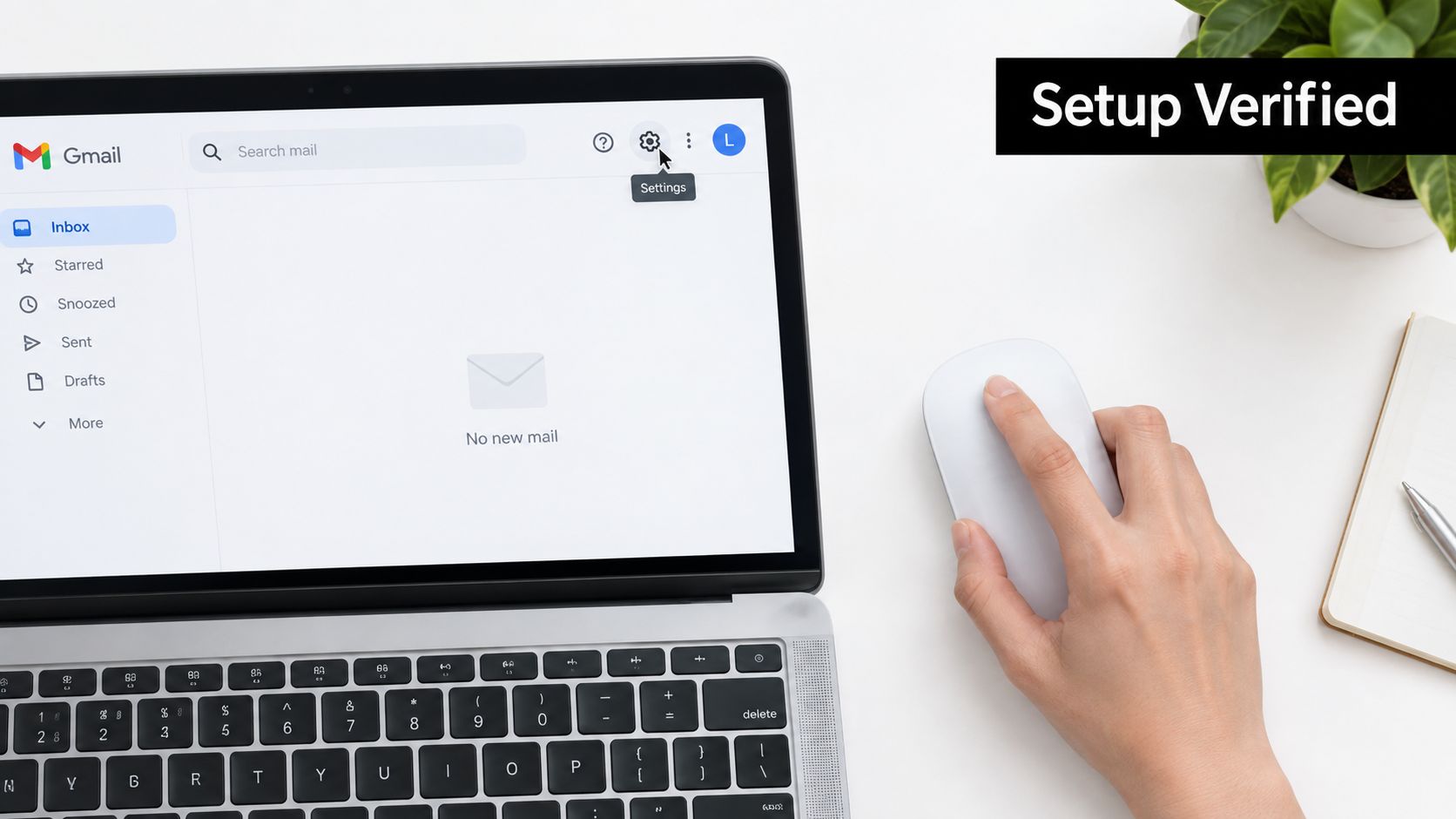
The POP/IMAP wording causes unnecessary confusion. Those settings control how another mail application downloads or synchronises messages. They aren't the same as Gmail's automatic forwarding function. If you want new supplier messages sent to another address, use the Forwarding settings or a Gmail filter.
Forward only the mail that matters
For a receipts-only workflow, go to Settings, See all settings, then Filters and Blocked Addresses, and choose Create a new filter. Use a supplier's address in the From field, or add a phrase such as receipt or invoice in the subject field. Select Create filter, tick Forward it to, choose the verified destination, and save.
A narrow filter is easier to investigate than a blanket rule. Start with known suppliers, then add rules when a real receipt is missed. Avoid filtering only on a generic word if that would also capture unrelated conversations, payment warnings, or personal correspondence.
You can find a fuller walkthrough of the interface in this Gmail email forwarding setup guide.
Workspace administrators can change the result. Google Workspace includes an administrator control for external forwarding, and an organisation may disable it. In that case, a user can create what looks like a valid rule, but Gmail won't deliver messages to the external destination. Ask the administrator to confirm the policy before troubleshooting filters.
The Gmail app doesn't expose the complete forwarding setup. Use the desktop web view for the initial configuration, verification, and later rule checks.
This short demonstration gives a visual reference for the settings path. Check the labels in your own account because Workspace policies can alter what appears.
Setting Up Auto Forwarding in Outlook and Microsoft 365
Outlook has two different experiences that matter for unattended receipt capture. A rule created in Outlook on the web or Microsoft 365 Exchange Online can run against the mailbox even when the desktop application is closed. A rule that depends on the classic Outlook client may require the application to be open, depending on the conditions and actions used.
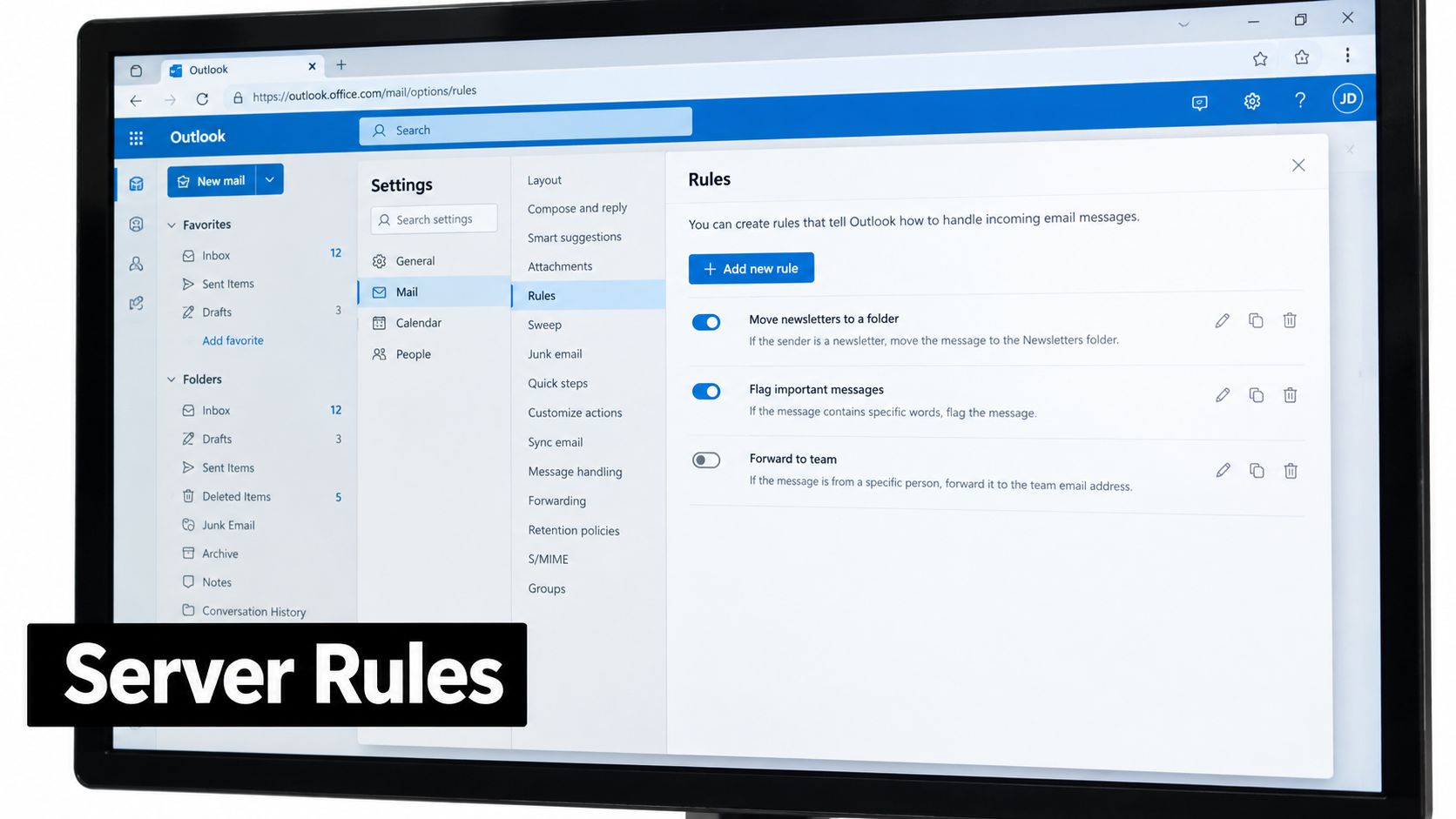
In Outlook on the web, select the gear icon, choose Mail, then Rules, and select Add new rule. Give the rule a clear name, such as “Supplier receipts to capture”. Set the condition under When a message arrives, choose whether it must match all conditions, and add a sender or subject criterion. Under the action, select Forward to, enter the destination address, and save. If the interface offers it, choose whether the rule should run on messages already in the folder.
Choose a rule that survives a closed laptop
In classic Outlook desktop, start from the Home ribbon, select Rules, then Create Rule. Choose a condition such as from people or public group, tick forward it to people or public group, specify the destination, and save the rule. Outlook may identify some rules as client-side, particularly when they rely on local folders or desktop-only actions.
For a small business that needs receipts captured while travelling, a server-side rule is the safer design. Test it by sending a genuine message while Outlook is closed, then confirm that the destination receives the original content and attachment. Don't assume that a rule displayed in the desktop application is running in Exchange Online.
Microsoft 365 also offers Power Automate for richer conditions and actions. It can help when the workflow needs branching, approvals, or additional processing, but it adds another service to document and maintain. For a simple supplier filter, an Exchange rule is generally easier for a bookkeeper to inspect.
Microsoft's anti-spam and outbound forwarding policies can interfere with high-volume forwarding to external addresses. If legitimate messages are quarantined or blocked, an administrator may need to review the destination and policy in the Exchange admin centre. Don't weaken the entire tenant's protections just to solve a rule that could be narrowed to specific senders.
The Outlook auto-forwarding guide covers the provider-specific path and common rule differences.
Security and Compliance Controls You Should Mirror
UK public-sector guidance treats auto-forwarding as a security control, not merely an inbox convenience. GOV.UK's 2016 Google Apps for Work guidance instructed administrators to disable automatic forwarding, and later Ministry of Justice guidance says to disable forwarding to external domains. MOD policy also says an account shouldn't be subject to auto-forwarding when moving Official-Sensitive information (GOV.UK email security guidance).
A small firm doesn't need to copy every control used by a government department. It should copy the reasoning. External forwarding creates a second destination, and a compromised mailbox could use a hidden rule to copy password resets, invoices, customer information, or financial documents.
The controls worth adopting
Use multi-factor authentication on the source mailbox, restrict who can create external rules, and keep the destination purpose-specific. On the receiving side, check authentication results rather than assuming that a forwarded message has passed the same checks as the supplier's original delivery.
The NCSC recommends TLS for sending and receiving email. UK government guidance also identifies SPF, DKIM, and DMARC, along with registration for NCSC Mail Check, as core measures for email authentication and security alerts (NCSC email security and anti-spoofing guidance). Forwarding can complicate authentication, so retain the original headers and investigate failures before relying on an automated categorisation.
Disable automatic image loading for forwarded HTML mail where your provider allows it. Remote images can reveal when a message is opened and may add unnecessary tracking to a finance mailbox. For a sole trader, that setting, MFA, a narrow filter, destination verification, and periodic review provide a sensible baseline.
| Control | Source | Worth it for small firm? | Where to set it |
|---|---|---|---|
| MFA on source mailbox | NCSC account guidance | Yes | Google or Microsoft account security |
| Narrow, purpose-specific rules | UK public-sector forwarding controls | Yes | Gmail filters or Outlook rules |
| External forwarding restrictions | GOV.UK security guidance | Yes where available | Workspace or Exchange admin centre |
| TLS support | NCSC email guidance | Yes, provider-dependent | Mail provider and receiving service |
| SPF, DKIM, and DMARC checks | NCSC email guidance | Yes for business domains | Domain and mail security service |
| Central rule auditing | Public-sector governance practice | Useful as the firm grows | Admin console and written register |
| Enterprise image controls | Security hardening practice | Usually optional | Mail client or gateway |
For retention, decide how long the forwarded copy stays in the receiving mailbox before deletion. The accounting system may hold the processed document, but the original email can still be useful during a query. A practical email archiving checklist can help turn that decision into a documented process rather than an assumption.
Wiring Forwarded Receipts Into a Capture Pipeline
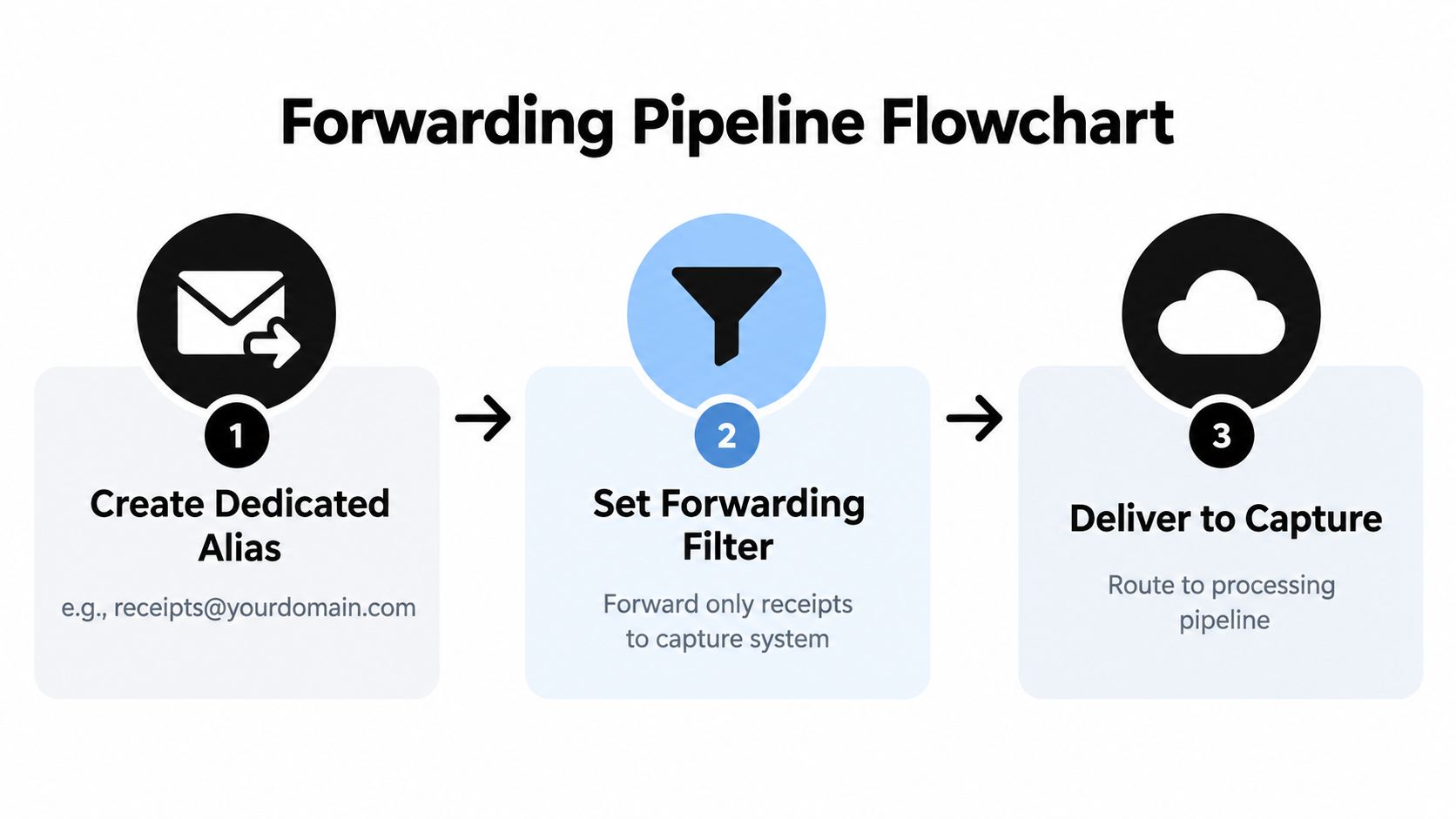
Start with an address you can disable cleanly. A dedicated alias such as receipts@yourdomain.com separates accounting intake from personal communication and gives you one place to change the destination if a provider, employee, or capture process changes.
Next, build the rule around the receipt signals you see. A supplier address such as no-reply@amazon.co.uk is more reliable than a broad keyword. Subject terms including Receipt, Invoice, Tax invoice, and Order confirmation can be useful, while attachment conditions for PDF, JPEG, or PNG files can catch documents whose subject lines vary.
Don't begin with a universal “forward every message” rule. That approach sends newsletters, conversations, personal data, and suspicious mail into the accounting workflow, making review harder and increasing the consequences of a compromised source mailbox.
Understand what arrives downstream
A proper capture endpoint should receive the original message structure, including the RFC822 message, its headers, and attachments. Those headers can show the delivery path, sender information, message identifiers, and authentication results. Preserve them where the downstream system supports it, especially when a receipt is later questioned.
Snyp can accept forwarded receipt emails and attachments for document processing, but treat the forwarding address as an intake endpoint, not as proof that every document is valid. A receipt-capture system can extract merchant, amount, date, tax, currency, and category from supported documents, while a person still needs to review ambiguous or incomplete records.
The same principle applies to other automated email workflows. If you're trying to streamline Google Form email responses, define which messages belong in the destination before creating a broad forwarding rule.
Set the handling choices before launch
Decide whether CC'd messages should also enter the pipeline, whether signatures should be ignored, and how duplicates will be handled. A supplier receipt and a bank notification may describe the same purchase, so matching on message identifiers, attachment fingerprints, merchant, date, and amount is more useful than just counting incoming emails.
Test with a real supplier message and one deliberately unusual example. Check that the attachment arrives, the original sender is visible, the rule doesn't create a forwarding loop, and a duplicate doesn't produce two accounting entries. The guide to reading email receipts is useful when you need to inspect what the capture system can extract from the message itself.
A Real-World Receipt Workflow Walkthrough
Priya is a freelance consultant who receives supplier messages in Gmail. She creates a dedicated receipts alias and filters messages from known software vendors and travel providers into her capture mailbox, while retaining the originals in Gmail for review.
Late in March, a software subscription invoice arrives. The rule forwards the complete message and attachment. The capture system identifies the merchant, transaction date, tax information, and likely expense category, then presents the item for Priya's review before it reaches the bookkeeping records.
The exception is where the control proves itself
Mid-month, an Amazon order confirmation arrives without a VAT number. The message is useful evidence of the purchase, but it doesn't contain enough information for Priya to treat the tax treatment as settled. Instead of allowing the rule to create a confident-looking category, she leaves it flagged for review and checks the supplier account or requests the appropriate document.
That decision matters more than a perfectly handled routine invoice. A pipeline should make uncertainty visible rather than convert incomplete data into a clean but unreliable entry.
At month-end, Priya's accountant exports the parsed entries and compares them with the forwarded originals still held in the capture mailbox. The review checks the sender, original headers, attachment, and document identity. Where a supplier message and a bank notification refer to one purchase, the duplicate is marked rather than posted twice.
The handover needs evidence
At year-end, Priya gives the accountant the processed entries and the documented exceptions. The accountant can trace a selected record back to the original forwarded message instead of asking Priya to search through an entire personal inbox.
The weak points were clear. The first successful test established the route, the missing VAT number triggered human review, duplicate detection prevented double handling, and retained originals supported the handover. Auto forwarding did the transport work, but governance made the workflow dependable.
Habits That Keep Your Forwarding Pipeline Audit-Ready
A forwarding rule isn't finished when the settings page says it is active. Providers change interfaces, administrators change policies, suppliers alter sender addresses, and a destination mailbox can develop its own delivery problem. A short recurring check catches those failures while the transactions are still familiar.
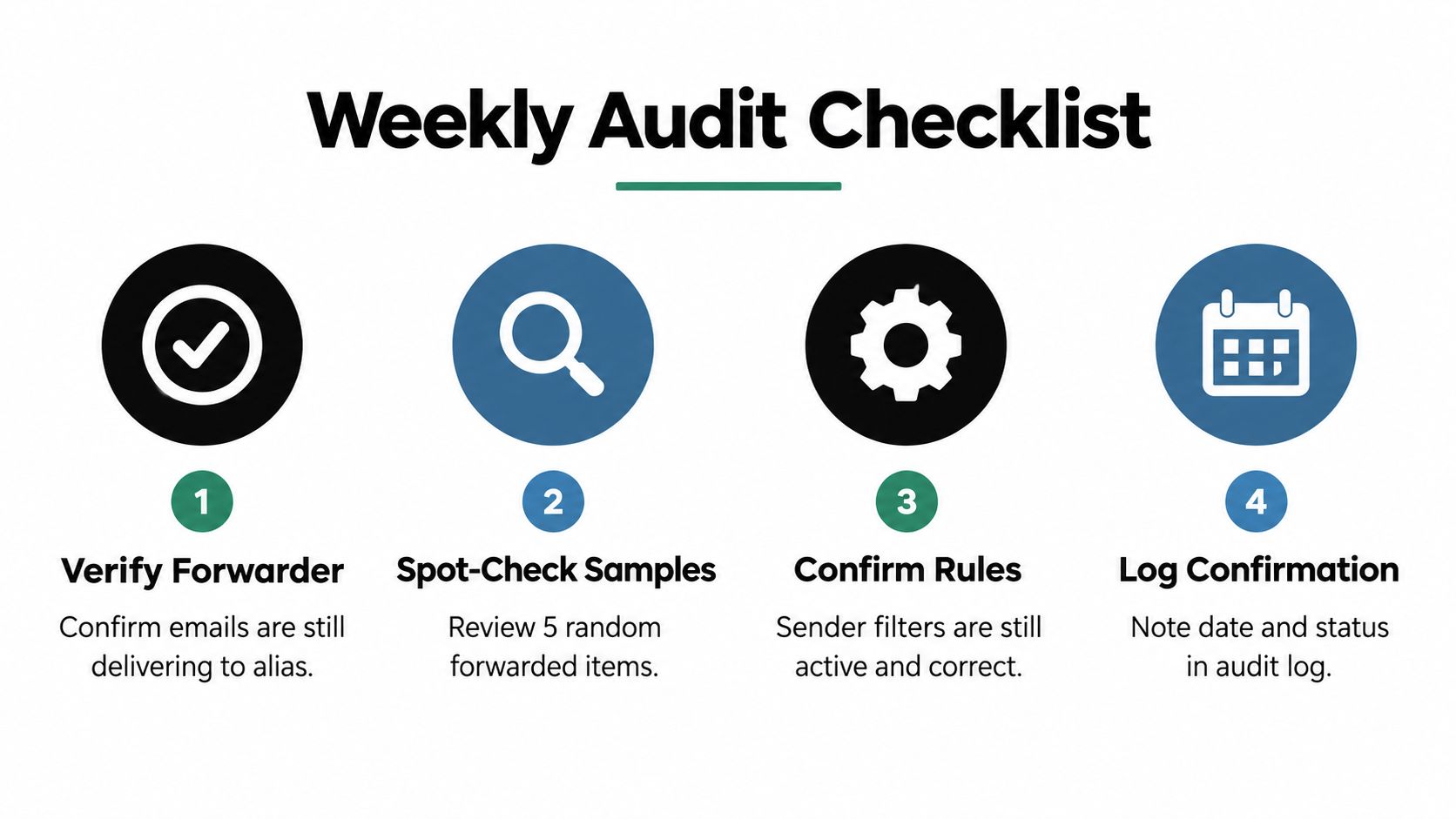
Use a weekly routine that takes only the attention the workflow deserves:
- Verify delivery: Send or identify a legitimate test message and confirm it reaches the receipt alias.
- Spot-check samples: Compare five random forwarded items with the source inbox, including one with an attachment.
- Confirm supplier rules: Check that sender addresses and subject conditions still match current suppliers.
- Review exceptions: Resolve missing tax details, authentication warnings, quarantined messages, and duplicates.
- Log the result: Record the date, person checking, rule changes, and any corrective action.
Give the bookkeeper a repeatable review
A one-page checklist should show the Gmail or Outlook forwarding status, capture mailbox health, duplicate activity, and changes since the previous review. Keep a small header sample each quarter if your retention process allows it, particularly for receipts that required manual judgement.
Tie the review to the bookkeeping calendar and the firm's Making Tax Digital preparation process. The exact submission and record requirements depend on the tax position, accounting period, and software arrangement, so the checklist should sit alongside the firm's existing accountant-approved timetable.
Practical rule: A forwarding pipeline is trustworthy only while someone opens it regularly.
An unchecked destination becomes a graveyard of PDFs. The problem usually surfaces during reconciliation or an HMRC enquiry, when the original context is hardest to recover. Monthly ownership, even when weekly checks are brief, keeps the route operational and makes exceptions part of normal bookkeeping rather than a year-end emergency.
Snyp lets you forward receipt emails and attachments into a dedicated capture workflow, where documents can be extracted, reviewed, and prepared for accounting reconciliation. Visit Snyp to see how a governed forwarding pipeline can reduce manual receipt handling without turning your mailbox into an uncontrolled archive.