




PDF Data Extraction: How It Works, OCR and Accuracy
You've got a shoebox problem, only now it's digital. Supplier invoices arrive as PDFs, receipts sit in your inbox, a photographed till slip is buried in your camera roll, and your accountant needs supplier, date, VAT and total in a spreadsheet or accounting system, not locked inside pages you have to retype.
That's what PDF data extraction does. It turns what's on the page into structured values you can check, sort and file. Done badly, it gives you a tidy looking spreadsheet with one wrong total in it. Done well, every value stays linked to the page it came from, so you can prove it months later. The difference isn't the tool you pick first. It's whether you check the file, validate the fields and keep the evidence.
Check the PDF Type Before You Extract
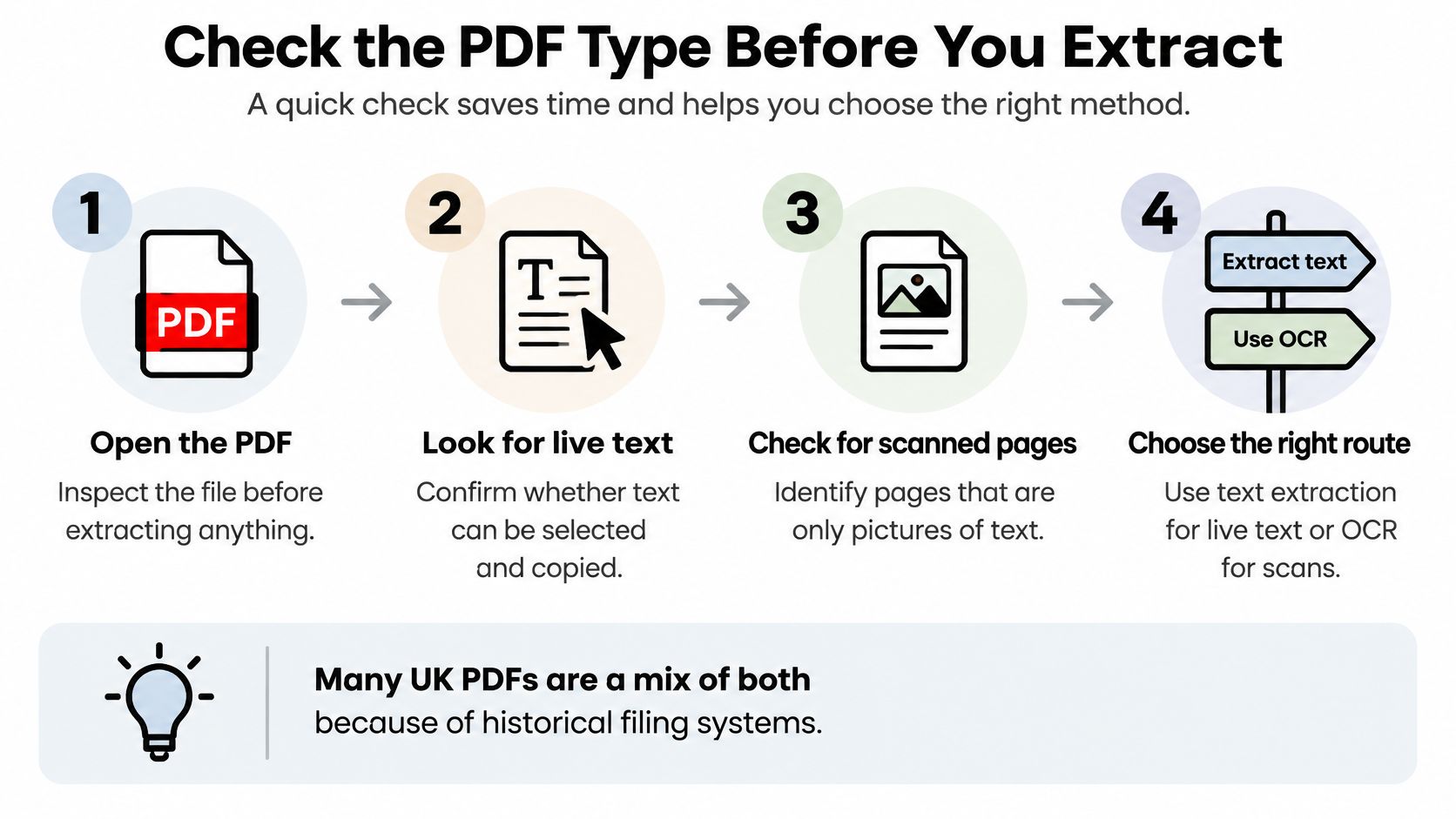
Every route depends on one question. Does the file contain real text your software can read, or only a picture of text? A PDF stores how a page should look, not necessarily clean data underneath it.
Six Quick Checks
- Try to select a word: Open the file and drag over a single word. If individual letters highlight, there's a text layer. If the whole page highlights as one block, it's probably an image.
- Search for a visible word: Use find for a word you can see, such as the supplier name. Zero results on a readable page means the file is image-only.
- Check document properties: Look at the producing software. Scanner output usually names the scanner, while an exported invoice names the accounting package or word processor that made it.
- Count pages and look for mixed files: A digital statement with a scanned signature sheet attached needs both routes. One page can behave differently from the next.
- Look for structure: Older PDFs and scans can lack marked-up headings, tags and reading order entirely, so don't assume the layout underneath matches what you see on screen.
- Route the file: Send text-layer pages to parsing, image-only pages to OCR, and mixed files through a split pipeline. Log the decision against the document.
A tagged file isn't the same as an extraction-ready file. Tags may expose headings and reading order, yet the supplier, date, total and VAT can still sit in inconsistent positions from one invoice to the next. Structure tells you the file was built carefully, not that its values will land where your extractor expects.
That logged routing decision is your first piece of evidence. It records why each page went to parsing or OCR, so when a figure is questioned months later you can trace it back to how the file was handled. For UK VAT and Making Tax Digital records, where you may need to show where a number came from, that traceability is the point of doing these checks at all.
You're ready to move on when every page behaves consistently, either text selects cleanly throughout or you've logged an image routing decision for the pages that don't.
Methods Compared at a Glance
Match the method to the PDF type, the layout pattern and the cost of a wrong field, not to the most advanced tool on offer.
| Method | Best for | Main strength | Main weakness |
|---|---|---|---|
| Text-layer parsing | Digitally generated PDFs with embedded text | Exact characters, fast, no OCR errors | Returns nothing from scans or image-only pages |
| Template or rule-based extraction | Repeating layouts such as one supplier's invoice | High precision on known layouts | Breaks when the layout changes |
| OCR plus rules | Scanned receipts and image-only pages | Works on any readable image | Misreads faint print and faded paper; needs validation |
| Layout-aware or AI models | Mixed and new layouts without templates | Handles unseen layouts | Can return a confident wrong value; needs validation |
| Manual entry | Very low volumes or high-risk documents | Human judgement on each field | Slow, costly per document and error-prone at volume |
Text-layer parsing reads characters already stored in the file, so the values it returns are exact. It gives you nothing from a scan, because there is no text to read. Template extraction suits one supplier who always sends the same invoice layout, and it breaks the moment that supplier redesigns it.
OCR plus rules handles photographed receipts and image-only pages, but faint print produces misreads that need checking field by field. If you're shortlisting tools, this guide to the best OCR software options is a useful starting point for comparing what each one does with scanned pages. Layout-aware models cope with layouts they have never seen, yet they can return a plausible, confident, wrong total. Comparing tools by how they fit your workflow rather than by headline features is the right frame for that choice, and this Exayard vs Bluebeam comparison shows what a workflow-first comparison looks like in practice.
Notice the pattern in the last column. Every method that reads images or infers layout shares the same weakness: it can produce a value that looks right and is wrong. That is why extraction is an evidence problem. A total of £1,082.40 and £1,082.46 are both plausible outputs, and only checking the value against its position on the page tells you which is real. For VAT records, that traceability from field to source is what makes the extracted number defensible.
Most real pipelines are hybrid. They parse the text layer where it exists, run OCR only on image pages, and send both through the same validation. Use the table in that order: decide the document type first, then your volume, then how much human review you can absorb per field that fails a check.
Preparing Scans and Running OCR Well
Think of OCR as a fast reader matching shapes of pixels against known letters. When a shape is unclear, it guesses. Your job is to give it fewer unclear shapes.
What Happens in Order
- Straighten the page: Correct skew so lines run level.
- Lift contrast: Make print stand out from the background.
- Separate text from background: Remove shading, logos and watermarks from the reading area.
- Find layout blocks: Identify columns, tables and totals boxes before reading words.
- Recognise characters: Match each shape to a letter or digit.
- Output words with confidence: Each word carries a confidence score showing how sure the engine is.
Capture settings decide how well those stages work. The UK National Archives best practice guide on extracting data recommends scanning at the highest realistic resolution, retaining colour when colour carries meaning, and using greyscale for black-and-white originals because it can facilitate optical character recognition.
In practice, keep colour where it means something, such as a red stamp, a highlighted total or a coloured logo that separates supplier details. Use greyscale for plain black print on white paper. Rescanning a poor original at a better setting usually beats trying to rescue it later.
A visually readable PDF can still contain no machine-readable text at all. If you can read it but search can't find it, OCR still has to render and read the image.
Three hard cases cause most failures. Small print and fine-line tables blur thin strokes and small numerals together, so a 3 and an 8 start to look alike. Faded thermal receipts lose contrast as the print fades with heat and time, and no setting fully restores what's gone. Photographed receipts add shadow, angle and blur before OCR starts, so a flat, well lit, straight-on photo matters as much as the software.
Run quality control during extraction, not only at the end. Validate page count and image resolution first, classify each page, preprocess only where it's needed, then check fields. Every recognised value should keep its provenance, so a weak result can be corrected without reprocessing the whole document.
Extracting Tables and Line Items
Invoices and statements hold their most valuable data in tables. A figure means nothing on its own. It only makes sense next to its column header, on the right row.
You'll meet three layouts. Ruled tables have visible lines, and layout tools can split them into cells reliably. Borderless tables rely on spacing alone, so column positions have to be set from the header words. Multi-page tables repeat the header on each page, or drop it after page one, so you need a rule that carries headers forward and doesn't treat a repeated header as a data row.
A Worked Example
Say a receipt lists three items, each with quantity, unit price and VAT rate. Each line total should equal quantity multiplied by unit price. If a row shifts by one column during extraction, a VAT rate can land on the wrong line, and every figure still looks plausible. The arithmetic check is what catches it.
If you're building this yourself, you can use Python for PDF table extraction to pull ruled and borderless tables into rows you can test. Whatever tool you use, store line items as individual rows linked to the source page and cell, not as one block of text. That way, each figure can be checked and corrected on its own.
Tables on scanned pages need OCR first, then the same row and column logic. Reconciling line items to the subtotal is the check that exposes column shifts and missed rows. When a table can't be split reliably, send the document to review. Don't guess the structure and hope the totals work out.
Measuring Field Accuracy and Validating Values
An OCR tool can report strong overall accuracy while misreading the one value that matters. That's the trap. A UK document-processing guidance source on OCR setup notes that even 99% character accuracy can leave roughly 20 incorrect characters on a page containing about 2,000 characters, enough to corrupt a total, a date or a reference number.
| Metric | What it measures | Worked example | Use it to |
|---|---|---|---|
| Character accuracy | Share of correct characters | 99% on a 2,000-character page leaves about 20 wrong characters | Judging general OCR text quality |
| Word accuracy | Share of correctly read words | One misread word can change a payment reference | Checking readable text blocks |
| Field accuracy | Correct value for each named field | A VAT amount that is wrong even when the rest of the page reads well | Deciding whether totals can be trusted |
| Exception rate | Share of documents sent to a person | Documents failing a check or a confidence threshold | Sizing the review workload |
| Traceability rate | Share of values linked to page and location | Each total tied to its source page and bounding box | Passing audits and internal reviews |
How to Measure Your Own Documents
- Build a labelled sample: Pull real documents covering each layout you process, including your worst scans.
- Mark the correct value: Record the true supplier, date, VAT, total and currency for each one.
- Compare field by field: Report totals and dates separately from supplier names, because they carry different risk.
Set verified accuracy targets for key index fields, and use visual quality control checks alongside them. For background on tightening results once you've measured them, this guide on how to improve data accuracy covers the practical fixes. Teams working on automating invoice data capture run into the same lesson early. Aggregate scores hide field-level failures.
Deterministic Checks After OCR
- Dates: Validate against UK day-first formats, so 03/04 isn't read as March 4th in a US style.
- Money: Enforce GBP decimal and currency rules, and flag totals with misplaced decimal points.
- Reconciliation: Line items should sum to the subtotal, and subtotal plus VAT should equal the total.
- VAT rate: The VAT amount should match the rate shown on the document.
- Confidence: Flag any value below its field threshold for review.
Match duplicates on supplier, date, total and currency, so a receipt sent by email and again by photo is stored once. When a page shows several totals, such as a subtotal, a card total and an amount payable, take the amount payable, flag the conflict, and never pick one without noting the conflict.
Approval rule: Approve values that pass every check and clear their threshold. Send failures to a reviewer with the source image beside the extracted value.
Your exception rate, the share sent to a person, is your workload measure. Rerun your labelled sample after every rule or model change, because a fix for one supplier can break another.
Our own process at Snyp follows this shape. Users upload a receipt on the web, forward it by email or send it by WhatsApp. The AI extracts the details and assigns the most appropriate expense category from the user's chart of accounts, the user reviews and confirms, then approved data syncs to Xero or QuickBooks. The review step isn't a failure of automation. It's where accuracy is secured.
Keeping an Audit Trail for Tax and VAT Records
Every extracted number is a claim, and a claim needs evidence. When an accountant or HMRC reviewer examines your records, they will ask one question. Where did this number come from, and who checked it?
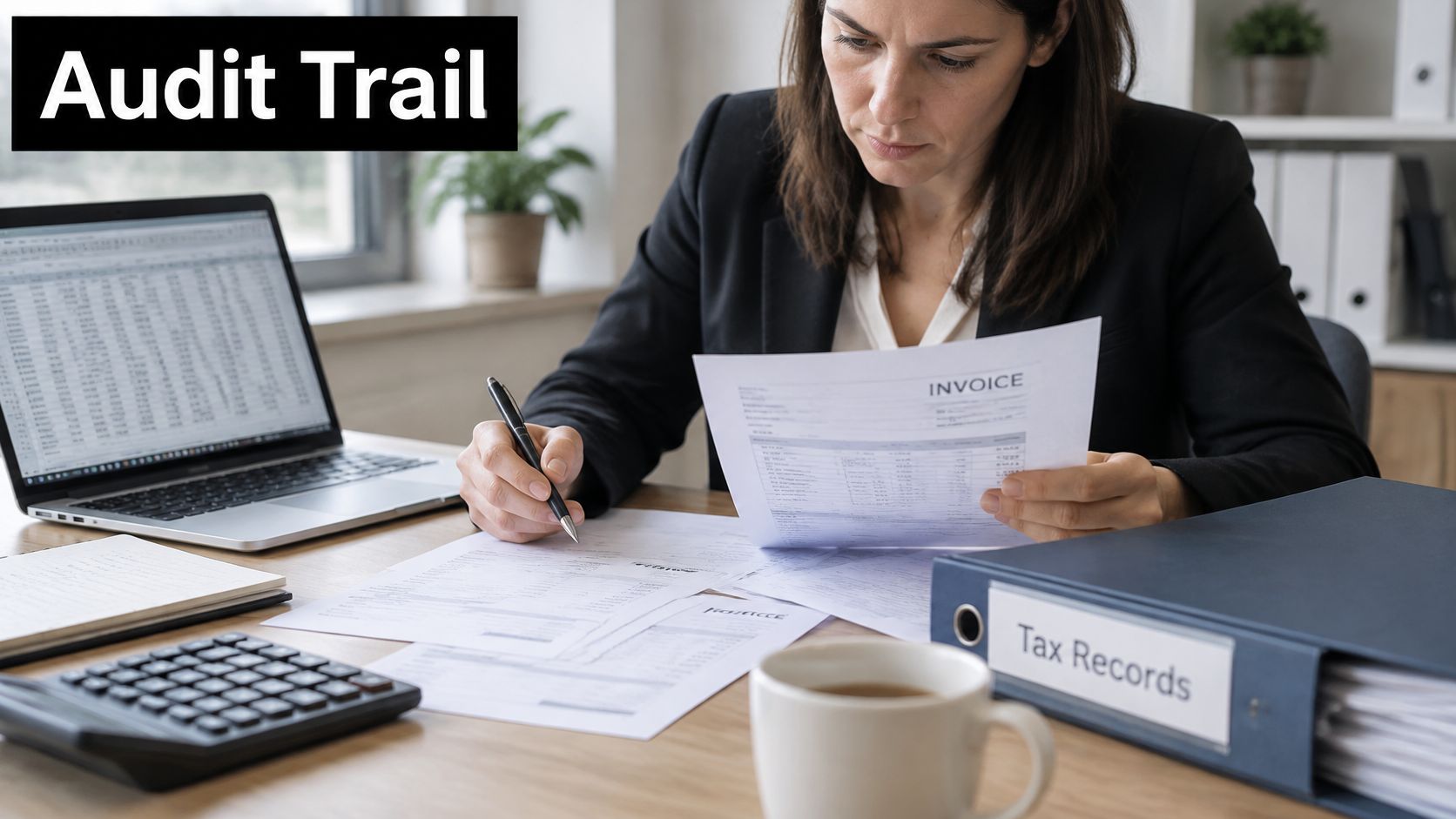
The image below shows the kind of side-by-side review that answers that question, with the source document open next to the record.
Timing makes this urgent. The HMRC annual report and accounts 2025 to 2026 sets out that Making Tax Digital for Income Tax begins in April 2026 for sole traders and landlords with qualifying income above £50,000, with expansion to those above £30,000 planned for April 2027 and to those above £20,000 for April 2028. The same report found that 67% of businesses using compatible software believed it reduced mistakes in at least one record-keeping area, while 80% found the process easy.
What the Trail Must Hold
- The original PDF: kept unchanged, never overwritten by a corrected version.
- Each extracted value: linked to its page and its position on that page.
- The confidence score: recorded at extraction, not reconstructed later.
- Every correction: the new value, who made the change, and when.
- The category applied: so VAT treatment can be reviewed, not only the amount.
Say a supplier invoice shows £120 including £20 VAT, and extraction reads the VAT as £2.00. A sound trail shows the misread, the correction to £20.00, and the box on the page the value came from. Without that, a reviewer sees only a number someone typed.
A visibly failed extraction is annoying but safe, because it prompts a person to look. The riskier case is a confidently wrong classification. It passes every glance, files neatly, and only surfaces when someone reconciles the VAT return. Higher OCR accuracy doesn't automatically mean lower compliance risk, because getting values right and being able to prove them are different properties.
The short video below walks through how a review trail looks in practice, from source document to confirmed record.
Keep the source file and its structured record together for as long as you keep the record itself. This guide to HMRC record keeping requirements explains what to retain. Flag ambiguous tax treatments rather than guessing, and keep every structured value linked back to its source PDF. A trail built this way turns extracted data into records you can defend.
Choose Your Method and Pilot It First
Start where your volume and risk sit.
- A few documents a month: Use manual review aided by text-layer parsing. Setup costs almost nothing.
- A steady flow from several sources: Adopt OCR with field validation and a review queue. Receipts can arrive through WhatsApp, forwarded email or file upload, and Snyp works with JPEG, PNG and PDF files, so one pipeline can cover every channel.
- Output feeding an accountant or filing: Build the audit trail before you scale, not after.
Then pilot before you commit. For example, run around 50 representative documents covering every supplier layout, plus at least one photographed receipt. Label the correct values, measure field accuracy and exception rate, and set a confidence threshold per field. Compare the result with the cost of entering the same documents by hand.
Before going live, confirm four things. You know which fields you need. You can show traceability for each value. You've set an error rate you can accept. Your accounting software accepts the structured output directly. Run that test on real documents during any trial, not on sample files chosen to flatter the tool.
Send us your messiest real receipts, not your cleanest ones, and see how they come back. Snyp extracts supplier, date, VAT and total from PDFs and photos, lets you review and confirm each value against the original, then syncs approved data to Xero or QuickBooks. Start your pilot today at Snyp and measure the field accuracy for yourself.