




Invoice Scanner Software: How It Works and How to Choose
Stop choosing invoice scanner software on OCR accuracy. That's the most popular advice in this category, and it's the wrong test for a UK business. A tool can read almost every character correctly and still post the wrong VAT split, lose the tax point, or hand your ledger a picture with no auditable record behind it.
Judge a scanner on one question instead. Does its output become a complete, editable, traceable record that reaches your accounting software through a proper digital link? If it doesn't, you've bought faster data entry and kept the compliance risk.
What Invoice Scanner Software Actually Does
Think of invoice scanner software as a digital filing clerk. It reads each supplier invoice, receipt or bill as it arrives, drafts the accounting entry, and waits for a person to approve it. The draft should show supplier, invoice date, net amount, VAT, gross total and expense category, not a block of loose text.
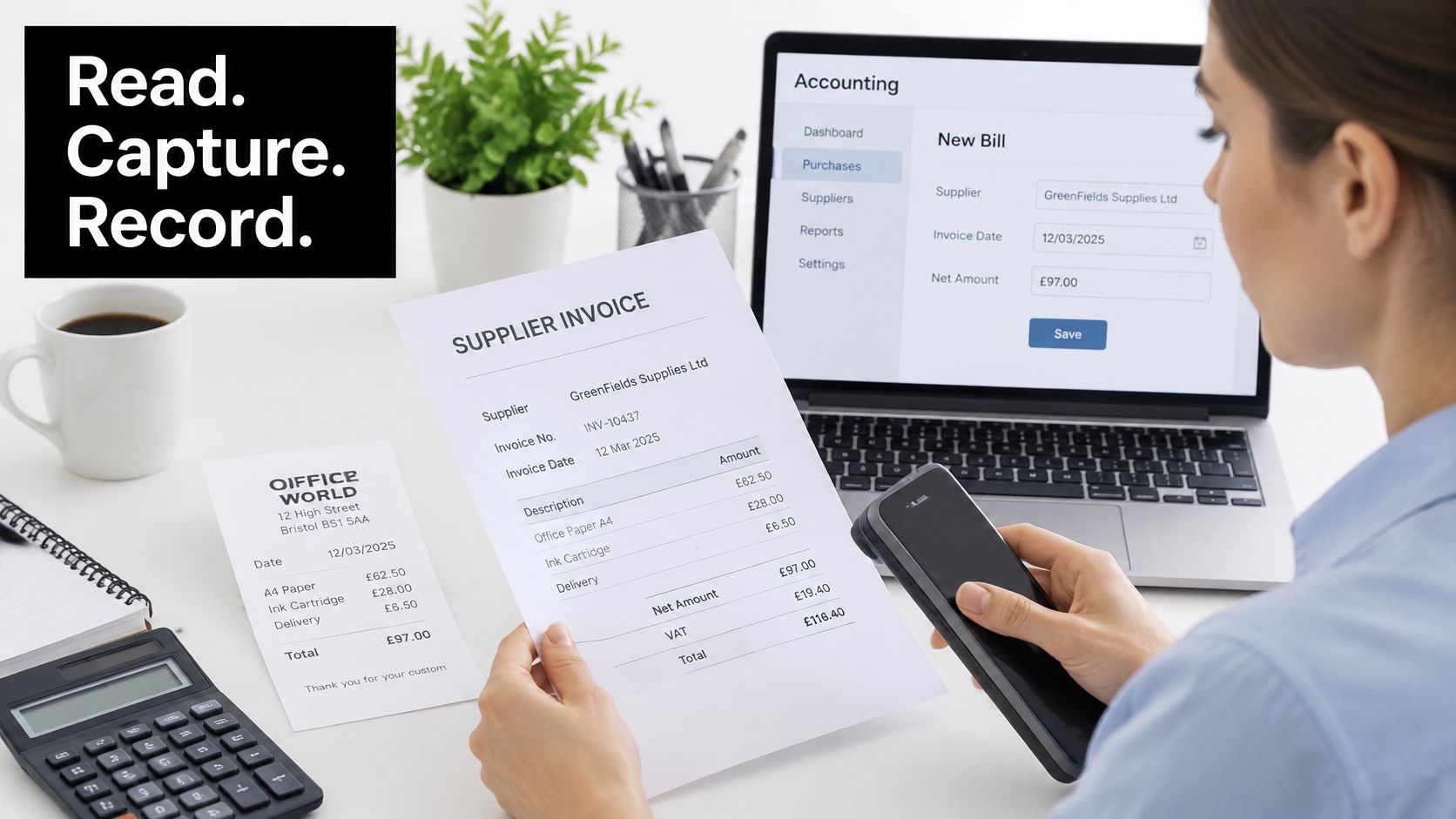
Say a plumber photographs a merchant receipt in the van, forwards a PDF bill from email that evening, and uploads a multi-page supplier invoice the next morning. A useful tool handles all three the same way, through three stages.
The Three Stages Every Tool Shares
- Capture: You upload a file, forward an email, send a document through WhatsApp, or take a phone photo. The tool should accept JPEG, PNG and PDF without you converting anything first.
- Extraction: The software reads the text and identifies which values belong in which fields. Supplier, date, net, VAT, gross and category become separate, editable data points.
- Hand-off: Once you've approved the draft, the software sends it to Xero, QuickBooks or another ledger. The original file stays attached to the entry.
That mixed workflow isn't unusual. In the HMRC-commissioned IFF Research survey of 800 UK SMEs in February to March 2025, 59% of SMEs were familiar with the definition of e-invoicing, but only 29% reported using it. Awareness is well ahead of routine use, so most firms still juggle paper, PDFs and emailed invoices.
Be clear about what this software isn't. A shared folder, photo roll or image store keeps pictures. It doesn't create structured data, check totals, or prepare anything for a VAT return.
After any demo scan, ask to see three things on one screen: every extracted field, the original file, and who approved the entry.
If the salesperson can't show you all three, you're looking at storage with a nicer label.
Features and VAT Fields to Compare Side by Side
Don't compare feature lists on vendor websites. Run the same 50 real invoices through each tool on your shortlist and mark every row below as pass, partial or fail. Use your messiest documents, not the vendor's samples.
Features a Good Invoice Scanner Must Have
| Feature | What good looks like | Why it matters | Red flag |
|---|---|---|---|
| Capture channels | Upload, email forwarding and phone photo | Captures documents where they actually arrive | Manual upload only |
| File types | JPEG, PNG and PDF, including multi-page PDFs | Covers receipts and supplier invoices | Images only, no PDF support |
| Field extraction | Supplier, date, net, VAT, gross, currency and category | Feeds reconciliation without retyping | Plain text dump with no fields |
| VAT handling | VAT rate and tax point captured per document | Needed for VAT records and returns | Single total with no VAT split |
| Duplicate detection | Flags matching supplier, date and amount | Stops the same bill being claimed twice | No duplicate check |
| Credit notes and refunds | Negative direction recognised and linked to the original | Keeps ledgers accurate | Credits booked as expenses |
| Review workflow | Low-confidence fields routed to a person | Catches errors before they reach the ledger | Silent auto-approval of everything |
| Accounting sync | Direct connection to Xero or QuickBooks | Keeps field-level detail intact | CSV export only |
| Audit trail and retention | Original file kept, every edit logged | Supports HMRC record keeping | Source file overwritten |
| Pricing | Forecastable monthly or annual cost | Stops surprise fees as volume grows | Per-document fees that rise with volume |
Read the rows in order, because failures compound. Weak capture means staff keep documents in inboxes and camera rolls, so invoices arrive late or not at all. Weak extraction means someone retypes values anyway, which removes the point of buying the tool. Weak review means errors reach the ledger faster than they did by hand.
Capture and Extraction Decide Daily Use
Capture channels come first for a practical reason. Supplier bills arrive as email attachments, receipts arrive on paper, and site staff hold proof of purchase on their phones. If a tool only accepts desktop uploads, your team will batch documents at month end and you'll lose the visibility you paid for.
File types matter for the same reason. Multi-page PDFs are where cheap tools fail, splitting one invoice into two records or reading only the first page. Put at least five multi-page PDFs in your test pack and check the totals against the final page.
Field extraction is where you separate a scanner from a text reader. You need supplier, date, net, VAT, gross, currency and category as individual fields you can sort, filter and export. A searchable text dump helps you find a document. It doesn't help you reconcile it.
VAT Handling, Duplicates and Credit Notes
VAT handling is the row most buyers under-test. Under HMRC guidance on keeping VAT records, businesses must keep digital records of VAT on purchases, the time of supply (tax point), and the value of each transaction excluding VAT. A single gross total doesn't meet that need, however accurately it's read.
That distinction between amounts charged and amounts reclaimed is easier to check if you understand how input VAT and output VAT differ before you score a trial. Your scanner has to preserve the split, because your return depends on it.
Apply this field test to every document in your sample:
- Supplier name and VAT number: Present and matched to the correct supplier record, not a near-duplicate created by a misread name.
- Invoice date and tax point: Both captured, because they aren't always the same date and the tax point drives the VAT period.
- Net value excluding VAT: Stored separately from the gross total, never back-calculated.
- VAT amount and rate: Shown per document, with mixed-rate invoices split rather than forced into one rate.
- Gross total and currency: Checked against net plus VAT, with foreign currency kept visible.
- Direction and category: Marked as purchase or sale, with an income or expense category a person can correct.
Flag any record where the tax point, net value, VAT amount or direction is missing. Flag it again when net plus VAT does not equal gross. A tool that posts those records without warning is creating work for whoever prepares your return.
Duplicate detection should flag the same supplier, date and amount before approval. Duplicates happen easily when one person forwards an email and another uploads the PDF. Credit notes need the opposite treatment: a negative direction, recognised as a credit and linked to the original bill. If your test credit note lands as a fresh expense, fail the tool on that row.
Review, Sync, Retention and Price
A good review workflow routes low-confidence fields to a named person and lets clean invoices through quickly. Silent auto-approval of everything is not automation. It's unreviewed posting at speed.
For accounting sync, insist on a direct Xero or QuickBooks connection. Under Making Tax Digital for VAT, records should move between systems digitally rather than passing through manual rekeying, so a CSV you download, edit and re-upload by hand is weaker than a system-to-system connection that preserves where each field came from.
Audit trail and retention close the loop. HMRC expects VAT records and the documents behind them to be kept for years beyond the return they support, so the original file must stay intact, every correction must be logged, and each extracted field must trace back to the image or PDF it came from.
Practical rule: Score tools on the proportion of invoices that produce complete, reconcilable net, VAT, gross, date and supplier records without human intervention. That number predicts your month end. A character accuracy claim doesn't.
Finally, treat pricing as a control, not an afterthought. A forecastable monthly or annual cost lets you scan everything. Per-document fees punish good habits, because staff start deciding which receipts are worth capturing. Choose the pricing model that makes complete capture the cheap option.
How OCR and AI Extraction Work Together
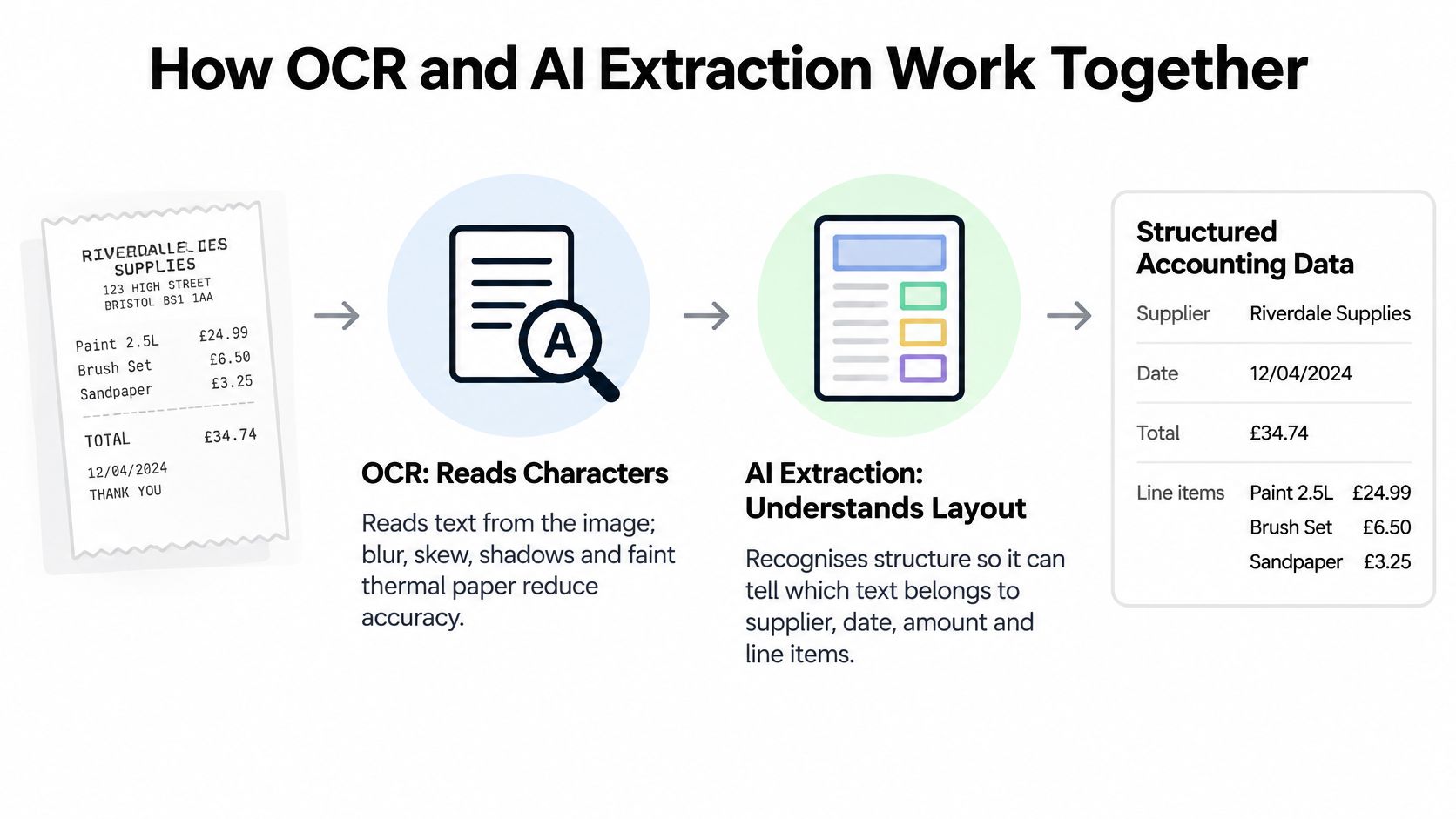
OCR reads the words. AI extraction understands the form they sit on. Confusing those two jobs is why buyers overpay for accuracy claims and under-test the output that reaches their ledger.
Optical character recognition converts an image into text. It looks at shapes and returns characters, which is why blur, skew, shadows and faint thermal paper reduce its accuracy. OCR doesn't know whether a number is the VAT amount, a line total or a page number. It only reports what it saw.
AI extraction works on layout and context. It uses the position of text, nearby labels and the structure of the document to decide which value is the supplier name, which is the gross total, and which is the VAT. That judgement is where most value sits, and where most serious errors happen.
The Pipeline, Stage by Stage
- Capture and straighten the image: The tool corrects rotation, crops edges and improves contrast. A crooked phone photo taken on a dashboard is the common failure here.
- Run OCR to produce text: Characters are read from the cleaned image. Faded thermal receipts and handwritten amounts produce gaps or wrong characters at this stage.
- Detect fields by layout: The model assigns text to supplier, date, amounts and line items. A supplier layout the model hasn't seen before can push a delivery address into the supplier field.
- Check fields against each other: Net, VAT and gross are compared, and dates are sanity-checked. A multi-page PDF split into two documents fails here because neither half reconciles.
- Score confidence for each field: Every value gets a confidence score based on image quality and how well the checks agree.
- Send uncertain fields to a person: Low-confidence values wait for review instead of posting. Handwritten corrections on a printed invoice belong in this queue.
- Export approved records: Only checked data moves to your accounting software, with the source document attached.
Why Character Accuracy Misleads
A near-perfect OCR result can still produce a wrong VAT split. Every digit on the page may be read correctly while the extraction layer assigns the delivery charge to the wrong rate, or treats a deposit as the final total. The characters were right. The record is wrong.
That's why you should test outcomes, not readings. Count how many invoices in your sample arrive in the ledger with a complete, reconciling set of fields. Count how many needed correction, and note whether the tool flagged the problem or posted it without notice.
Security Controls That Make a Scan Valid
Accuracy is only half the test. Under HMRC Notice 700/63 on electronic invoicing, paper VAT records stored electronically must keep authenticity, integrity, completeness, accuracy and legibility during conversion and storage. Those five properties turn security features into operational requirements.
Check for these controls during any trial:
- Original file retention: The source image or PDF is kept unchanged, with a checksum or equivalent tamper evidence so alterations show up.
- Access controls and edit logs: You can restrict who sees financial documents and see who changed a field, and when.
- Versioned corrections: Fixes create a new version with a reason attached instead of overwriting the source evidence.
- Inferred values labelled separately: A category the model guessed looks different from a value printed on the invoice, so reviewers know what needs checking.
- Uncertain VAT held for review: Mixed-rate purchases and unreadable tax points stop for a person rather than posting at a default rate.
A model may infer a merchant or category, but inferred values should remain distinguishable from fields directly evidenced on the invoice.
Skip those controls and a technically successful scan can become an untraceable record. You'll have the numbers, but you won't be able to prove where they came from. For a VAT record, that distinction decides whether the scan was worth doing at all.
Connecting Scanned Data to Your Accounting Software
The hand-off matters more than the scan. Most buying advice stops at extraction, but HMRC does not assess your scanner. It assesses the digital record that ends up in compatible software, and whether that record holds together.
The UK's shift began with Making Tax Digital for VAT in April 2019, which required most VAT-registered businesses with taxable turnover above the £85,000 VAT threshold to keep digital VAT records and submit returns through compatible software. In HMRC research report 519 on Making Tax Digital, 98% of VAT businesses covered by the mandate reported updating records for transactions, invoices, and receipts at least once a quarter, while 85% identified keeping digital records as a requirement.
Income tax follows a separate timetable, so do not merge the two. Under HMRC's digital record keeping notice for Making Tax Digital for Income Tax, relevant unincorporated businesses and landlords with qualifying income above £50,000 must use compatible software from 6 April 2026. HMRC has announced lower thresholds under its current plans: more than £30,000 from April 2027 and more than £20,000 from April 2028. Digital records must include the transaction amount, date, and income or expense category.
How Scanned Data Can Reach the Ledger
| Hand-off method | Keeps field-level detail | Audit trail | Best for |
|---|---|---|---|
| Direct sync via API or certified connector | Yes | Yes | Teams running Xero or QuickBooks daily |
| CSV export then import | Partly | No | Occasional batch work with a bookkeeper |
| Manual re-entry from the screen | No | No | Only when no other route exists |
| Forwarding to a bookkeeper by email | No | Partly | Sole traders whose accountant reviews monthly |
Each row decides what survives the journey: net, VAT, gross, tax point, category, and a link back to the source image. That sets up the only question worth asking a vendor. Can the scanner preserve an auditable, editable record and transfer it correctly into MTD-compatible software, or does it merely produce an image and OCR text? The answer decides whether you are buying compliance support or a new place to store pictures.
A sound accounting software integration keeps field-level detail and provenance intact as records move. Manual re-entry breaks both, because the person typing becomes the only link between document and entry.
A Worked Mapping Example
Say a supplier invoice totals £120 including £20 VAT. The record reaching your ledger should show £100 net, £20 VAT and £120 gross, dated at its tax point, categorised as office costs, and linked back to the original image. If any of those pieces drops out in transit, the hand-off failed, whatever the scanner read.
Run these tests on a trial before you commit:
- VAT treatment: Standard, reduced, zero-rated and mixed-rate documents all map to the right treatment.
- Duplicate detection: The same bill submitted twice is flagged before it posts.
- Credit notes: Credits reduce the right supplier balance instead of adding an expense.
- Mixed purchases: Business and personal elements on one receipt can be split and categorised separately.
- Corrections: Editing a field leaves a visible history rather than replacing the original value.
If you are a freelancer or sole trader approaching those income tax deadlines, hear the contrarian point plainly. The cheapest scanner can raise your compliance risk if you cannot see how each extracted field maps to an HMRC category. Pay for a visible, digital hand-off. It is the part HMRC will examine.
Turning Captured Invoices into Cash Flow Control
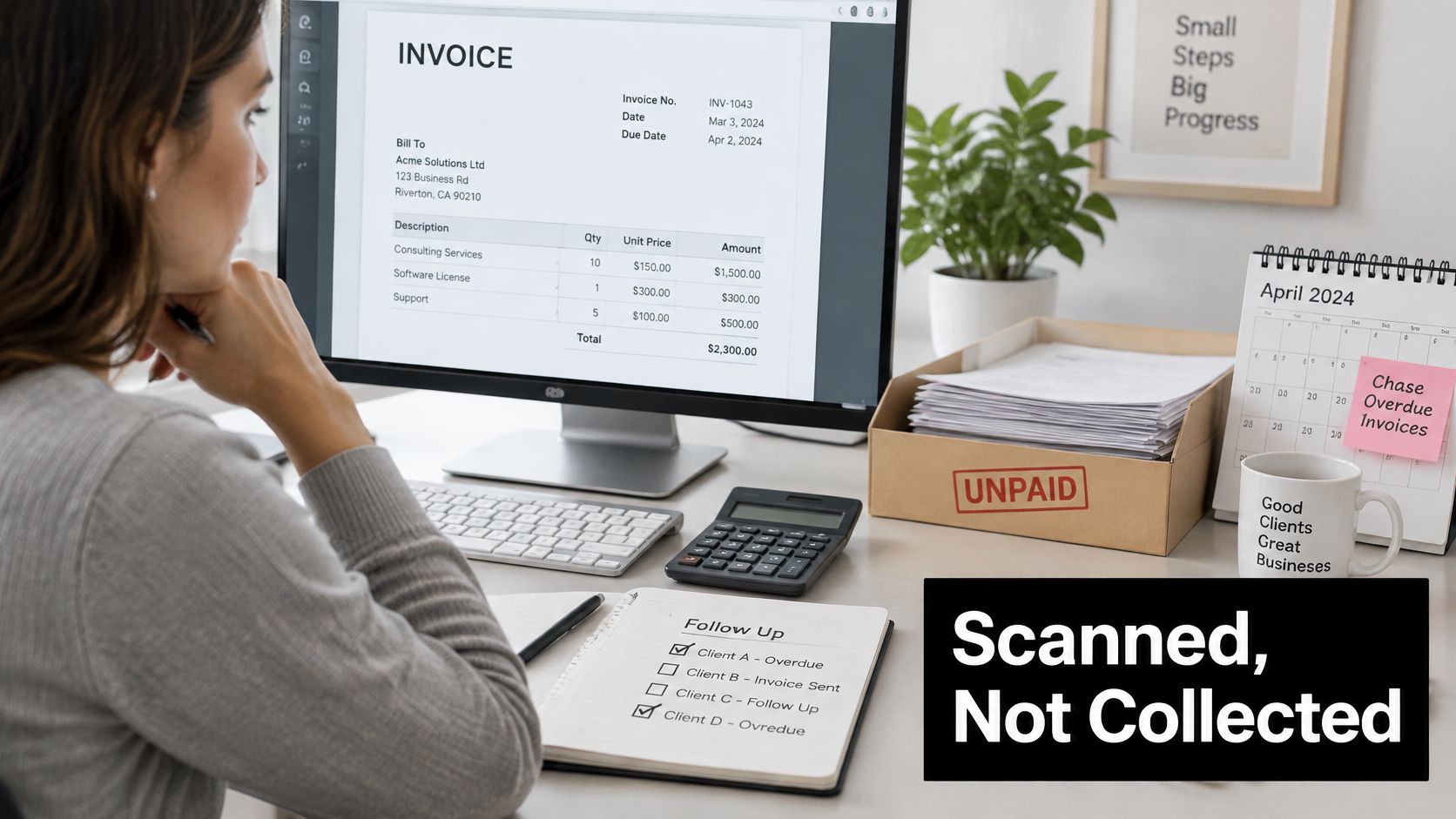
Scanning speeds up bookkeeping. It does not collect cash. Vendors blur that line because collections are where owners feel pain, but extracting an invoice date and amount changes nothing until someone acts on the information.
The stakes explain why the blurring works. The Small Business Commissioner reports that more than 1.5 million UK businesses, 28% of businesses, are affected by late payments each year. Visibility over what's owed, and what's due, is commercially serious. A scanner helps only when it feeds that visibility.
One Month in a Small Agency
Say a design agency receives around 40 supplier bills and issues 25 sales invoices a month. Documents arrive through email, post and staff phones. Without classification, they pile into one inbox and the owner reconstructs the month from bank statements.
With a scanner doing useful work, each document is classified as a supplier bill, customer invoice, receipt, credit note or payment evidence. It's linked to the right supplier or customer, given a due date and payment status, and matched to its accounting entry. Overdue items surface in one view instead of hiding across threads.
That last step is where cash flow improves. A named person reviews the overdue list weekly, sends reminders, and records promises to pay. The scanner made the list trustworthy and current. The person still does the chasing, and any vendor who tells you otherwise is selling you a story.
This is also where scanning meets the wider payables process. A well-run accounts payable automation workflow uses captured due dates and approval status to pay suppliers on time without paying early by accident. Capture without that discipline just digitises the backlog.
Three Metrics Worth Tracking
- Time to reconcile: How long between a document arriving and its entry matching the bank line. This should fall within weeks of adoption.
- Share of invoices with a captured due date: If due dates are missing, your overdue view is fiction. Track the percentage until it's complete.
- Overdue items visible in one view: Count how many overdue invoices you can see without opening email. That number is your real control.
Automation can accelerate bookkeeping without accelerating cash flow unless the surrounding workflow supports reminders, reconciliation, and ownership.
Measure those three things monthly. If they don't move, your scanner is document storage with better marketing, whatever its pages-per-minute rating says.
Shortlist Software and Test It on Real Invoices
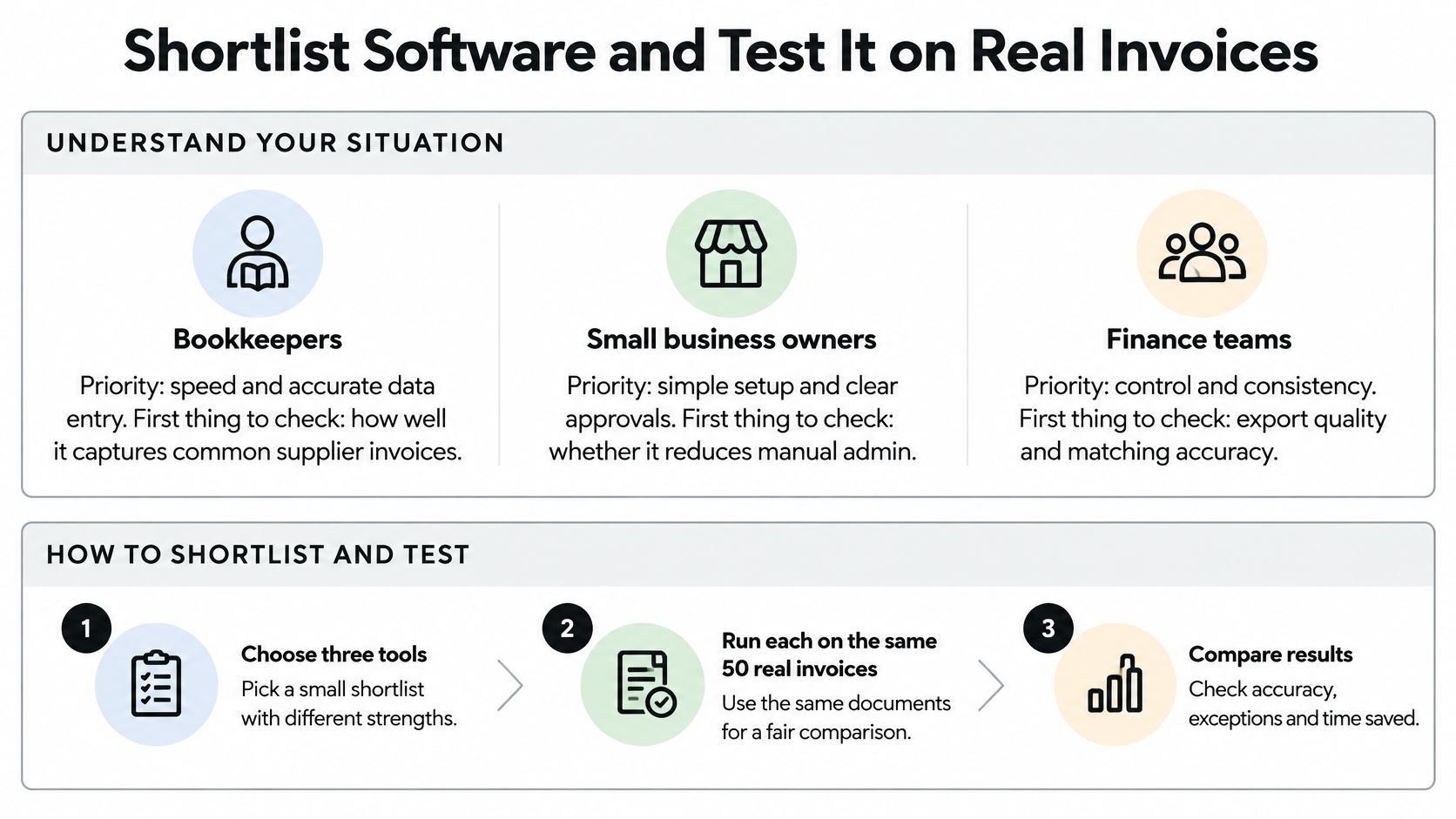
Start from your situation, not from a leaderboard. The right priority for a sole trader capturing receipts from a van is the wrong priority for a finance team approving supplier bills across departments.
Which Invoice Scanner Priorities Fit Each Situation
| Situation | Main priority | Check first |
|---|---|---|
| Freelancer or sole trader | Low admin and mobile capture | WhatsApp or email intake and an MTD-ready export |
| Contractor working on site | Quick photo capture and approval | Phone photo upload and review on the move |
| Accountant or bookkeeper | Separating clients | Client-level folders and Xero or QuickBooks sync |
| Growing company finance team | Approval and audit trail | Review routing, edit logs and six-year retention |
| Business with heavy PDF supplier bills | Accuracy on multi-page PDFs | Accuracy on a sample of 50 real invoices |
The Test to Run This Week
- Choose three tools: Pick a small shortlist with different strengths, such as one mobile-first option, one bookkeeper-focused option and one built for heavier PDF volumes.
- Build one test pack: Use the same 50 real invoices for every tool, and include a multi-page PDF, a credit note, a mixed-rate purchase and at least one faded receipt.
- Score against the feature table: Mark capture, VAT fields, duplicates, credit notes, review, sync and retention as pass, partial or fail for each tool.
- Record the completeness rate: Count how many invoices produced a full, reconciling record with amount, date and category intact after the hand-off to your ledger.
- Check the ledger, not the demo: Open Xero or QuickBooks and confirm the entry, the attached original and the edit history all survived the transfer.
Where does Snyp fit in that test? It suits a freelancer, contractor or small team that wants receipts captured from WhatsApp, email forwarding or a phone photo, with merchant, amount, date, tax, currency and category extracted, a brief review before approval, and sync to Xero or QuickBooks. Pricing starts from £19 a month with a trial available, so you can run the test on a real month of receipts before committing.
Be equally clear about fit in the other direction. A larger finance team needing multi-level approvals, purchase order matching or complex departmental routing may be better served by a heavier accounts payable platform. Put that tool through the same 50 invoices and let the completeness rate settle it.
Don't extend the trial hoping a weak tool improves. Check the completeness rate, confirm the MTD fields are present in the ledger, and decide. Your next VAT period is the deadline that matters.
Put that test into practice with Snyp, which captures invoices and receipts from WhatsApp, email forwarding or a phone photo, extracts the fields you need for review, and syncs approved records to Xero or QuickBooks. Start the trial, run your 50 real invoices through it, and check the completeness rate in your own ledger before you pay a penny.