




How to Upload a PDF File to Snyp: A Step-by-Step Guide
You're doing your month-end tidy-up, an invoice is sitting in your inbox as a PDF, another is saved on your desktop, and a supplier sent the last one through WhatsApp an hour ago. You need all three in Snyp before your accountant starts chasing you, and you need the totals to be right, not just filed.
That's where users often get caught out. The upload itself rarely takes long. What goes wrong is skipping the check afterwards, so a blurred total, a sideways page or a misread VAT amount slips into your books unchecked. Learning how to upload a PDF file properly means treating a completed upload as the start of the check, not the end of the job.
Choose the Right Upload Route
Use one simple rule. Send the file from where it already lives. A PDF saved on your device goes by direct upload. An invoice that arrived by email goes by email forwarding. A document sent in chat goes by WhatsApp.
Moving a file between apps first doesn't improve the result. It only adds steps where you can rename it badly, lose it in Downloads or send the wrong version. The route changes speed and convenience, not what Snyp extracts in the end.
Upload routes compared
| Route | Best for | What you need | Common mistake |
|---|---|---|---|
| Direct upload | Files already saved on your phone or computer | The PDF in your device storage and a stable connection | Closing the tab before the progress indicator finishes |
| Email forwarding | Invoices and receipts that arrived as email attachments | The forwarding address shown in your Snyp account | Forwarding a link to the file instead of the attachment |
| Documents and receipts received or photographed on your phone | The Snyp WhatsApp number from your account | Sending a photo of a PDF on screen, which adds glare and cropping |
What to Have Ready First
Before you start, put the PDF somewhere you can find it in seconds. A folder called Receipts or your recent downloads list both work, as long as you aren't searching while an upload screen times out.
You'll also need the account you sign in with and, for larger files, a stable connection. If you're on patchy mobile data in a car park, I'd wait until you're on Wi-Fi rather than retry three times and create duplicates.
A paper receipt is the one exception to the PDF rule. Photograph it flat and send a clear JPEG or PNG through WhatsApp instead of forcing it into a poor scan.
Accepted Formats and Readability Checks
A PDF can upload successfully and still be difficult to read. Open it first and try to select a line of text. Selectable words indicate a text-based PDF. If you cannot select them, the page is likely an image of text, and extraction depends on how clearly that image shows the document.
That distinction matters for scanned receipts and invoices. The UK government guidance on viewing government documents explains that scanned paper saved as PDF/A is not searchable or screen-reader readable unless OCR has been applied. For a closer look at how text recognition handles receipt and invoice details, see this guide to OCR software for receipts and invoices.
Accepted formats and how to prepare them
| Format | Accepted by Snyp | Best preparation | Main risk |
|---|---|---|---|
| PDF (text-based) | Yes | Export directly from the source program so text can be selected | Scanned copies may contain no selectable text |
| PDF (scanned) | Yes | Scan flat with the full page in frame and text clearly legible | Image-only pages may be difficult to read during extraction |
| JPEG | Yes | Photograph in good light on a flat surface, with the full page in frame | Glare, blur and cropped edges can reduce extraction accuracy |
| PNG | Yes | Use a clear, full-page image of the document | Large files can take longer to upload on slow connections |
| Word, Excel or HEIC | Not in the supported list | Export or convert to PDF or JPEG before uploading | Conversion can drop text or shift the layout |
Three Checks Before You Send Anything
Rotate sideways pages before uploading. A page turned the wrong way can make columns of figures harder to read in the right order.
Keep the file legible, not tiny. Compression can blur small print such as VAT numbers and line totals. A larger, clear file is easier to review than a compressed one with details you need to correct by hand.
Four-point check: readable text, upright pages, no password, and the full page in frame. Check all four before sending.
Remove a password by opening the PDF in its source program and saving a copy without password protection. A locked file cannot be read until you remove the password. The same legibility principle applies to documents handled by services for accessing U.S. mail while traveling: a clear scan matters, not just a completed transfer.
How to Upload a PDF Directly from Your Device
Direct upload suits files already sitting on your laptop or phone, and it gives you the clearest view of what happened at each stage.
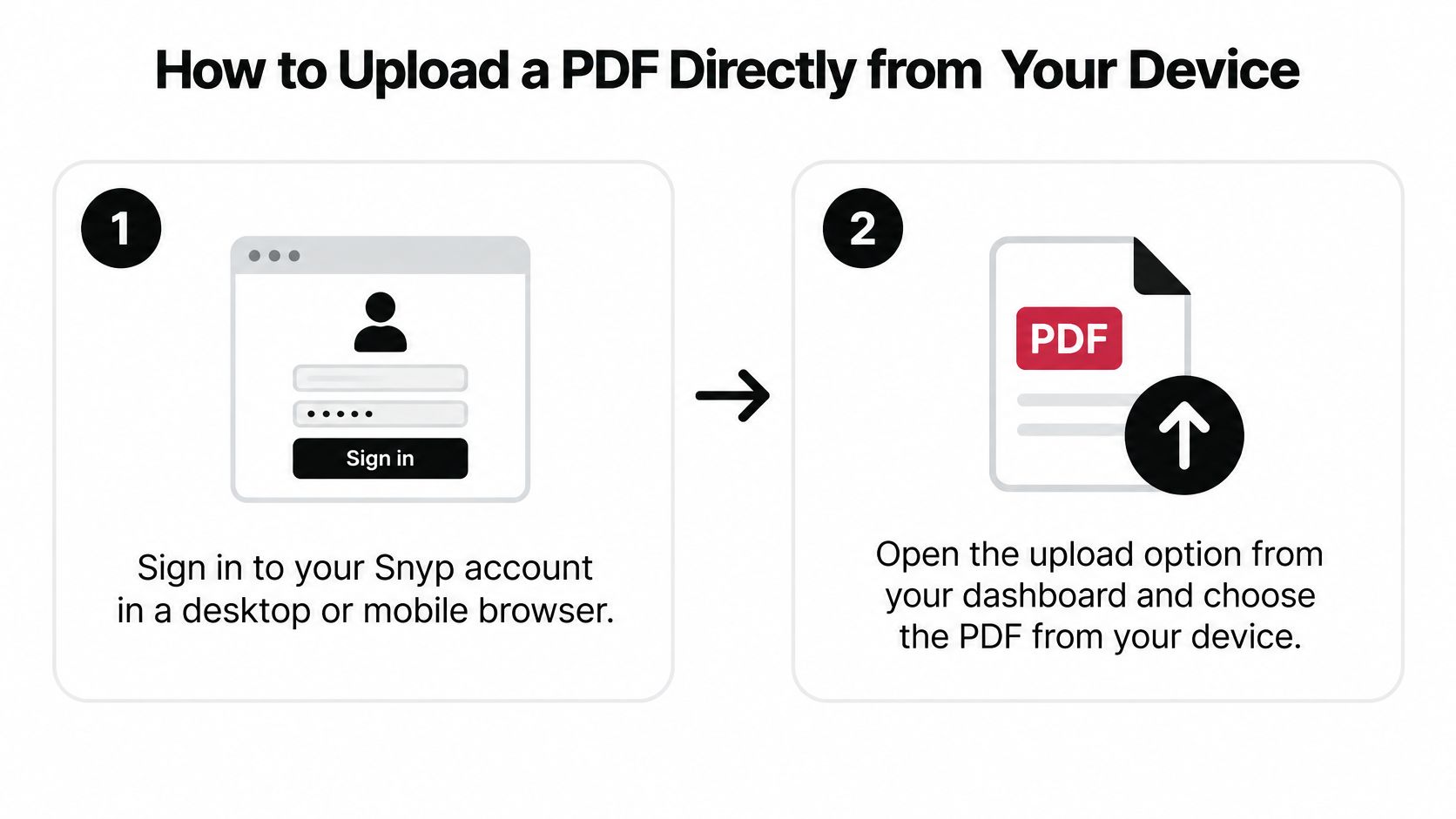
This visual shows the opening steps of the process.
The Direct Upload Steps
- Sign in to your Snyp account in a desktop or mobile browser. Using your usual browser means your sign-in and recent files are already where you expect them.
- Open the upload option from your dashboard and choose the PDF from your device storage. Check the file name before you confirm, because suppliers often send updated invoices with nearly identical names.
- Wait for the progress indicator to complete and keep the page open. Closing the tab mid-upload leaves you guessing whether the file arrived, which is how duplicates and missing receipts both happen.
- Check that the file name and page count appear in your list. If the page count looks short, you may have selected a single-page export instead of the full invoice.
- Review the extracted fields, then approve. Check merchant, amount, date, tax, currency and category against the original before you confirm anything.
That last step matters more than the other four put together. Approving without checking the amount is the most frequent cause of a wrong expense total, and a wrong currency setting skews reconciliation weeks later when you've forgotten the transaction. Correcting a field now takes seconds. Unpicking it after it has synced to Xero or QuickBooks takes much longer.
A finished progress bar proves the file travelled. It doesn't prove the figures were read correctly.
Uploading from Your Phone
A phone upload follows the same steps. The browser's file picker opens your phone's file library or photo library, so save supplier PDFs out of your email app first rather than hunting through attachments while the picker is open.
If you also need to send a copy to a client or colleague for their records, formats built for sharing trackable PDFs with LinkShip handle that separate job. Don't let that replace your own upload, because your books still need the document in Snyp.
You'll know it worked when the file appears in your list with its extracted fields visible and ready for review. If the file name shows but no fields appear beneath it, nothing useful has been read yet. Don't approve it, and don't re-upload immediately. Check the file itself first using the highlight test, then decide whether it needs rotating, opening, or re-scanning.
How to Send a PDF by Email or WhatsApp
Both routes below skip the browser entirely, which suits documents that never touch your computer in the first place.
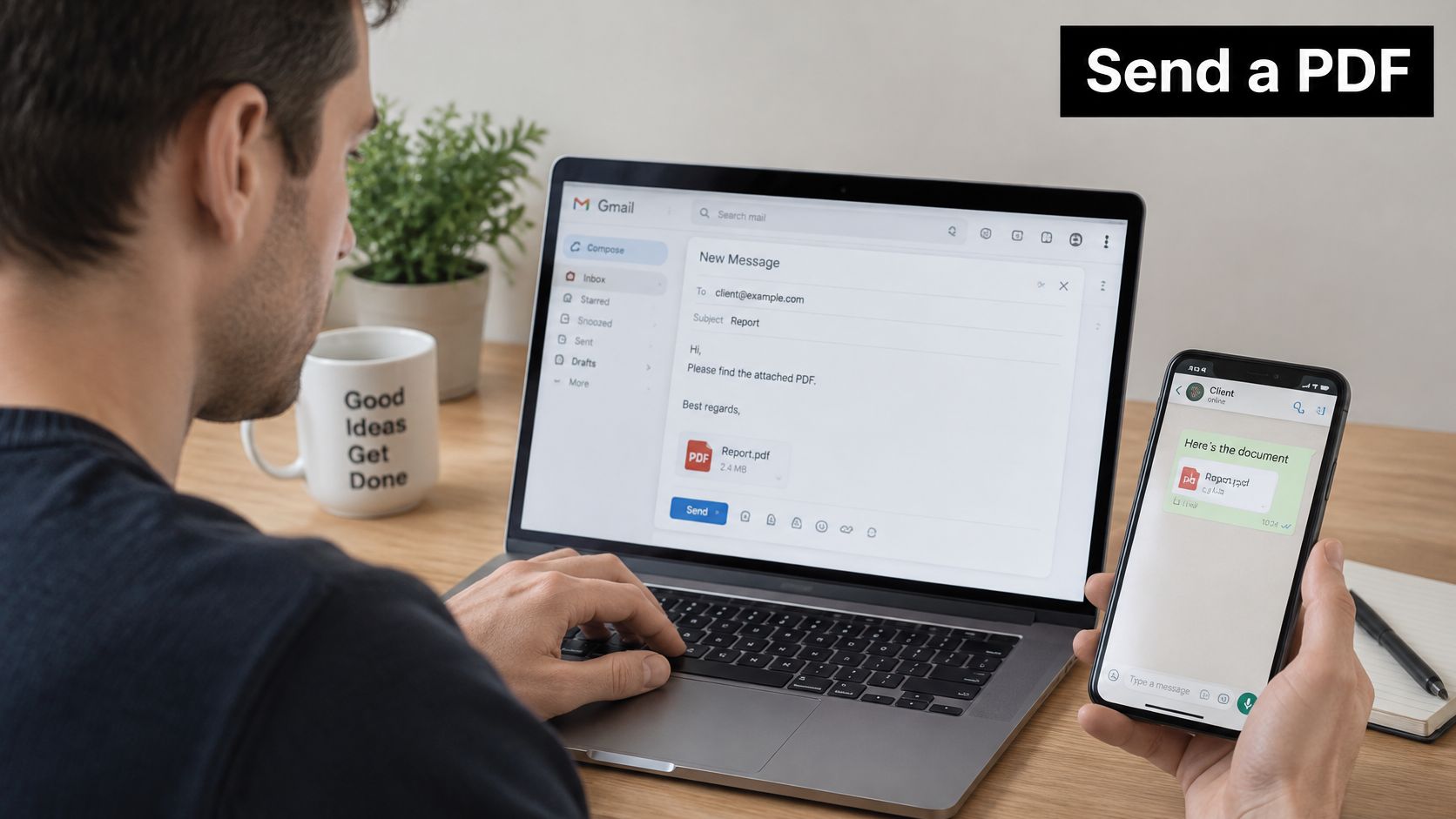
This is the setup many people end up with, email on the laptop and documents on the phone.
Forwarding by Email
- Find the forwarding address shown in your Snyp account settings and save it as a contact.
- Open the email holding the invoice or receipt. Open the attachment once to confirm it's the right document and the final version.
- Forward it to that address with the PDF still attached. Forwarding a link to a shared drive or supplier portal means nothing readable arrives, so check the paperclip icon before you send.
- Confirm it appears in your list before you delete or archive the original email.
Forward from the email address registered with Snyp. Sending from a personal address when your account uses your work address can leave the document unmatched to your account, and it looks exactly like a lost upload.
Sending by WhatsApp
- Save the Snyp WhatsApp number from your account as a named contact.
- Open the chat and attach the PDF as a document, not as a photo. Attaching as a document keeps the original file intact. Sending it as a photo recompresses it, and small print such as tax numbers is the first thing to suffer.
- Send it and wait for confirmation from Snyp. Don't resend while you're waiting.
Full details of the chat route are set out on the Snyp WhatsApp integration page, including how forwarded documents from suppliers are handled.
This short video walks through the sending process on a phone.
Whichever route you used, check your list once confirmation arrives. If nothing appears, wait rather than sending again straight away. Resending in a panic is the easiest way to get the same receipt into your books twice.
Fixing Upload Errors and Unreadable PDFs
Most failures happen on phones. An upload stalls, the screen sits there, and you can't tell whether the file went through. The usual cause is an unstable connection or a very large file, not a broken document. Switch to Wi-Fi, keep the page open and retry once.
Upload symptoms, causes and fixes
| Symptom | Likely cause | Fix |
|---|---|---|
| Upload stalls or fails on mobile | Unstable connection or a very large file | Switch to Wi-Fi, retry and keep the page open; minutes |
| File rejected when selected | Format not in the supported list | Convert or export to PDF or JPEG and re-upload; minutes |
| Fields blank after upload | Image-only scan with no selectable text | Re-scan at a clear resolution or send a sharper photo; new file |
| Pages read sideways or fields missing | Rotated page or phone photo taken at an angle | Rotate and re-save before uploading; minutes |
| File will not open for reading | Password-protected or encrypted PDF | Remove the password in the source program and re-upload; minutes |
| Same receipt listed twice | Duplicate upload or resend | Check your list before re-uploading and delete the copy; minutes |
| Totals, dates or tax wrong | OCR misreading small or faint print | Correct against the original before approving; minutes |
Which Fixes Take Minutes and Which Need a New File
- Connection and format problems: switching to Wi-Fi or exporting a Word file to PDF resolves these without touching the document content.
- Orientation and password problems: rotating a page or removing a password in the source program takes minutes, then you re-upload the corrected copy.
- Blank fields: this is the one that usually needs a new file. Re-scan the page flat at a clear resolution or take a sharper photo in better light, because uploading the same blurry scan again produces the same empty result.
Duplicates sit in their own category. Check your list before any re-upload, and delete the extra copy rather than approving both and hoping your accountant notices.
Uploaded Is Not the Same as Understood
Working rule: treat every extracted amount, date and tax figure as unconfirmed until you've compared it with the original document.
A file can show as uploaded while its fields are empty or plainly wrong. OCR misreads faint thermal receipts, cramped multi-column invoices and low-contrast scans more often than clean exported PDFs, and a misread 8 for a 3 won't trigger any error message. Your eyes are the last check in the chain.
If a file shows as received but nothing appears after a reasonable wait, retry once only. After that, contact Snyp support with the file name and the time you uploaded it so they can trace it, rather than sending the same receipt four more times.
Keep Sensitive PDFs Private and Confirm Each Upload
Before sending a sensitive PDF, confirm the destination. Use only the upload page, forwarding address or WhatsApp number shown in your Snyp account. Avoid links from unexpected messages, and do not enter bank details or customer information into an unfamiliar form.
Check how long Snyp keeps documents and how they can be deleted before sending customer records. If that information is unclear, ask Snyp support directly. For general guidance on handling sensitive uploads, read Snyp's secure file upload guidance.
For any other service that will hold personal information, review its privacy information before sharing customer records. For example, read the data protection details from 1chat to understand that provider's approach.
Start with one document. Compare its extracted fields with the original, including the amount, date and tax, before relying on the result. Once the check is complete, choose email forwarding for invoices or WhatsApp for receipts collected in the field.
Snyp accepts PDFs by direct upload, email forwarding and WhatsApp, then extracts merchant, amount, date, tax, currency and category for syncing to Xero or QuickBooks. Upload a PDF with Snyp and compare its extracted fields with the original before approving it.