




How to Scan Receipts on iPhone the Right Way
Monday morning starts with a familiar sort of bookkeeping archaeology. You empty a jacket pocket onto the kitchen table, find a fuel receipt beside a business card, and realise the till slip from last week is already fading. The practical question isn't how to scan receipts on iPhone. It's how to turn that quick photograph into a complete, searchable and defensible expense record.
An iPhone is an excellent first capture device, but the camera is only the beginning. You still need to check the image, verify the extracted details, protect the file, connect it to the right transaction and retain it in a system you can actually retrieve later.
Why the iPhone Has Become the Default Receipt Scanner
For a freelancer travelling between clients, the phone is already in reach when the receipt is handed over. A fuel receipt can be captured before you leave the forecourt. A restaurant receipt can be photographed while the paper is still flat, rather than placed in a wallet and forgotten. By Monday, the pile on the table becomes a series of small jobs instead of one large reconstruction exercise.
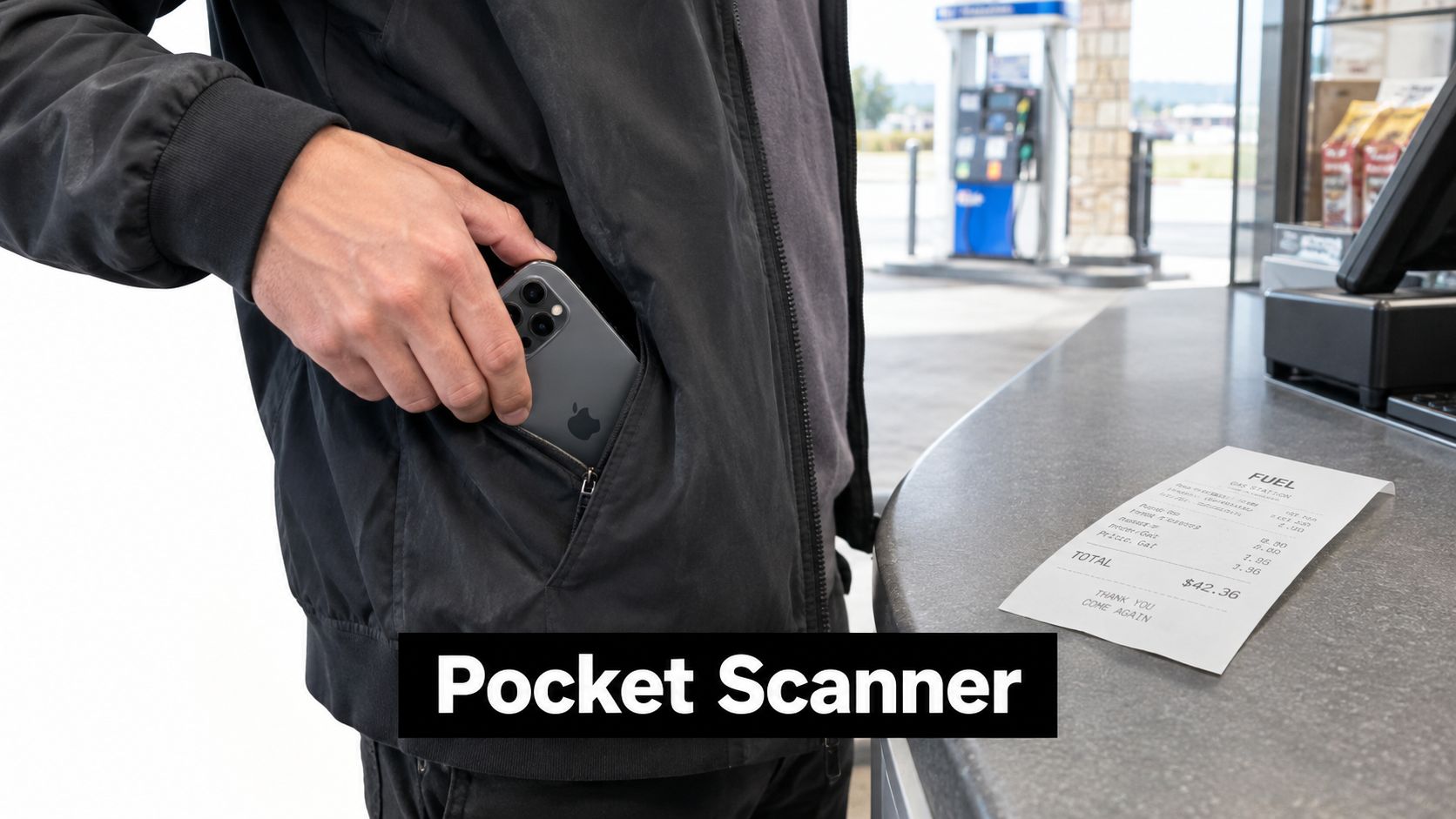
That convenience matters because HMRC recognises receipts, vouchers, supporting documents and computer records as business records. Its guidance also permits original information to be retained as electronic copies when the copies are complete and full reproductions, with at least the expense amount and date preserved. You can read the detail in the HMRC self-assessment legal framework.
A useful scan therefore needs more than a visible total. It should show the whole receipt, including the merchant, transaction date, total, VAT information where applicable and any identifying reference. A cropped bottom line might be readable, but it may not preserve enough context to support the transaction later.
Practical rule: Treat the iPhone as the front door to your records, not the records system itself.
The right habit is simple. Photograph the receipt promptly, inspect it before throwing away the paper, then move the image into an organised workflow. The result should be complete, legible, searchable and retained securely. If the file is merely sitting among hundreds of unrelated photos, you've digitised paper without solving retrieval.
Native Ways to Scan on iPhone
Apple gives you several useful routes without installing another scanner. The best choice depends on whether you want a clean document, a quick photograph or text you can reuse.
Notes for a quick document scan
Open Notes, create or select a note, tap the camera icon and choose Scan Documents. Hold the phone over the receipt and let automatic edge detection identify the corners. If the crop is wrong, switch to manual capture, adjust the corners and keep the entire receipt inside the frame.
Notes can store several pages in one scan, which is useful for a small bundle that belongs together. It also supports searching text inside scanned receipts or bills, as described in Apple's Notes scanning guidance. That makes Notes practical for occasional expenses, but a multi-page note can become awkward when each receipt needs its own accounting entry.
Files for a more deliberate destination
In Files, open the folder where you want the document stored, tap the three-dot menu and select Scan Documents. The same edge detection and corner adjustment tools are available, but the scan starts in a location that is easier to organise and upload.
Choose Files when the destination matters immediately. You can save the result as a PDF, share it to another service or keep it beside related business documents. A single receipt per file is usually easier to reconcile than a large PDF containing unrelated purchases.
Camera and Live Text for an existing image
The stock Camera is the fastest option when you need to capture first and organise later. Take a normal photograph, open it in Photos and use Live Text to select visible words, dates or totals. This is useful for copying a reference or checking text, but it doesn't automatically create a structured expense record.
For the cleanest result, use Notes or Files when the receipt is flat and available. Use Camera when speed matters, then rename and move the image before it disappears into your personal camera roll.
Capture Habits That Lift Scan Quality
OCR can't recover detail that the camera never captured. A crumpled thermal slip under a bright overhead light may look acceptable at a glance while losing the decimal point, VAT line or final digit that matters during reconciliation.
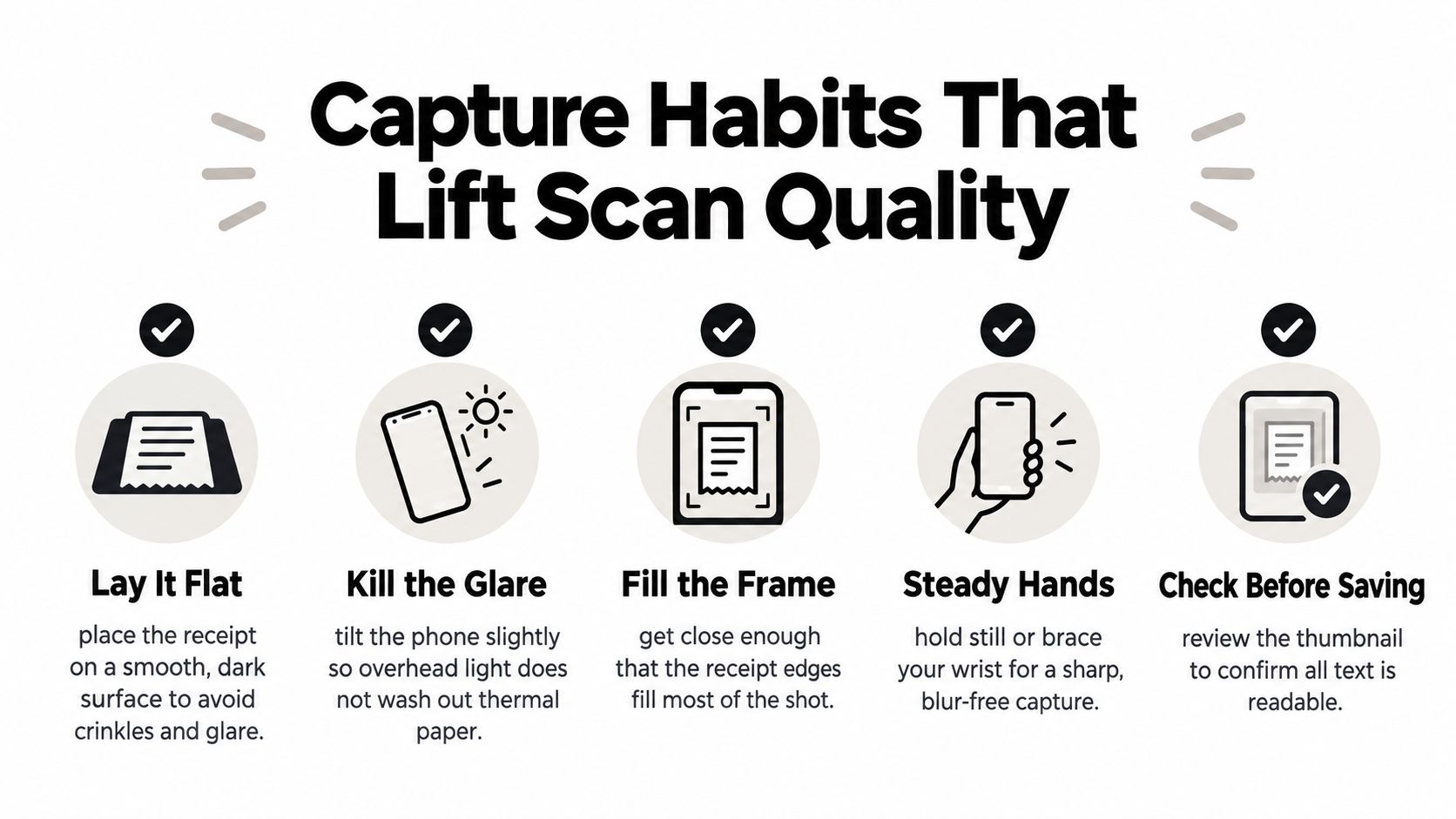
Use this short capture routine:
- Lay it flat: Put the receipt on a smooth, dark surface. Flatten folds without covering printed details.
- Kill the glare: Tilt the phone or change position so a ceiling light doesn't wash out the shiny paper.
- Fill the frame: Move close enough for the receipt to occupy most of the image, while keeping every edge visible.
- Steady your hands: Brace your wrist against the table or pause briefly after tapping the shutter.
- Check before saving: Open the preview and confirm that the merchant, date, total and VAT information can be read.
Don't stack two unrelated receipts in one photograph just to save a few seconds. Separate files make later categorisation, search and accountant review much less ambiguous. Long receipts may need multiple pages, but keep the pages clearly associated and check that no section is missing.
Markup can help with a final tidy-up. Crop excess background, rotate the page if necessary and adjust the image so pale text stands out. Avoid edits that remove transaction details. A visually attractive scan isn't useful if it cuts off the merchant address or the bottom-line total.
The most important quality check happens before the paper goes in the bin. If you can't read the saved image at normal size, an OCR system and an accountant are unlikely to have a better experience.
Privacy and Record-Keeping on the Phone
A receipt image can disclose more than the amount spent. It may show where you were, when you visited a shop, what you bought and which business paid. The UK Information Commissioner's Office warns that smartphone photographs can contain embedded EXIF metadata, including GPS coordinates and device information. Before forwarding a receipt outside your organisation, review whether that metadata is necessary and remove anything you don't need.
Your phone also deserves the same care as a filing cabinet. Use a strong passcode and biometric authentication, keep iOS updated, and avoid leaving business receipts in an unprotected camera roll. Store the reviewed file in a backed-up location with sensible access controls, especially if an accountant or colleague will receive it.
The image is only one part of the record. For expenses, the digital entry should preserve the amount and date, and HMRC's digital-record expectations also make the expense category important for workflows involving stock, travel, office and financial costs. A searchable receipt image still needs to be matched to the structured transaction.
| Field | Why HMRC wants it |
|---|---|
| Merchant | Identifies who supplied the goods or service |
| Transaction date | Establishes when the expense was incurred |
| Total amount | Supports the value entered in the records |
| VAT information | Helps support VAT treatment where applicable |
| Expense category | Connects the purchase to the relevant business cost |
| Reference or identifying detail | Helps link the receipt to the accounting entry |
The same discipline applies beyond the UK. If you work across borders, Australia's financial record obligations provide useful context for how tax records can require durable, accessible evidence.
Privacy also includes the services receiving your files. Review sharing permissions, avoid forwarding unrelated camera-roll content and use a controlled folder or upload route. For broader handling principles, see GDPR compliance for receipt data.
Forwarding Scans Into a Capture Tool
The photograph takes seconds. Checking whether the photograph became the correct merchant, date, amount, tax and currency usually takes more care. A capture tool is useful when it turns the image into fields you can review, rather than leaving you with another PDF to type manually.
WhatsApp for the receipt you captured on the move
After photographing the paper, share the image to the approved WhatsApp route. Send one receipt per message where possible, and add a short note if the purchase needs context, such as “client travel” or “office supplies”. That note can help you distinguish a business purchase from a personal one during review.
Email for a clean audit trail
Attach the scan to a forwarding address rather than sending a loose image to yourself. Use a predictable subject such as 2026-03-24 fuel merchant, without relying on the subject to replace the receipt details. If the receipt arrived digitally in your inbox, forward the original message instead of taking a screenshot, because the original attachment may contain more complete information. Guidance on handling email receipts is available in how to read an emailed receipt.
Direct upload for batches and PDFs
Files is the natural route for a group of prepared scans. Select the documents, upload them together and keep each receipt identifiable. JPEG, PNG and PDF are practical formats, but the important test is whether the complete content remains readable after upload.
Whichever route you choose, pause at the review screen. Confirm the extracted merchant, amount, date, tax, currency and category against the image. Pay particular attention to decimal points, VAT rates, dates and pound signs. Approve only when the structured fields match what you can see.
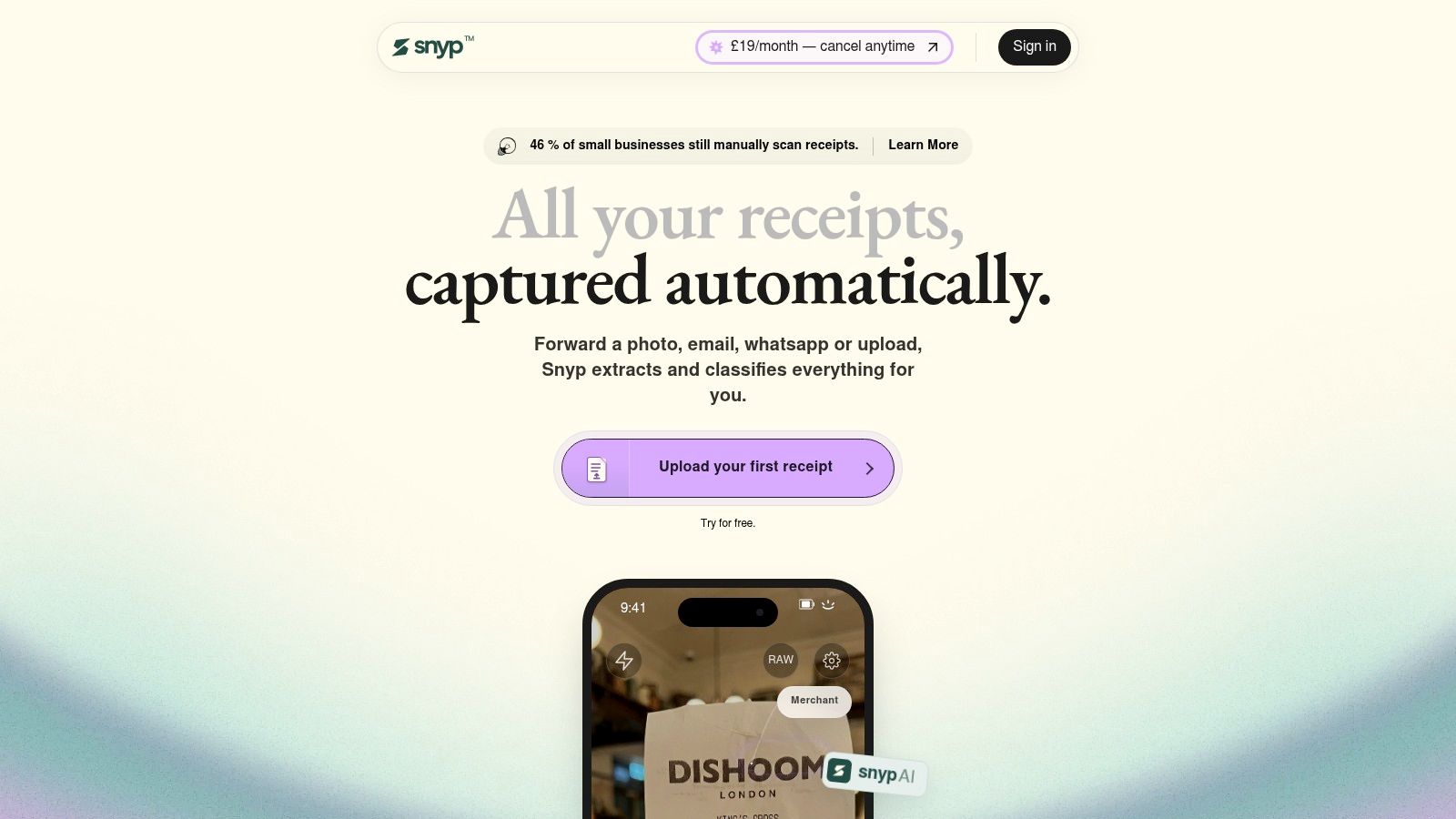
For wider comparisons of tools used by smaller businesses, best expense tracking software for SMEs is a useful starting point. Snyp can accept iPhone receipt photos through WhatsApp, email forwarding or direct file upload, then extract and categorise the relevant expense fields before accounting-platform synchronisation.
When Native Scanning Is Enough and When It Is Not
Native scanning is perfectly sensible for occasional expenses. If you're a sole trader with a quiet stream of predictable paper receipts, Notes or Files can create clear digital copies without another subscription, login or approval screen. The workflow stays manageable when you can remember where each scan lives and enter the amount, date and category without creating a second backlog.
The limitations appear when receipts arrive from several directions. Paper may come from travel, while invoices arrive by email and supporting documents sit in messaging threads. Notes can preserve the evidence, but it doesn't by itself reconcile each image with an accounting transaction or force you to correct a misread total.
| Native iPhone workflow | Structured capture workflow |
|---|---|
| Best for occasional paper receipts | Best for recurring business expenses |
| Creates scans in Notes or Files | Extracts fields for review and approval |
| Searchable text may be available | Merchant, date, amount and tax become structured data |
| You organise filenames and folders | The capture process can centralise incoming documents |
| Manual accounting entry remains | Data can move towards reconciliation and sync |
The decision isn't about whether Apple's scanner is good. It is about where your time goes after capture. If you repeatedly retype totals, correct dates, chase missing VAT lines or sort screenshots from several channels, a structured pipeline can be cheaper in time even when the native scanner costs nothing.
A dedicated tool also becomes more relevant when an accountant needs consistent files, when VAT review matters or when your business is preparing for digital-record obligations. The best receipt scanner app depends on your volume, privacy requirements and accounting setup, not on the camera alone.
A Weekly Receipt Habit That Actually Sticks
Capture the receipt when the purchase happens, then reserve a short weekly review for everything that followed. Open each file, compare the extracted fields with the image, rename it consistently, store it in the backed-up destination and sync the approved entry to your accounting platform if you use one.
Use a stable filename that includes the date and merchant. Keep one receipt per file unless multiple pages genuinely belong together. Delete duplicates only after confirming that the retained copy opens correctly and remains connected to the transaction.
HMRC says self-employed taxpayers must keep digital records for at least 5 years after the 31 January submission deadline for the relevant tax year, as set out in its Making Tax Digital digital-record guidance. That makes backup and retrieval part of bookkeeping, not optional tidying.
Before you finish each review, ask:
- Is the whole receipt visible?
- Do the amount and date match the image?
- Is the category appropriate?
- Can you find the file without searching the camera roll?
- Does a backup exist?
If any answer is no, fix the record before the week closes.
Use Snyp to send iPhone receipt photos through WhatsApp, email or direct upload, review the extracted merchant, amount, date, tax and category, and move approved data towards your accounting system. Start by sending a receipt from your next purchase, then build the weekly review habit around the results.