




How to Calculate VAT Included in Prices: Worked Examples
On a price that already includes VAT, the tax is total × rate ÷ (100 + rate). A £120 inclusive price at 20% therefore holds £20 of VAT and £100 net.
You're at the kitchen table with a card slip that shows one figure. The till took the money, the bank feed matches it, and the return is due. Multiplying that £120 by 20% would book £24 of tax that was never in the price. The shortcut treats the gross as if it were the net, and that is the mistake that throws the books out.
Pull the VAT Out of an Inclusive Price
A receipt shows £120, but the VAT rate is not printed beside the total. To separate the tax, use total × rate ÷ (100 + rate). At 20%, the divisor is 120: £120 × 20 ÷ 120 gives £20 VAT, leaving £100 net.
HM Revenue & Customs' guidance on charging and reclaiming VAT states that the UK standard rate was 20% in 2024–2025. To build an inclusive price, a business multiplies the net price by 1.2. Reversing that calculation takes £120 back to £100 net and £20 VAT.
The rate changes how much tax is inside the same £120 total:
| VAT rate | Formula | VAT | Net |
|---|---|---|---|
| Standard 20% | 120 × 20 ÷ 120 | £20 | £100 |
| Reduced 5% | 120 × 5 ÷ 105 | £5.71 | £114.29 |
| Zero-rated 0% | 120 × 0 ÷ 100 | £0 | £120 |
At 5%, £120 × 5 = £600, and £600 ÷ 105 = £5.71428. Round the VAT to £5.71, then subtract it from £120 to get £114.29 net. The figures add back to the receipt total. A £105 total at 5% gives a tidier result: £105 × 5 ÷ 105 is £5 VAT, leaving £100 net.
Practical rule: Multiply the inclusive total by the rate, then divide by 100 plus that rate. The common shortcut of taking 20% of the gross overstates the VAT.
A routine you can repeat
- Read the inclusive total on the receipt or invoice.
- Confirm the applicable rate: 20%, 5% or 0%.
- Use the rate as a number, such as 20.
- Multiply the total by that number.
- Divide by 100 plus the rate. The result is the VAT.
- Subtract the VAT from the total to find the net. Check that net plus VAT equals the original total.
For an £84 receipt at 20%, £84 × 20 = £1,680, and £1,680 ÷ 120 = £14 VAT. The net is £70. Add £70 and £14 to confirm the total is £84.
Round the VAT figure to the nearest penny, then calculate the net as the remainder. That way, the two amounts still add up to what the supplier charged. For payroll figures on a statement, handling HMRC queries on payroll is a separate issue from extracting VAT from a purchase.
Worked Examples for Common Business Receipts
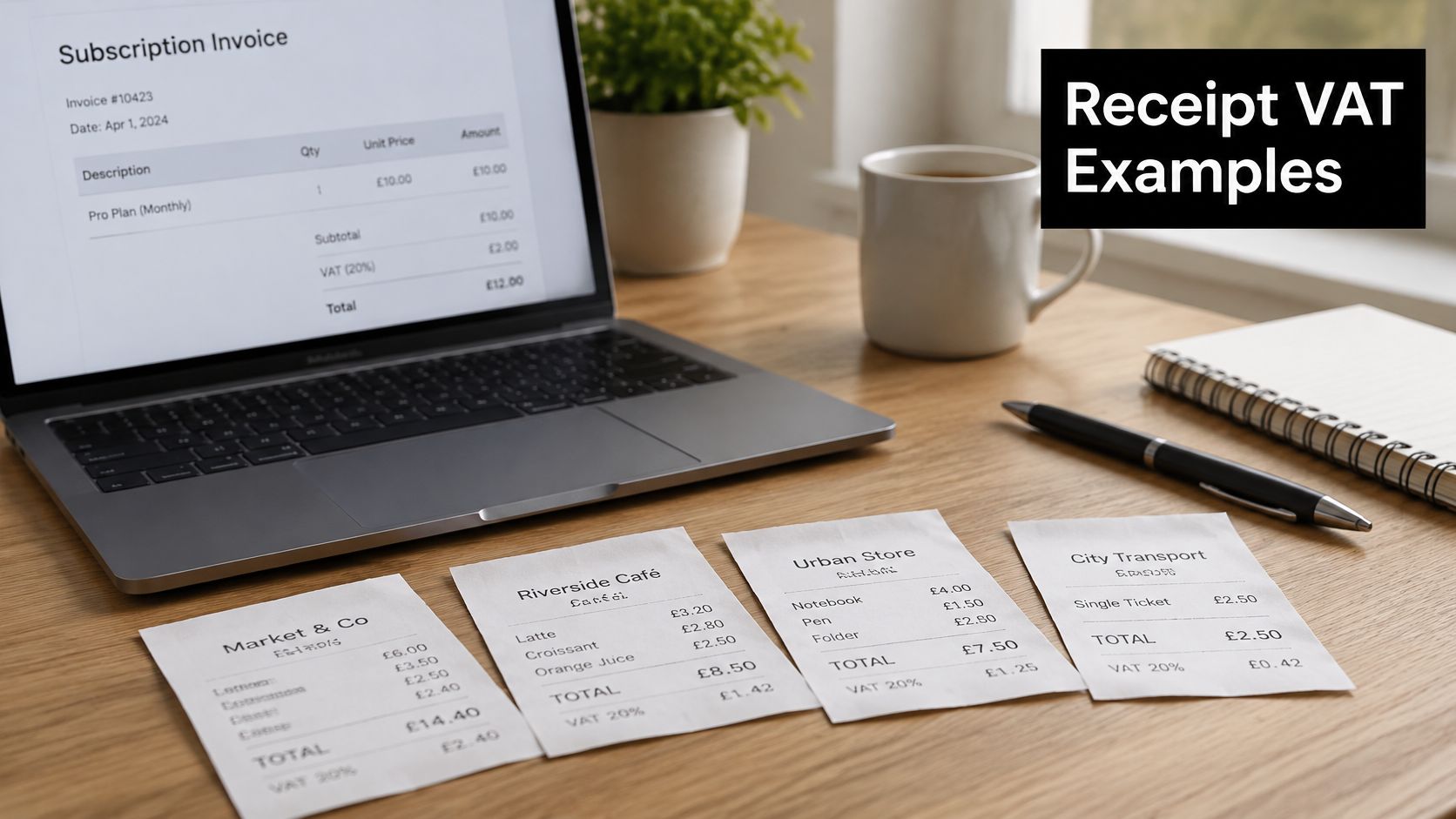
Four receipts you are likely to hold this month show the method on familiar totals. The picture below is the sort of mix that lands on a desk: a subscription on screen, and paper slips with different rates.
| Receipt | Rate | Inclusive total | VAT | Net |
|---|---|---|---|---|
| Software subscription | 20% | £60 | £10 | £50 |
| Office supplies | 20% | £36 | £6 | £30 |
| Domestic fuel bill | 5% | £210 | £10 | £200 |
| Children's clothing | 0% | £45 | £0 | £45 |
A design freelancer pays £60 for a software subscription. 60 × 20 ÷ 120 is £10 VAT and £50 net. Post £50 to the expense and £10 to input VAT, and the bank payment of £60 still matches.
A stationery run of £36 works the same way. 36 × 20 ÷ 120 is £6, leaving £30 net. The numbers are smaller, but the divisor is still 120 because the rate has not changed.
A home office fuel bill of £210 is often the reduced rate. 210 × 5 ÷ 105 is £10 VAT and £200 net. Using the 20% divisor here would invent tax that the supplier did not charge.
Children's clothing at £45 is zero-rated. 45 × 0 ÷ 100 is £0, so all £45 is net. There is nothing to reclaim, and that is correct, not a missing receipt line.
How you tell the rate
Look for a VAT line, then for the supplier's VAT number. Our guide to VAT receipt requirements sets out what a valid receipt should show before you rely on it. If no VAT line appears, decide whether the item is zero-rated, exempt or outside the scope before you assume a rate.
A total with no VAT line is not proof that no VAT was charged. It may be a simplified receipt, a zero-rated supply, or a purchase with no tax in it at all.
In the accounts, each of these four lines needs three figures that agree: net, VAT and gross. A virtual bookkeeper from Virtustant can post those columns so the purchase ledger matches the bank, which is the check that catches a wrong divisor before the return is filed.
Splitting Mixed-Rate and Exempt Receipts
A combined receipt can include business goods, personal purchases and items taxed at different rates. Applying 20% to the whole total gives the wrong answer: it can overstate VAT and misstate the net cost. The receipt needs to be separated line by line.
HMRC's VAT rates guidance lists standard-rated, reduced-rated and zero-rated goods. Exempt supplies and transactions outside the scope are separate treatments, not extra VAT rates. If a single price covers several supplies, it must be apportioned between them. A restaurant bill can also contain different VAT treatments; this guide to VAT on restaurant food explains why the total alone may not show the tax charged on each item.
| Item type | VAT treatment | Reclaimable input VAT? | Example |
|---|---|---|---|
| Standard-rated goods | 20% | Yes, if used for business | Laptop accessories |
| Reduced-rated goods | 5% | Yes, if used for business | Energy-saving materials |
| Zero-rated goods | 0% | No VAT charged, so nothing to reclaim | Children's clothing |
| Exempt supplies | No VAT charged | No | Insurance premiums |
| Outside the scope | Not a VAT supply | No | Staff wages |
| Non-business items | The rate that applies to the item, such as 20% | No | Personal groceries on a combined receipt |
Separate the receipt into lines and identify each line's treatment. Then calculate VAT only on eligible business purchases where VAT was charged. Exempt purchases, private items and amounts outside the scope do not belong in that calculation. Zero-rated items are different from exempt items: the VAT rate is zero, while an exempt supply has no VAT charged. Neither creates input VAT to reclaim.
A receipt total cannot show how much VAT is reclaimable. Check each line:
- What was bought? Record the item or service, not just the shop.
- What is its VAT treatment? Identify whether it is standard-rated, reduced-rated, zero-rated, exempt or outside the scope.
- Was it for the business? If it was a private purchase, do not reclaim its VAT.
How Flat Rate and Retail Schemes Change the Sum
People often assume the VAT pulled out of a receipt is the amount payable to HMRC, or the amount they can reclaim. That holds on standard accounting for a single-rate purchase used in the business. It does not hold once a special scheme is in play.
HMRC's Flat Rate Scheme guidance says Flat Rate Scheme turnover is based on gross, VAT-inclusive supplies, and that the percentage depends on the business sector. You still record customer invoices at the normal VAT rate. The sum you pay HMRC is the sector percentage applied to that VAT-inclusive turnover, not the VAT printed on each receipt. Automating the extraction formula while the scheme, the sector and the sales mix are unknown can increase the error rather than remove it.
Shops have a second twist. HMRC offers retail schemes because working tax out of every inclusive sale, one transaction at a time, is often impractical. The allowed routes are point of sale, apportionment, or a direct calculation. A boutique that drops every card total into a 20% extractor can miss the method it agreed to use.
Before you trust a calculator, answer three questions.
- Is the business on standard accounting, the Flat Rate Scheme, or a retail scheme?
- Is this figure a sale or a purchase?
- Does the price carry one rate, or several?
Flat Rate Scheme percentages sit on relevant gross turnover. They are not a second way of reading the VAT line on a single receipt. Confirm the scheme first. The arithmetic only means what you think it means after that answer is settled.
Build a VAT-Inclusive Price from the Net
Sometimes calculate VAT included means the other direction. You know the net you want and you need the price to charge.
At 20% you multiply the net by 1.2. At 5% you multiply by 1.05. At 0% you multiply by 1, so the inclusive price equals the net and there is no VAT to add. Those multipliers are the reverse of extraction. If you build the gross correctly, pulling the VAT back out returns the same penny you added.
Use this order when you are pricing, not when you are reading a receipt.
- Take the net you want to charge.
- Confirm 20%, 5% or 0%.
- Multiply by 1.2, 1.05 or 1.
- Subtract the net from the gross. That difference is the VAT you added.
- Run total × rate ÷ (100 + rate) on the gross and confirm it matches that VAT to the penny.
A job priced at £70 net at 20% becomes £70 × 1.2 = £84 inclusive. The VAT added is £14. Checking backwards, 84 × 20 ÷ 120 is £14 again. A reduced-rate job at £200 net becomes £200 × 1.05 = £210, with £10 of VAT. If the two directions disagree, the rate is wrong or a rounding penny has been applied twice. The original net is not the problem.
Our walkthrough on how to add VAT to a price sets the same multipliers out for quoting. Once the invoice exists, the harder job is reading it back. Snyp understands UK expense categories and VAT rules out of the box, and it extracts the vendor name, date, line items with quantities and prices, VAT amounts, total, payment method and currency from each receipt, so the net and the tax start in separate fields instead of one undifferentiated total.
Snyp turns a photo, an email or a WhatsApp forward into structured receipt data, with the VAT separated from the net before you post to Xero or QuickBooks. If you are still splitting inclusive totals by hand, that is the step worth handing over. Visit Snyp and send a receipt through to see the lines come back ready to check.