




What Is Email Forwarding and How It Actually Works
You receive a receipt by email, forward it to another address, and it appears in a second inbox. It feels almost too simple to deserve an explanation. Yet behind that small action, mail servers copy the message, rewrite parts of its delivery information, evaluate security checks, and pass the content across another organisation's systems.
That's why understanding what email forwarding is matters for more than inbox tidiness. Forwarding can connect Gmail to an expense tracker, route a customer enquiry to a support team, or deliver messages from a professional domain to your everyday inbox. It can also expose confidential information, affect deliverability, and create data-protection obligations if you use it without care.
The Everyday Moment That Shows Why Email Forwarding Matters
A freelance designer has just paid for a stock-image subscription. The receipt lands in her main inbox while she's working on a client project. She knows she needs the document in her expense records before she finishes her VAT paperwork, but her tracker is only half organised, and the spreadsheet still contains several rows waiting for merchant names, dates, and totals.
She could download the PDF, rename it, find the right folder, and copy the figures into her records. Instead, she forwards the receipt to a dedicated address connected to her expense workflow. The message and its attachment arrive there, ready for automatic processing, while the original remains in her inbox.
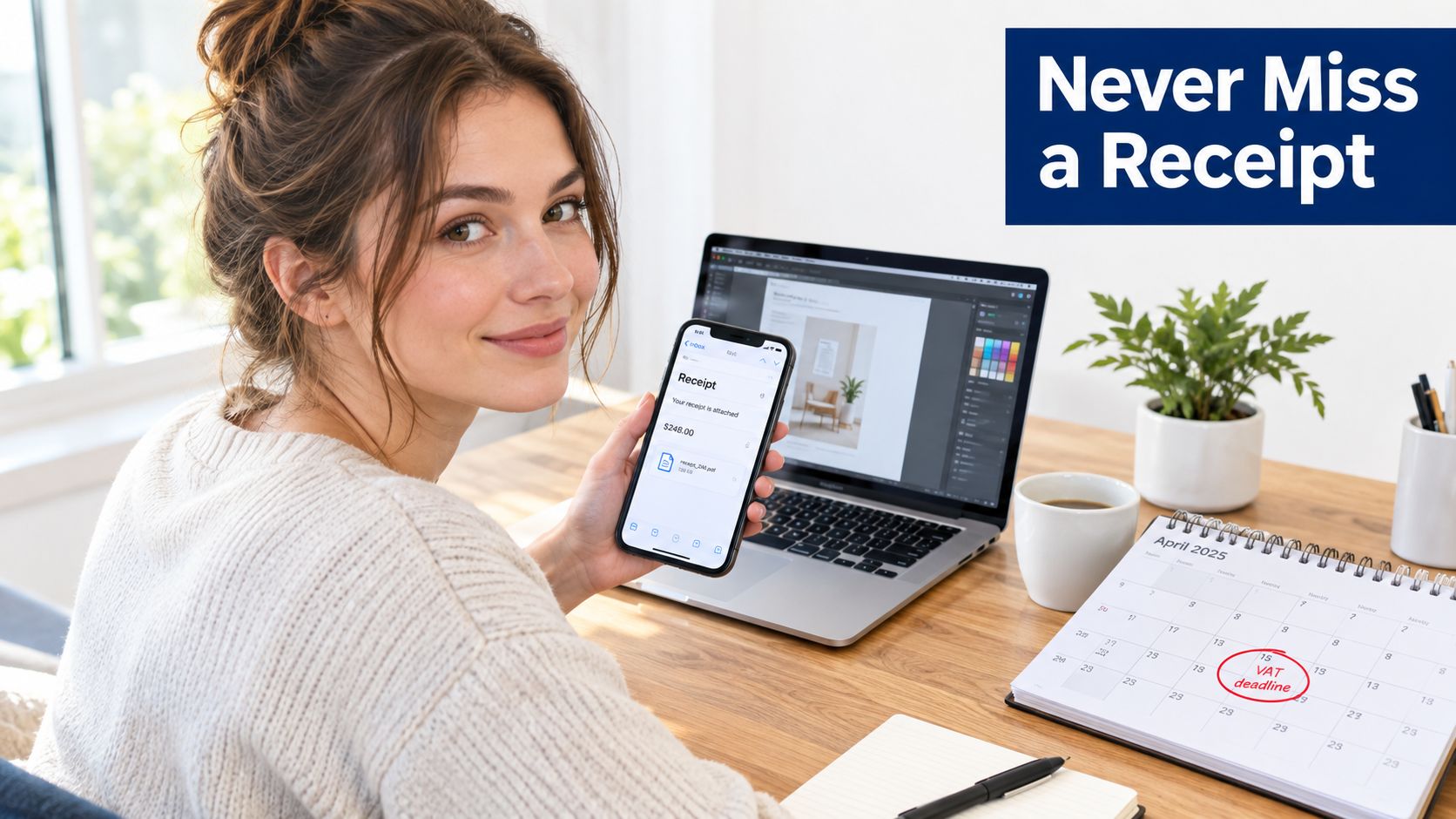
That small action is the important part. Email forwarding acts as a quiet handshake between an inbox and the software that handles categorisation, tax records, archiving, or reporting. The freelancer doesn't need to log in to another mailbox throughout the day or manually retype every receipt. She sends a copy to the place where the next task happens.
This isn't an IT-admin-only feature. People use forwarding to send personal messages to an archive, direct several work addresses into one inbox, or connect billing emails with tools such as Snyp. A dedicated receipt address can accept forwarded messages and attachments, then turn the information into structured expense records.
The feature looks like a simple button, but it's better understood as email plumbing. A message starts in one system, passes through a rule or human decision, and arrives where another system can use it.
Practical rule: Forward a message because the destination has a clear job to perform, not simply because another inbox exists.
What Email Forwarding Actually Is and How It Works
Email forwarding is the automatic or manual redirection of an email copy from one address to another. The original message normally stays in the first mailbox, while a second version is sent to the destination address.
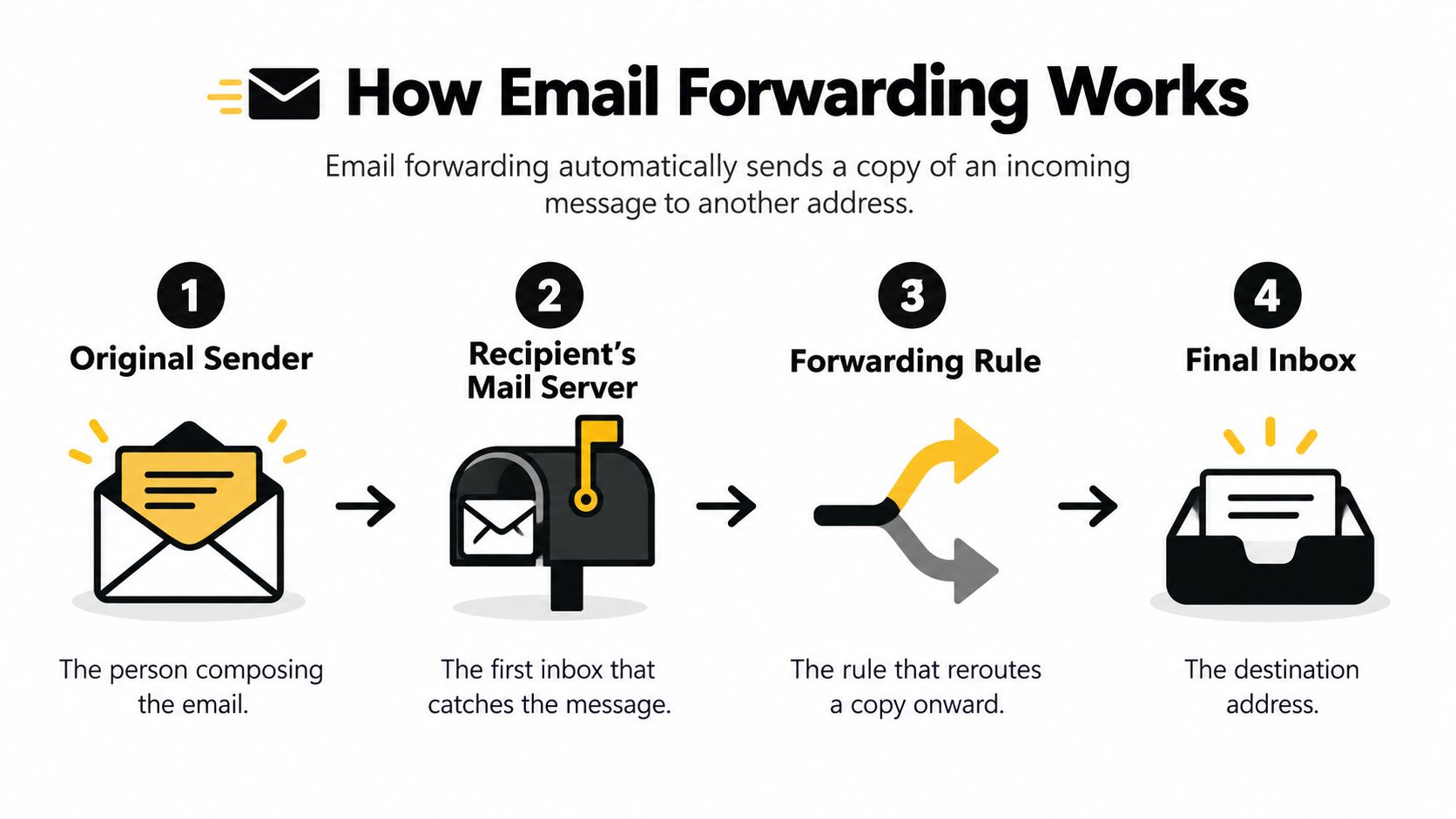
A postal analogy makes the process easier to picture. The original sender is the person who posts a letter. The recipient's mail server is the local sorting office. A forwarding rule is a redirect instruction filed with that office, telling it to send a copy onwards.
The message path
The process usually follows four stages:
- The sender submits the message. The sender's mail system contacts the recipient's mail server using SMTP, the protocol used by mail servers to exchange messages.
- The first server accepts the message. It checks the destination address and places the email in the recipient's mailbox or delivery queue.
- A rule is evaluated. The server checks whether the message matches a forwarding instruction, such as a particular sender, subject line, attachment type, or mailbox.
- The server sends a copy onwards. It creates a new delivery transaction for the destination address and transmits the forwarded message.
The postal comparison has one useful limitation. Email forwarding isn't a clerk physically moving the original letter from one box to another. The first mailbox generally keeps the original, while the destination receives a copy. The original sender usually won't receive a notification that a forwarding rule acted on the message.
The forwarded version can also contain changed or additional headers. Headers are the technical lines that describe how a message travelled, which servers handled it, and which address the receiving server should use for delivery decisions. Those changes help explain why a message that arrived safely in the first inbox can encounter spam filtering or authentication problems after forwarding.
For the user, the entire sequence normally happens in milliseconds. The practical question isn't whether forwarding is fast. It's whether the rule is precise, the destination is trustworthy, and the forwarded message still passes the checks applied by the next receiving server.
The Three Main Types of Email Forwarding Compared
Not every forwarding arrangement works in the same way. The right choice depends on whether a person, a mailbox rule, or a domain service decides where the message goes.
| Type | How it works | Best for | Setup effort |
|---|---|---|---|
| Manual forwarding | You select a message and press Forward, then choose the destination | Occasional sharing, replies, and individual documents | Low |
| Rules-based auto-forwarding | Gmail filters, Outlook rules, or Apple Mail rules watch incoming messages and forward those matching conditions | Repeated workflows, such as sending receipt PDFs to an expense tool | Medium |
| Alias-based forwarding | A domain-level address, such as receipts@ or support@, routes incoming mail to one or more existing inboxes |
Professional addresses, team routing, and separate public-facing identities | Medium to high |
Manual forwarding gives you judgement at the moment of sending. You can inspect the content, remove an attachment, add context, or decide that the message shouldn't leave your mailbox. That flexibility makes it suitable for occasional use, but it depends on you remembering every time.
Rules-based forwarding is more consistent. A filter might look for messages from a supplier, subjects containing “receipt”, or emails with PDF attachments. It can then send matching mail to a chosen destination without requiring another manual step. The trade-off is that a poorly designed rule can forward too much, miss important messages, or send sensitive correspondence to the wrong account.
Alias-based forwarding sits one level higher. Instead of giving every public contact your personal inbox, you publish addresses such as hello@yourdomain.com, invoices@yourdomain.com, or support@yourdomain.com. A domain service then routes those addresses to the mailbox or team destination you select. This keeps the visible address organised, although domain and DNS administration make the initial setup less immediate.
Choose manual forwarding when the decision matters more than speed. Choose rules-based forwarding when the same decision occurs repeatedly. Choose alias forwarding when you need a stable public address that can continue working even if the people or inboxes behind it change.
Practical Use Cases That Go Beyond Convenience
A freelance photographer receives supplier receipts in several different places. Rather than searching each account at the end of the month, she creates one receipt workflow and sends relevant messages to a dedicated destination. The value isn't just a cleaner inbox. The destination can read the message, process its attachment, and turn an incoming email into a useful record.
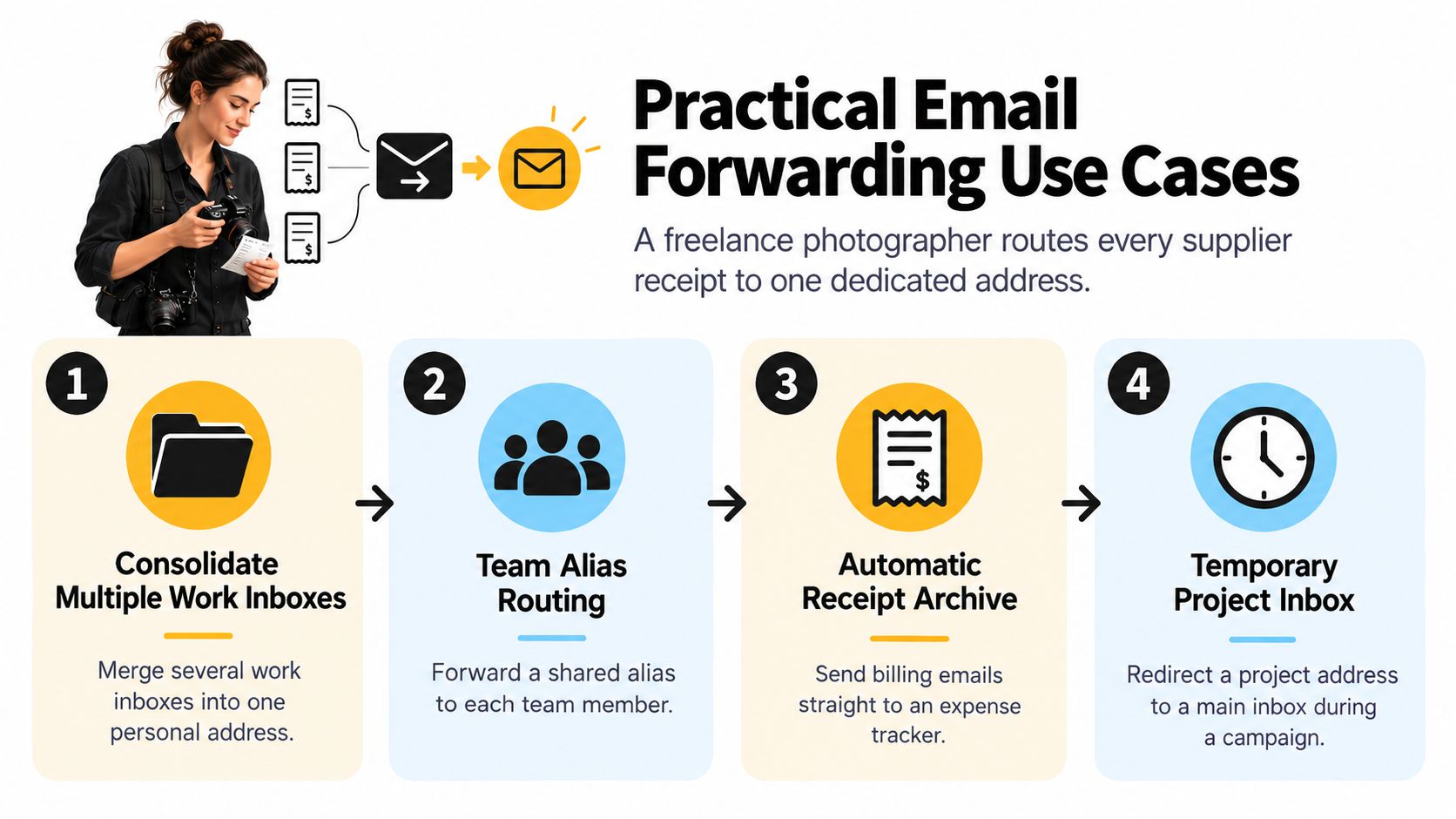
Common patterns include:
- Consolidating work inboxes: A contractor can forward messages from several project addresses into one personal work inbox, then use folders or labels to keep each source distinct.
- Routing a shared alias: A business can direct
support@orhello@to a shared team mailbox so customer messages don't depend on one employee's account. - Capturing receipts automatically: Order confirmations and invoices can be forwarded to an expense system that extracts the merchant, total, date, tax, currency, and category from the email or its attachment.
- Tracking address exposure: An address such as
you+netflix@gmail.comcan help identify which subscriptions or companies use a particular alias when they contact you later.
For receipt processing, the workflow is straightforward. The user creates a dedicated Snyp forwarding address, adds it as the destination in a Gmail forwarding rule, and applies a filter that matches receipt messages. From then on, matching emails are forwarded automatically, and the service parses the email body or attachment into a spending dashboard for review.
The useful distinction is between forwarding as delivery and forwarding as workflow automation. Delivery merely places a copy somewhere else. Automation gives that copy a job, such as categorising a purchase, assigning a support ticket, or storing a document in a project archive.
People sometimes confuse email forwarding with physical mail redirection. If your wider problem involves receiving letters, parcels, or official post while living abroad, a guide to the best mail solution for expats can help you compare physical mailbox services with digital email routing. They solve related but different problems.
For a practical receipt workflow, Snyp's guide to setting up email forwarding explains how to connect selective Gmail or Outlook rules to its intake address. The principle remains the same with any destination: forward only messages the receiving system knows how to interpret.
Security, Privacy, and Compliance Risks You Should Know
A receipt forwarded to a finance tool may seem like a simple copy of an email. Technically, it crosses a trust boundary. The message leaves the original sender and recipient environment, passes through a forwarding service, and arrives in another mailbox. Each point in that route may apply different access controls, retention periods, security standards, and permissions.
A UK government security guide warns that automatic forwarding can create risk when the destination does not meet the required security standards. UK institutions have responded with strict controls. One university announced that unauthorised automatic forwarding to external addresses would be blocked from 19 August 2025, while ad hoc manual forwarding remained available, as described in this UK email marketing compliance guide.
Forwarding is also common enough to affect wider mail infrastructure. A quantitative study recorded 11,709,190 emails received over one month, involving 7,943 addresses and 5,427 customers. Its detection method found that about 3.5% of incoming email was auto-forwarded (Cambridge study of email forwarding). These findings show that forwarding is not limited to unusual personal setups.
Authentication can change during forwarding
SPF checks whether the sending IP address is authorised for the sender's domain. After forwarding, the final receiving server may see the forwarder's IP instead of the original sender's IP. SPF can then fail even though the original message was legitimate.
DKIM may preserve the sender's cryptographic signature if the message remains unchanged. ARC can preserve authentication context across forwarding. If those protections do not survive, a genuine invoice may be placed in spam, while the receiving system has more difficulty separating a forwarded message from a spoofed one. An SPF and DKIM checker can help inspect the sending domain and identify configuration problems.
Privacy obligations follow the content
Forwarding a work email to a personal Gmail account can move personal data outside the employer's controlled environment. That may conflict with organisational instructions under UK GDPR and the Data Protection Act 2018. An NHS-related policy states that unencrypted person-identifiable or sensitive information must not leave the network through direct sending or redirection, with auto-forwarding prohibited under its information-governance rules since February 2008 (email use policy guidance).
The practical application today is clear: before forwarding personal data automatically, establish a lawful basis, confirm a data-processing agreement with the destination where required, and document retention limits. See our guide to GDPR compliance for forwarding workflows for retention and lawful-basis checks. A historical policy still matters as context, but current decisions should address the data, destination, access, and retention involved.
Use practical safeguards:
- Protect accounts: Enable two-factor authentication on every account involved in forwarding.
- Limit destinations: Choose approved destinations with suitable access controls, audit logging, and retention policies.
- Review rules: Audit forwarding rules quarterly and remove them when a project ends or a staff member leaves.
- Protect sensitive content: Do not automatically forward client personal data unless the arrangement and any required data-processing agreement support it.
- Test selectively: Send a non-sensitive message first and check whether attachments and authentication details survive the route.
If displaying the email on a crowded station screen would cause serious trouble, do not auto-forward it.
Quick Setup Steps for Gmail, Outlook, and Apple Mail
The exact labels can change as providers update their interfaces, but the core process is consistent. First choose the destination, then verify that you control it, then decide whether every message or only selected messages should be forwarded.
Gmail on desktop
Open Gmail and select the gear icon, followed by See all settings. Open Forwarding and POP/IMAP, choose Add a forwarding address, and enter the destination address.
Gmail sends a confirmation message to that destination. Open it and complete the verification step. Return to the forwarding settings, choose whether Gmail should forward all new mail while keeping a copy or use the available mailbox-handling option, then select Save Changes.
For a selective workflow, don't forward everything. Create a filter based on the sender, subject, words such as “receipt”, or the presence of an attachment. Set the filter to forward only matching messages to the verified address.
Outlook on the web
In Outlook, open Settings, select Mail, and then choose Forwarding. Turn on Enable forwarding, enter the destination address, and decide whether to select Keep a copy of forwarded messages or Do not keep a copy.
Select Save. Microsoft may ask you to confirm the destination with a verification code sent to the target address. Check the setting again after verification, particularly if the account is managed by an employer, because organisational policies may prevent external forwarding.
Apple Mail on iCloud
For iCloud Mail, sign in at iCloud.com and open Settings. Go to Mail, select Forwarding, enter the destination address, and complete the verification flow sent to that inbox.
iCloud forwarding applies to new mail that arrives after the rule is active. It won't process messages that were already sitting in the inbox before the rule was created.
Test before trusting: Use a non-sensitive email, confirm that it arrives, inspect the headers and attachment, and check the destination's spam folder. Only then should you rely on the rule for business records.
Building a Forwarding Setup That Works for You
Start with three questions. How much mail will move, and how sensitive is it? A few purchase receipts require a different level of control from client correspondence or employee records. Can the destination reliably ingest the message and its attachments? A forwarding rule is useful only if the receiving system can act on what it receives.
Finally, check authentication and policy. Forwarding may affect SPF, DKIM, and DMARC results, while UK data-protection requirements may restrict where personal or confidential information can go. For receipt workflows, Snyp's email integrations provide one example of a destination designed to receive forwarded documents and turn them into structured expense information.
Start with one low-risk use case, such as purchase receipts. Confirm that the headers and attachments survive the extra hop, document the rule, and review it quarterly. Expand later to project aliases, contractor addresses, or separate side-business inboxes, and prefer precise provider-native filters over broad catch-all rules.
Email forwarding is plumbing, and good plumbing works only when the source, destination, and policy are aligned.
Snyp lets freelancers and small businesses forward receipt emails or upload documents, then extract details such as merchant, amount, date, tax, currency, and category for review and accounting workflows. Visit Snyp to connect your receipt inbox and reduce the manual work between receiving an email and keeping your records up to date.