




VAT Amount Calculation: How to Work Out Net and Gross
You've got a receipt for £84 in front of you. You need the VAT for your books. You type 20% of £84 into a calculator, get £16.80, and move on, but that answer is wrong.
That one slip shapes a lot of bad VAT records. The fix is simple once you see it. You check the rate first, then you work out whether your starting figure already includes tax. This guide walks through VAT amount calculation in that order, with pound examples you can copy.
VAT Formulas for Net and Gross Prices
Core VAT formulas using a £150 net price
| Calculation | Formula | Example | Result |
|---|---|---|---|
| VAT on a net price at 20% | Net × 0.20 | £150 × 0.20 | £30 |
| VAT-inclusive price at 20% | Net × 1.20 | £150 × 1.20 | £180 |
| Net price from a gross price | Gross ÷ 1.20 | £180 ÷ 1.20 | £150 |
| VAT inside a gross price at 20% | Gross ÷ 6 | £180 ÷ 6 | £30 |
| VAT-inclusive price at 5% | Net × 1.05 | £150 × 1.05 | £157.50 |
How to Read the Decimals
A percentage becomes a decimal when you move the point two places to the left. So 20% becomes 0.20, and 5% becomes 0.05. That's all the conversion is. You're not changing the value, you're writing it in a form a calculator can use.
The 1.20 multiplier needs a second look, because it's where readers pause. The 1 stands for the whole net price. The 0.20 is the tax added on top. Multiply by 1.20 and you get net plus tax in one step, instead of working out the tax and adding it separately.
Practical rule: Multiply by 0.20 when you want the tax alone. Multiply by 1.20 when you want the total the customer pays.
The divide-by-six shortcut in the fourth row works only at 20%, and only when your starting figure already includes VAT. It feels like a trick, but it's plain arithmetic. A gross price at 20% contains six equal parts, five parts net and one part tax, so one sixth of the total is the VAT.
Why the Multiplier Changes
Change the rate and both numbers change with it. At 5%, you multiply by 0.05 for the tax alone, or by 1.05 for the VAT-inclusive total. The shape of the sum stays the same. Only the rate you've chosen moves.
That's why a correct formula can still give a wrong answer. If you apply 1.20 to a supply that should carry 5%, every figure after it is overstated. If you're comparing tools to handle these sums for you, accounting software comparisons can help you weigh up what's built into each package. Either way, the maths only works once you've picked the right rate for the item in front of you.
Choosing the Right VAT Rate Before You Calculate
UK VAT rate bands and what they mean on £1,000 net
| Rate band | Typical supplies | VAT on £1,000 net |
|---|---|---|
| Standard 20% | Accountancy fees, office equipment, most services | £200 |
| Reduced 5% | Domestic fuel and power, children's car seats | £50 |
| Zero-rated 0% | Most food for human consumption, children's clothing, books | £0 |
| Exempt | Insurance, education, certain finance | £0 charged, input VAT not reclaimable |
Look at the spread in that last column. The same £1,000 net price produces £200, £50 or nothing at all, purely because of the category. No amount of careful arithmetic rescues a calculation built on the wrong row.
Judge the Supply, Not the Supplier
The category of what's sold sets the rate. The type of business selling it doesn't. A café, a supermarket and a market stall can all sell food, yet the rate turns on the food itself and how it's supplied.
Cold food bought from a shop is generally zero-rated. Hot takeaway food is standard-rated at 20%. Same customer, similar lunch, completely different tax. If you sell or buy food, it helps to check the detail on VAT on restaurant food before you code an invoice. That single contrast catches more people out than almost any other.
Zero-Rated Is Not the Same as Exempt
Both rows show £0 VAT, so they look identical. They aren't. A zero-rated sale is still a taxable supply, charged at 0%, and it belongs on your VAT return. An exempt sale sits outside that system, and the VAT on costs linked to it usually can't be reclaimed.
That difference changes your bookkeeping even when the customer pays the same. Record a zero-rated sale as exempt and your return understates taxable sales. Record an exempt sale as zero-rated and you may reclaim VAT you shouldn't.
Identify the category first, pick the row second, and only then reach for a calculator.
Invoices With More Than One Rate
Suppliers often mix rates on one invoice. A single order might hold standard-rated equipment alongside zero-rated books. Don't apply one rate to the invoice total.
- Treat each line separately: Apply that line's rate to that line's net amount.
- Add the VAT amounts together: The invoice VAT total is the sum of the line results.
- Keep the split visible: Your records should show which lines carried which rate.
Once you've fixed the rate, the next decision is your starting figure. You either hold a net price and add tax, or you hold a gross total and pull the tax out.
How to Work Out VAT on a Net Price
The visual below follows one invoice from net to gross, using the same figures as the steps.
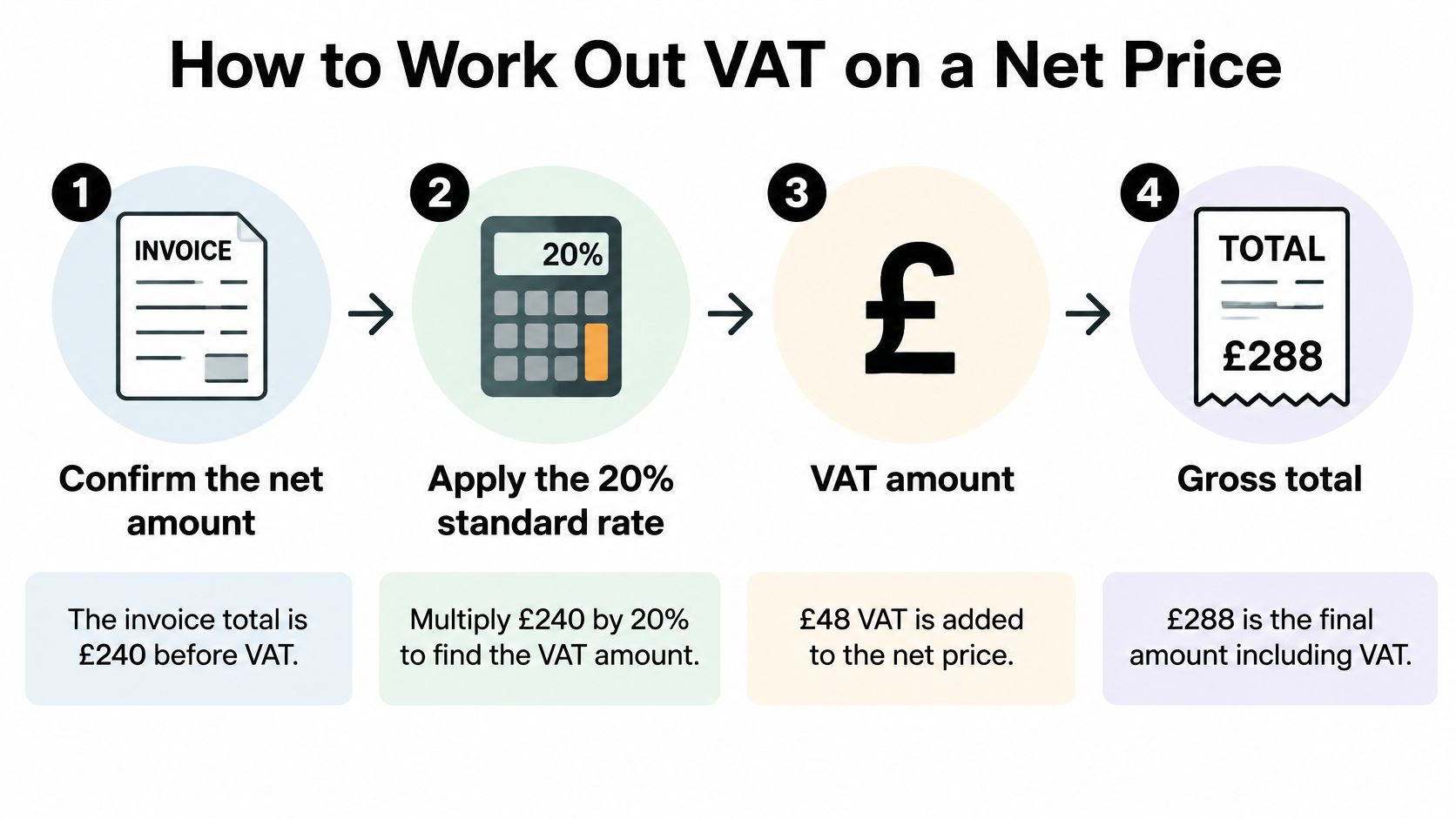
Say you're raising an invoice for £240 before VAT and the supply is standard-rated. Five short steps get you to the total.
- Confirm the figure is net. Check the quote says the price excludes VAT, because suppliers mix net and gross figures in emails all the time. If it's already gross, stop here and use the reverse method instead.
- Confirm the rate for this supply. Start from 20% unless the category points to the reduced or zero rate. Guessing at this point puts every later figure out.
- Convert the rate to a decimal. Move the point two places left, so 20% becomes 0.20. This makes the percentage usable in a multiplication.
- Multiply the net price by the decimal. £240 × 0.20 = £48. That's your VAT amount on its own.
- Add the VAT to the net. £240 + £48 = £288. That £288 is the invoice total the customer pays.
Rounding and Common Slips
Round once, at the end, to the nearest penny. If you round the VAT on every line of a long invoice, those tiny adjustments stack up and your total drifts by a penny or two. One final rounding keeps the invoice internally consistent.
The most common slip is multiplying a price that already includes VAT. You end up charging tax on tax, so both the VAT figure and the total come out too high. Step 1 exists to stop exactly that.
At 20%, the VAT is always one fifth of the net price. £240 divided by 5 is £48, so you can sense-check any answer in your head.
If you build these sums in a spreadsheet, keep the rate in its own cell rather than burying it inside each formula. That way you change one cell when a line carries 5%. For help structuring formulas cleanly, these Excel formula tips for accounting professionals are a useful reference.
The short video below works through the same net to gross movement at a slower pace.
Splitting a VAT-Inclusive Price Into Net and VAT
People often start this calculation in the wrong place. They see a gross total, take 20% of it, and call that the VAT. It's the single most common error in receipt work, and it's worth unlearning.
The GOV.UK page on VAT rates states that the UK's standard VAT rate is 20%. That same guidance shows a service priced at £150 before VAT produces £30 VAT and a total invoice value of £180. Work backwards from those figures and you'll see the point. £30 is not 20% of £180. 20% of £180 would be £36.
The Three Steps, Using £84
Say a shop receipt shows £84 paid, with no breakdown. You need the net cost for your accounts and the VAT you can reclaim.
- Divide the gross price by 1.20. £84 ÷ 1.20 = £70. That £70 is the net price, the amount before tax was added.
- Subtract the net from the gross. £84 − £70 = £14. That £14 is the VAT sitting inside the total.
- Check by reversing the sum. £70 × 1.20 = £84. You've landed back where you started, so the split holds together.
Now set the wrong method beside it. 20% of £84 is £16.80. That overstates the VAT by £2.80 and leaves you with a net figure of £67.20, which is too low. Repeat that across a month of receipts and you've claimed VAT that was never charged.
Why the Shortcut Works
Think of a gross price at 20% as a cake cut into six slices. The net price is five slices. The VAT is one slice. So gross ÷ 6 gives you the tax directly, and £84 ÷ 6 = £14, matching step 2.
That also explains the percentage trap. VAT is 20% of the net, but it's only one sixth of the gross, roughly 16.67%. Two different bases, two different percentages. Mixing them up is where the £2.80 error came from.
Rate-first check: Ask whether your figure already includes tax before you touch a percentage. If it does, divide. If it doesn't, multiply.
Using Other Rates
The divisor is always one plus the rate. At the reduced rate you divide by 1.05, not 1.20. So a £105 gross bill at 5% divides to £100 net, leaving £5 of VAT. The divide-by-six shortcut doesn't apply there, because a 5% gross total splits into twenty-one parts rather than six.
This reverse calculation is the one you'll use most often in day-to-day work. Receipts, till totals and bank lines almost always show the amount paid. That amount is gross. So for expenses, division is your default move, and multiplication is the check you run afterwards.
Rate Changes That Change Your Answer
Say a freelancer digs out a £1,000 net invoice from early 2010 while tidying old records. She expects £200 of VAT at today's rate. The invoice shows £175, and she assumes the supplier made a mistake. The supplier didn't.
The rate that matters is the one in force at the date of supply, not the date you typed the receipt into your software. The HMRC VAT guide, Notice 700 records the standard rate moving from 17.5% to 20% on 4 January 2011. Before that sits a longer chain of changes, set out below.
UK standard VAT rate history and VAT on £1,000 net
| Effective from | Standard rate | VAT on £1,000 net |
|---|---|---|
| 1 April 1973 | 10% | £100 |
| 18 June 1979 | 15% | £150 |
| 1 April 1991 | 17.5% | £175 |
| 1 December 2008 | 15% (temporary) | £150 |
| 1 January 2010 | 17.5% | £175 |
| 4 January 2011 | 20% | £200 |
The temporary dip to 15% in December 2008 is the row that trips people. A bill dated in 2009 can quite legitimately carry 15%. If you "correct" it to 20%, you invent £50 of VAT on a £1,000 purchase and your reconciliation breaks.
The same logic explains the difference between the last two eras. On £1,000 net, 17.5% gives £175 and 20% gives £200, a gap of £25. That's real money on a single invoice. If you want the background on the current position, the guide to how much VAT applies sets it out in plain terms.
The Bookkeeping Rule
If your records span several years, don't hard-code 20% into a spreadsheet column and drag it down. Add a rate column and fill it from the date on each document. It takes seconds per row, and it stops old receipts failing checks they should pass.
Check Every Receipt's VAT Before You Approve It
A receipt can look tidy while the VAT is calculated on the wrong figure. Check the rate first, then test the split. At the standard rate, VAT should be one sixth of the VAT-inclusive total. Taking 20% of that total gives one fifth instead, so it overstates the tax.
Run these five checks on every receipt or invoice:
- Net plus VAT equals gross. The two parts must add up to the total paid, to the penny.
- VAT fits the fraction for the rate. At 20%, it is one sixth of the gross; at 5%, it is one twenty-first. If either check fails, the supplier may have applied the percentage to the wrong base.
- The rate matches the category. Confirm whether the item is standard-rated, reduced-rated or zero-rated before accepting the calculation.
- The date of supply fits the rate. An older document can correctly carry an earlier rate, so check the date before treating an unfamiliar figure as an error.
- The supplier details are complete. Where VAT is charged, the document should show the supplier's name, address and VAT registration number.
The arithmetic can balance while the evidence is still too thin to support the VAT you want to claim back. If you also issue invoices, use the same completeness check on your own layout. The essential fields for HVAC service invoices provide a trade-specific example of supplier details and invoice totals arranged together; apply the layout principle rather than the trade wording.
Let Software Do the Typing, Not the Checking
Tools that capture receipts from WhatsApp, email or file uploads, such as Snyp, extract the tax figure automatically and remove manual typing. A reviewer should still confirm the rate and split before the figures reach Xero or QuickBooks.
It also helps to separate VAT you pay suppliers from VAT you charge customers. The explainer on VAT input and VAT output sets out that distinction clearly.
Stop typing VAT figures off receipts and hoping the split is right. Snyp pulls the net, VAT and total from receipts forwarded by WhatsApp or email, then syncs the checked figures to Xero or QuickBooks. Try it on this month's receipts and run the five checks above on the results.