




How to Forward Whatsapp Message
A client sends a receipt to your WhatsApp while you're between jobs. You need to pass it to your accountant, forward an invoice to a business inbox, or share a supplier's update with two colleagues. The button press is simple, but how to forward a WhatsApp message safely depends on the device you're using, the message's forwarding history, and whether you need to preserve its context for your records.
Forwarding is useful as a transport step. It isn't proof that a claim is accurate, and it doesn't replace a sensible document process. The practical approach is to forward from the original chat, keep the relevant context, and understand where WhatsApp's limits will interrupt a high-volume workflow.
Forwarding a WhatsApp Message on Your Phone
Suppose a freelancer receives a client update on an iPhone or Android phone and needs to send it to two other contacts. Open the relevant WhatsApp conversation, find the message, then tap and hold the message until the contextual toolbar appears. On most Android phones, the selected message is highlighted and the toolbar appears at the top. On iOS, the selection menu and haptic feedback make it clear that the message has been selected.
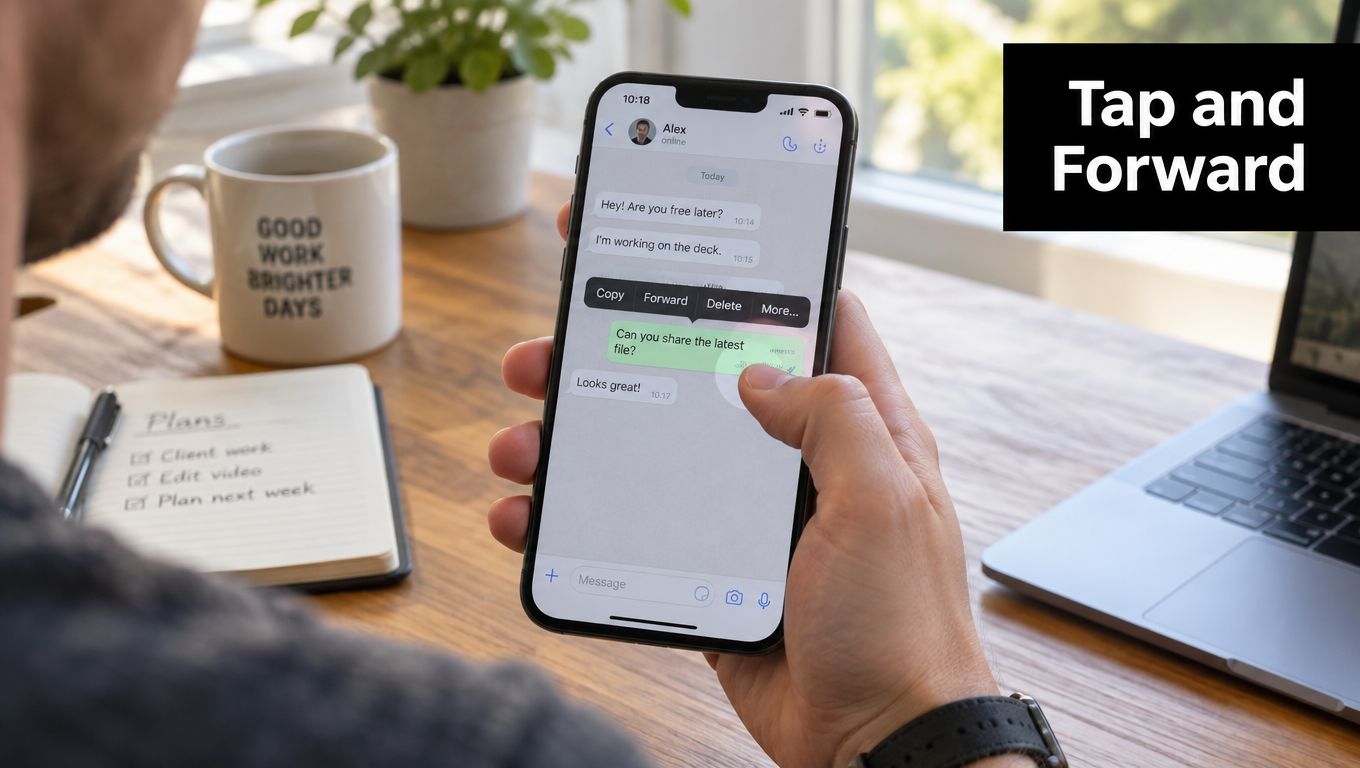
If you want to send more than one item from the same conversation, select the additional messages before touching the forward arrow. WhatsApp then opens a forwarding sheet with frequent contacts and a search field. That's quicker than retyping names, especially when you're routing receipts to a bookkeeper, a supplier message to a purchasing chat, or an update to a project group.
The exact appearance varies slightly between stock Android, Samsung's interface, and iOS, but the logic is the same:
- Select the message: Tap and hold the original item rather than copying its text.
- Add related items: Select more messages while the conversation remains in selection mode.
- Choose the destination: Use a frequent contact, group, or the search field in the forwarding sheet.
- Confirm the send: Check the destination and attachment before tapping the send control.
A forwarded message normally displays its original sender label and timestamp in the destination conversation. It also shows a small chat-bubble forwarding indicator beside the item. That information is useful when the message contains a receipt, delivery instruction, or payment detail because the recipient can distinguish an original message from one routed through another chat.
Practical rule: Forward from the original conversation whenever you can. It gives the receiving person more context than a retyped summary.
For freelancers using WhatsApp alongside other tools, a dedicated integration can reduce repeated manual routing. For example, WhatsApp integrations for business workflows can sit alongside your normal forwarding habits, but you should still check the destination and the document before sending.
Forwarding Messages on WhatsApp Web and Desktop
You are checking an invoice in a browser when a supplier sends a delivery receipt. WhatsApp Web lets you route that message without switching back to your phone. Hover over the message, open the small arrow near the bubble's top-right corner, select Forward message, then search for the person or group in the forwarding composer.
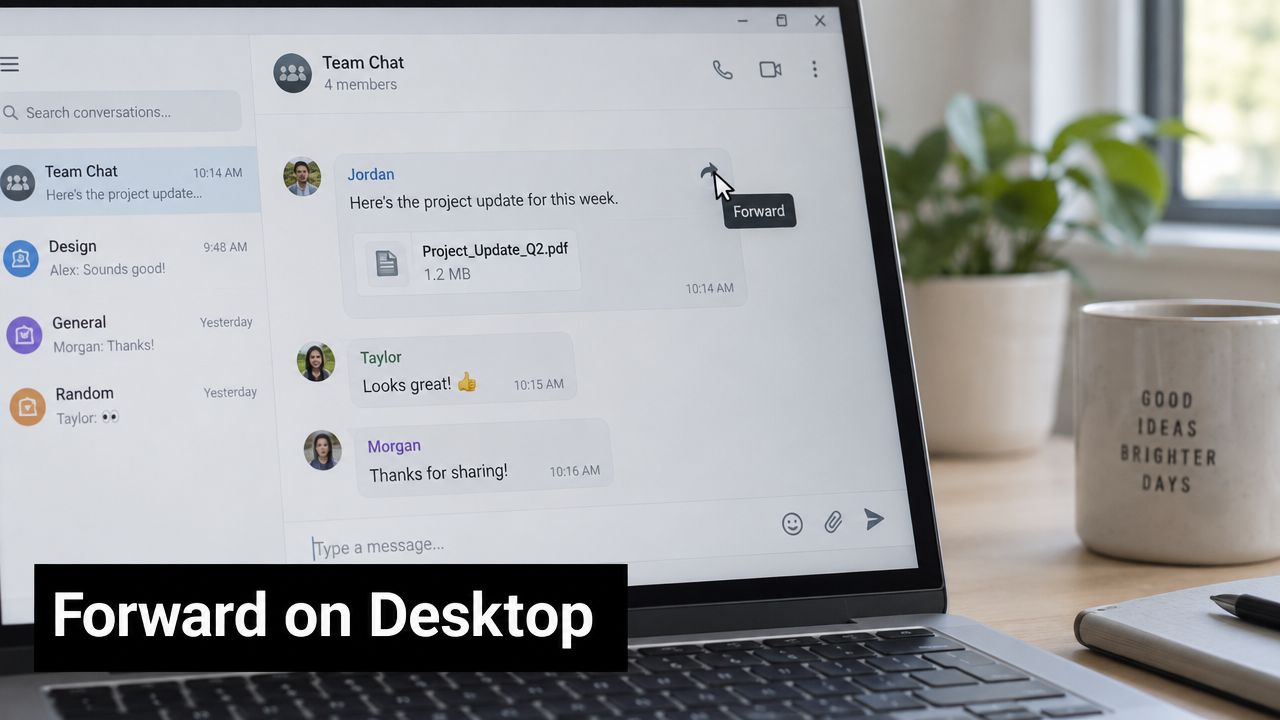
Web is most practical for forwarding one item at a time. WhatsApp Desktop may provide multi-select through checkboxes or message-selection controls, depending on the version installed. Right-click a message on Windows, or control-click it on macOS, to open actions such as reply, react, copy, and forward. Interface changes can move these controls, so use the message arrow if a familiar shortcut no longer appears.
When you forward an item, WhatsApp lets you choose up to five chats at once, as described in WhatsApp's forwarding guidance. This applies to desktop forwarding as well. If you need to send the same receipt to more chats, send it in separate batches rather than repeatedly clicking a control that has reached its limit.
Web and Desktop are linked devices, not separate WhatsApp accounts. A forward can wait briefly if the phone or linked connection is offline. Check the phone's connection, keep the desktop session active, update WhatsApp if needed, and retry once the connection is restored.
For daily receipt handling, forward the original document from the source chat, then rename or file the received copy in your accounting folder. The forwarded label preserves useful context, but it does not replace your own record of who supplied the document or when you processed it. Keyboard navigation, browser search, and the desktop context menu can reduce repetitive work, while WhatsApp Business automation may suit a higher volume of enquiries.
Use the video below as a visual reference. Menu placement can change after WhatsApp updates.
Forwarding Limits and Forwarded Labels You Should Know
A freelancer forwarding one update to several client chats can hit WhatsApp's anti-virality controls without having a phone or connection problem. Ordinary forwarding supports several destinations, while content that has already travelled through other chats faces tighter restrictions. A message forwarded to you may be sent to only one additional group chat. Content passed through a chain of five or more chats receives a forwarded label and can then be forwarded only to one chat at a time.
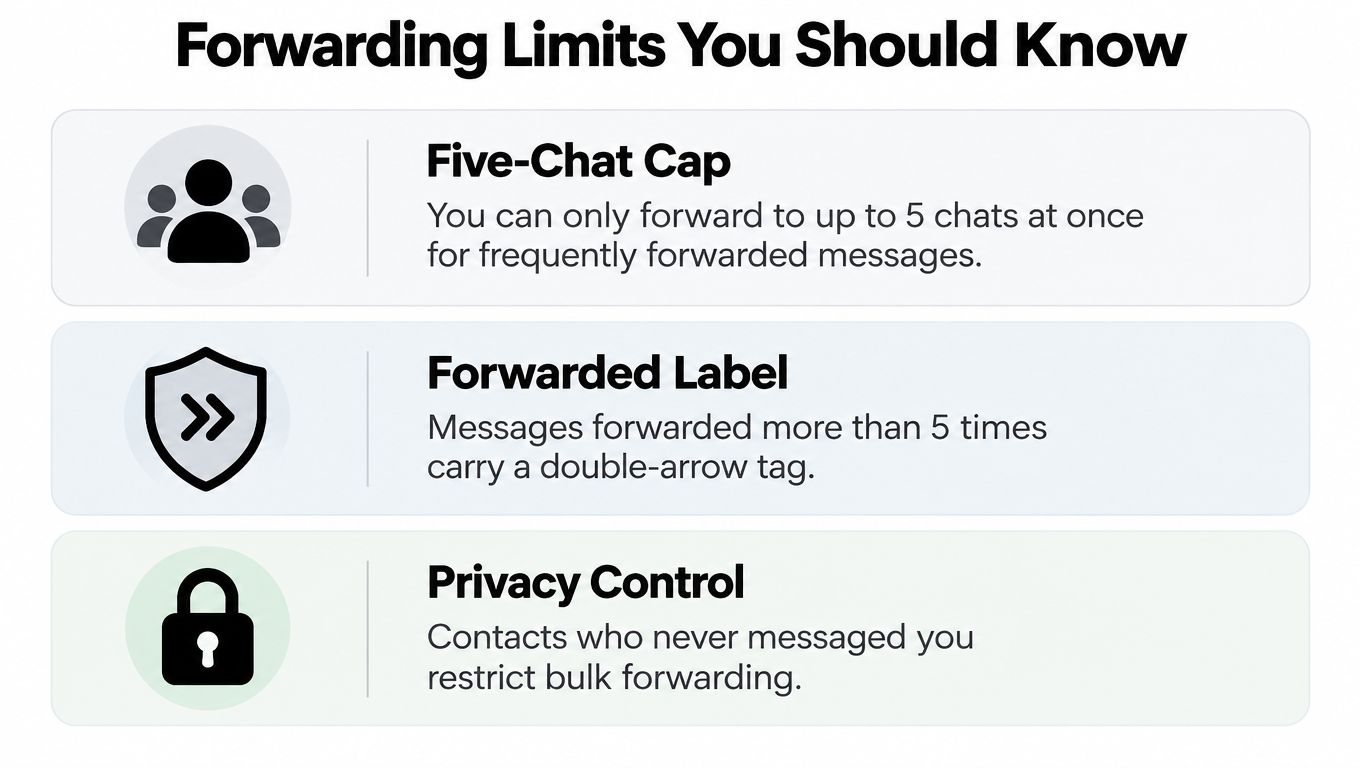
These limits affect small businesses distributing schedules, policy updates, or operational notices across multiple conversations. A forwarding-heavy process can stop at WhatsApp's controls even when recipients are available and the device is working normally. If a forward fails, check whether the message has already been forwarded, try a direct send where appropriate, and confirm that the app and connection are functioning.
The forwarded label records message history. It does not confirm that the content is accurate, safe, or authorised. Treat an unfamiliar claim as unverified, especially when the message asks someone to pay, disclose information, or change account details. A label can provide useful context, but it cannot replace checking the source.
Business documents need the same caution. A forwarded invoice may be genuine, altered, incomplete, or addressed to the wrong person. Before bookkeeping or payment approval, use this quick review:
- Check the sender: Confirm that the client, supplier, or colleague is expected.
- Inspect the document: Open the PDF or image and review the recipient, date, amount, and supporting details.
- Confirm sensitive instructions: Contact the business through a known route before changing bank details or paying an unfamiliar account.
- Record the origin: Keep the source conversation or a relevant screenshot with the forwarded file.
Forwarding also leaves the original sender identifiable in the message context. Deleting the source message does not remove copies already delivered to destination chats. For customer messages or financial records, define who may receive forwarded material, limit destination chats, and review your GDPR compliance approach before connecting WhatsApp records to wider business systems.
Forwarding Receipts and Documents Into Your Workflow
A common freelance workflow starts with a supplier sending a receipt, invoice, or contract PDF through WhatsApp. The recipient opens the file, forwards it to a dedicated business contact, and then stores the document with the rest of the month's records. This works well when every document type has a clear destination, such as one chat for receipts and another for contracts.
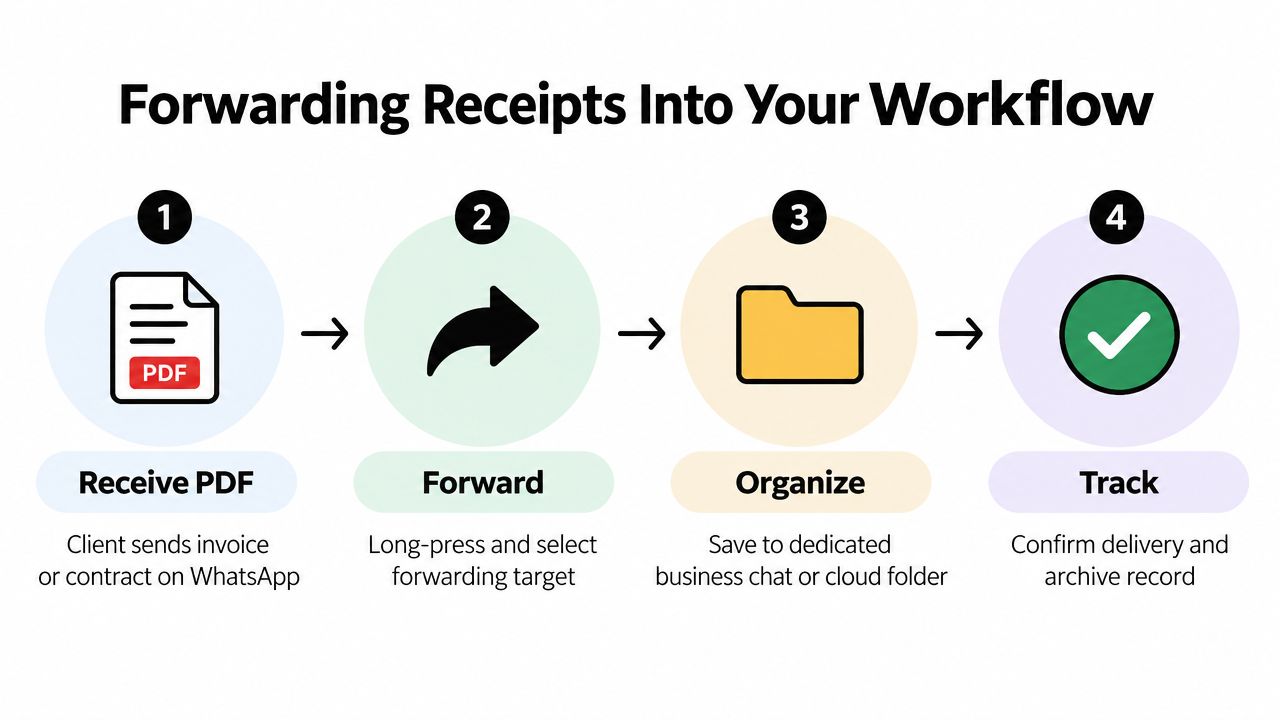
On a phone, tap and hold the document message, choose the forward arrow, search for the dedicated destination, and send it. On WhatsApp Web or Desktop, use the message menu and select the same forwarding action. Check whether the file has downloaded fully before sending, particularly if you're working from a linked laptop and the original phone hasn't cached the media.
A document arrives as a file, not as verified accounting data. The caption may provide useful context, but it doesn't establish that the merchant, amount, tax treatment, or payment details are correct. Treat the forward as transport, then review the extracted or entered information before it reaches Xero, QuickBooks, or a payment process.
A reliable routine looks like this:
- Use one destination per document type: This makes receipts easier to find and reduces accidental forwarding to a client or personal chat.
- Preserve the caption: Leave the supplier's note attached where possible, because it may explain a project, expense, or reimbursement.
- Confirm receipt: Check that the receiving side has opened or received the file before deleting the local copy.
- Keep the source: Archive the original conversation when the document may be needed for an audit or dispute.
Media can behave differently across linked devices. Forwarding from a laptop preserves the message context visible in the destination chat, but the receiving device may need to download the image or PDF independently. That's why a successful send indicator isn't the same as a completed document review.
If you also sell products through WhatsApp, a separate guide on how to build a WhatsApp catalog for your shop can help distinguish customer-facing conversations from internal document routing. Keeping those purposes separate makes it less likely that a receipt or contract will disappear inside a busy sales chat.
Forwarding Versus Copying and the Audit Trail Question
Copying a message and pasting it into another chat feels faster, especially when you're moving a short payment instruction into an email. The trade-off is that copy-paste produces a bare string of text. It doesn't carry the same visible forwarding context as forwarding the original message.
For accountants, bookkeepers, and contractors, that distinction can affect how easily someone reconstructs an exchange. A true forward keeps the original sender label and timestamp visible in the destination conversation, while copy-paste can remove the immediate evidence of who wrote the message and when. Copying can also introduce transcription errors when a long reference, account number, or invoice code is retyped.
| Attribute | Forward | Copy & Paste |
|---|---|---|
| Original sender label | Preserved in the forwarded message display | Usually removed |
| Original timestamp | Preserved in the forwarded message display | Not carried as message metadata |
| Forwarded label | Retained where WhatsApp applies one | Not shown as a WhatsApp forward |
| File attachment | Can send the original image or document | Requires a separate attachment action |
| Redaction | Limited before sending | Easier to edit or remove sensitive text |
| Audit context | Stronger, especially with the source chat retained | Weaker unless you add your own record |
The best default for a receipt or business instruction is to forward from the source chat, archive the source thread, and avoid retyping financial details. That preserves a visible chain of transmission without pretending that the chain proves the content is true.
Copy-paste still has legitimate uses. You may need to remove a phone number, redact a customer's address, shorten a message for a colleague, or quote only one sentence in an internal note. In those cases, make the edit deliberate and label the result as a summary or redacted copy rather than allowing a recipient to mistake it for the original.
For records: Preserve the original first. Redact or summarise only after you've kept an appropriate source copy.
The distinction also matters for privacy. A forwarded message can expose more context than you intended, while a copied excerpt can conceal provenance. Choose the action based on the record you need, not only on which button is quickest.
Snyp can receive receipt photos and related documents through WhatsApp, email forwarding, or direct upload, then extract fields such as merchant, amount, date, tax, currency, and category for review and accounting-platform syncing. If that fits your process, visit Snyp to set up a cleaner route from forwarded documents to organised expense records.