




How to Calculate 20 VAT: Formulas and Worked Examples
You've got a receipt beside your keyboard and a VAT box waiting to be filled in. The total includes tax, but multiplying it by the VAT rate gives you a different figure from the one printed on the receipt. Before you change either number, check what you're starting with: a price before VAT or a total that already includes it.
If you're looking up how to calculate 20 VAT, that distinction matters more than the calculator you use. The error to catch is applying the tax rate to the customer's final total instead of extracting the tax already inside it.
The Three 20% VAT Formulas at a Glance
Formulas for adding and removing 20% VAT
| Task | Formula | Example |
|---|---|---|
| Add VAT to a net price | Net × 0.20 for the VAT; net × 1.20 for the total | £60 net gives £12 VAT and £72 total |
| Find VAT inside a gross price | Gross ÷ 6 | £72 gross contains £12 VAT |
| Find the net price from a gross price | Gross ÷ 1.2 | £72 gross gives £60 net |
These calculations follow HM Revenue & Customs' guidance on charging VAT, which identifies 20% as the standard rate and gives the example of a £60 service becoming £72 including VAT.
The first row starts with your selling price before tax. You calculate the tax separately, then add it to the amount you want to charge for the work or goods.
The second row starts with the amount the customer pays. You're separating an existing total into its tax and underlying selling price, not charging more tax.
Identify the starting amount before calculating
Net means the amount excluding VAT. Gross means the amount including VAT.
The formulas differ because the tax rate applies to the VAT-exclusive price. Once tax has been added, the VAT accounts for a smaller share of the combined total.
Don't choose a formula just because an invoice prominently displays a number. Read the label beside it: subtotal, net, VAT, total and amount due describe different things, and the amount due may also reflect a payment already made.
- Preparing a quote: Start with the agreed VAT-exclusive selling price, provided that's how you've agreed to price the job.
- Reviewing a receipt: Establish whether the displayed total already contains tax before extracting anything.
- Entering an expense: Keep the supplier's net, VAT and gross fields separate rather than putting the payment amount into every field.
Practical rule: Starting with net means adding tax. Starting with gross means separating tax from a total that already contains it.
These shortcuts assume the entire amount is standard-rated. A receipt containing supplies with different VAT treatments needs a line-by-line check before you calculate the tax.
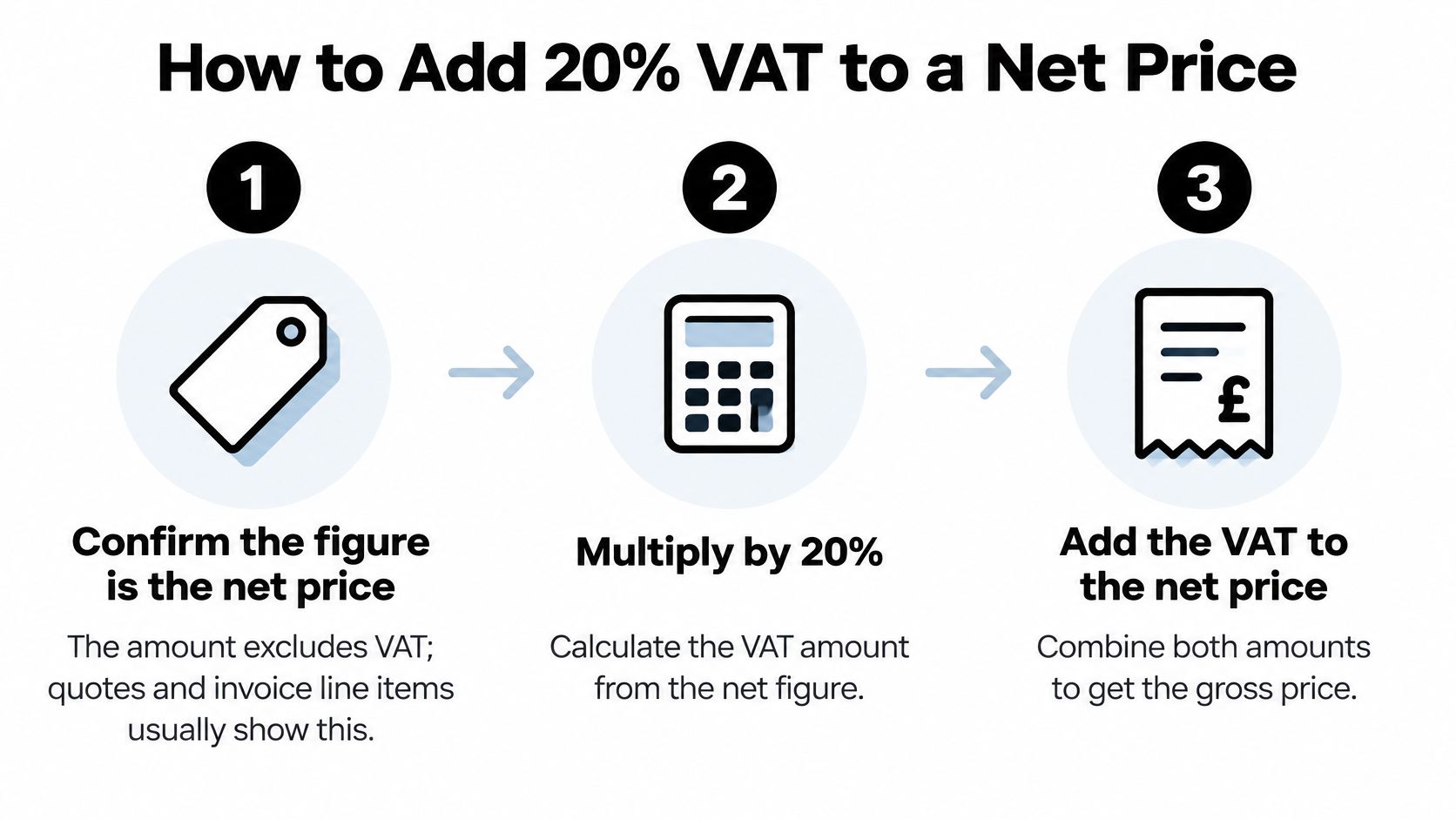
How to Add 20% VAT to a Net Price
Start with the amount you intend to charge before VAT, not the amount you want the customer to pay in total. This is particularly important when transferring a price from a proposal into Xero or QuickBooks: check whether the invoice is set to tax-exclusive or tax-inclusive entry.
HMRC's VAT guide supports calculating standard-rate VAT as net × 0.20 and the gross price as net × 1.20; its worked approach gives £60 net, £12 VAT and £72 gross.
Confirm that the figure is net. Check the quote, order or invoice line for wording such as excluding VAT. Don't add tax to a figure described as VAT-inclusive, even if your accounting software offers an add-tax button.
Calculate the VAT from that net amount. Using the worked example, multiply the net price by the standard-rate multiplier. Keep this result in the VAT field, not the invoice subtotal.
Add the tax to establish the customer's total. Combine the net price and calculated VAT, or use the gross-price multiplier directly. Calculating both ways is useful when you're checking a spreadsheet formula.
Apply the invoice's rounding policy. Retain calculation precision until the appropriate rounding stage. Don't repeatedly round intermediate figures or override the supplier's documented calculation method merely to make your preferred approach fit.
Display net, VAT and gross separately. The customer should be able to see what you're charging for the supply, what tax you've added and what they must pay. A clear breakdown also makes later reconciliation easier.
The process is easier to follow when the starting price and customer total stay visibly separate.
Check the quote before sending it
For a hypothetical freelance job, say your agreed day rate is £450 excluding VAT. Applying the standard-rate formula gives £90 VAT and a £540 customer total.
The commercial question comes before the arithmetic. If you agreed a VAT-inclusive budget with the customer, adding tax on top changes the agreed price rather than merely completing the invoice.
Cross-border purchases require a separate check of the applicable rules. For a Polish vehicle-import transaction, DreamBid's tax guidance for Polish car buyers provides relevant context; don't substitute a UK domestic calculation for an import-VAT assessment.
Before sending an invoice, compare the tax with the net charge and confirm that the gross amount matches the customer's agreed pricing basis. Correct multiplication won't rescue an invoice built from the wrong starting price.
Mistakes That Give the Wrong VAT Figure
A receipt total is already tax-inclusive, but someone enters it into a spreadsheet column designed for net prices. The spreadsheet calculates tax again, and the result looks plausible because the formula itself is valid. The wrong base amount is the problem.
The following examples show what that mistake looks like in the finished record.
Wrong VAT results, their causes and correct figures
| Symptom | Likely cause | Correct result |
|---|---|---|
| £180 gross shows £36 VAT | Took 20% of the VAT-inclusive total | £30 VAT and £150 net |
| £120 gross shows £96 net | Subtracted 20% from the gross price | £100 net and £20 VAT |
| £72 gross shows £14.40 VAT | Applied 20% to the gross total | £12 VAT and £60 net |
| An invoice dated before 4 January 2011 shows 20% | Applied today's rate without checking the transaction date | Use the rate applicable to the transaction; 17.5% applied immediately before the change, but not throughout all earlier periods |
The historical qualification matters: HMRC's historical VAT statistics guidance records the change from 17.5% to 20% on 4 January 2011, following a temporary 15% rate from 1 December 2008 and a return to 17.5% on 1 January 2010.
Diagnose the error before changing the record
In the first example, the tax has been overstated because the calculation treats the payment as though it excluded VAT. In the second, subtracting the headline rate removes too much from the gross amount. Adding a percentage and subtracting the same percentage don't reverse one another when they operate on different bases.
The smaller receipt illustrates the same base-selection error at a less conspicuous scale. Don't dismiss a difference because it looks too small to matter: a repeated spreadsheet formula can copy the same mistake into every affected row.
For older documents, inspect the transaction date and the rate that is shown. An archive import that automatically assigns today's standard rate can produce a neatly reconciled but historically incorrect record.
Before posting: For a wholly standard-rated total at the current rate, VAT above one-sixth of gross is a red flag that you've used the wrong base.
Passing that test doesn't establish that the purchase is reclaimable. It only checks whether the tax amount is arithmetically plausible.
How to Remove 20% VAT from a Gross Price
Removing VAT means finding the underlying price before tax. It doesn't mean applying a discount to the amount paid.
When checking a receipt, keep the tax breakdown visible beside your calculation.
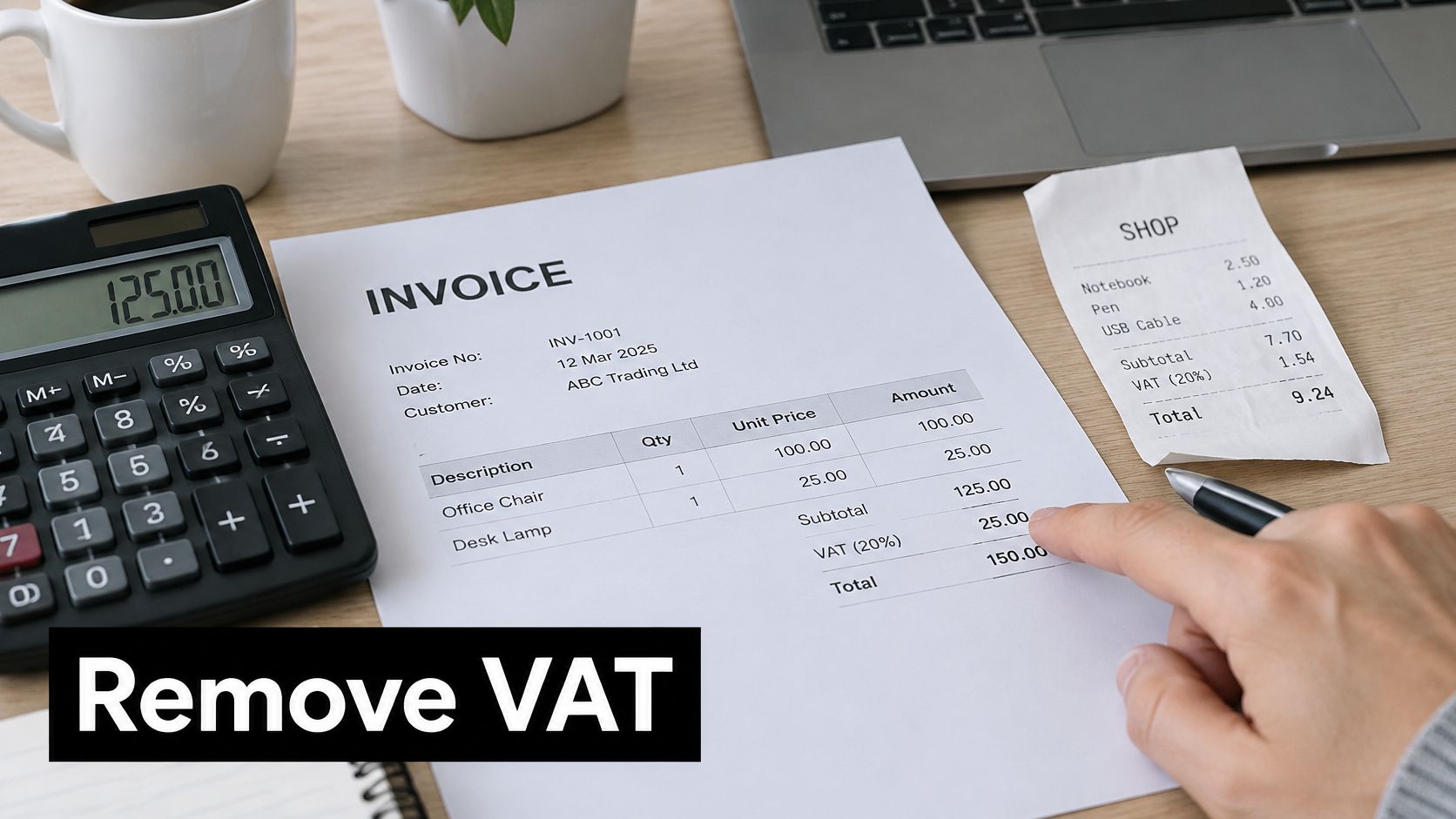
If invoice wording is causing uncertainty, this explanation of what net of VAT means helps distinguish the underlying charge from the amount payable. Confirm that distinction before you enter the expense into your books.
Confirm what the gross amount contains. Check that the relevant supply includes standard-rated VAT. A receipt can contain items with different tax treatments, so its grand total isn't automatically a suitable calculation base.
Divide gross by the gross-price multiplier. In a hypothetical standard-rated purchase of £120 including VAT, dividing by 1.2 gives £100 net. You're reversing the addition of tax rather than subtracting the headline rate.
Subtract net from gross to identify the VAT. In that same scenario, £120 less £100 gives £20 VAT. Use the embedded-tax fraction as an independent arithmetic check.
Inspect the individual receipt lines. If tax treatments differ, separate the relevant amounts before extracting VAT. Don't allocate tax to an exempt or zero-rated line just because another item on the receipt carries standard-rate VAT.
Save the breakdown with the document. Record net, VAT and gross in separate fields, and retain the original receipt. Someone reviewing the entry should be able to reconstruct your calculation without guessing.
Check a hospitality receipt without assuming recovery
For another hypothetical example, suppose a restaurant bill is £84, entirely inclusive of standard-rated VAT. The net is £70 and the tax is £14; dividing the gross by 6 gives the same tax amount.
That calculation tells you what tax is embedded in the assumed supply. It doesn't, by itself, tell you whether your business can reclaim it. Keep the arithmetic decision separate from the accounting treatment, particularly where business purpose or entertainment rules need review.
This video offers another way to follow the calculation.
Always add net and VAT back together before saving. If they don't match the original gross amount, investigate the rounding, the transcription or the tax breakdown rather than changing a figure merely to force agreement.
Rates, Rounding and Mixed Invoices
VAT rates by supply type
| Supply type | Rate | VAT from net price |
|---|---|---|
| Standard rate, most goods and services | Standard rate | Apply the standard-rate multiplier |
| Reduced rate, for example qualifying domestic fuel and power | Applicable reduced rate shown on the invoice | Multiply net by the applicable reduced rate |
| Zero-rated, for example qualifying food and children's clothing | Zero rate | No VAT charged, but the supply remains taxable |
| Exempt, for example qualifying insurance and education | No VAT charged | None; related input VAT recovery is generally restricted |
Zero-rated and exempt aren't interchangeable. Both can produce an invoice without a VAT charge, but they describe different tax treatments. Don't select whichever code happens to make the payment total agree in your accounting software.
The examples in the table are categories to investigate, not a substitute for checking the particular supply. Product descriptions, the circumstances of the sale and the supplier's invoice breakdown matter.
Split a mixed receipt before extracting tax
For a hypothetical mixed invoice, suppose the gross total is £120, comprising £80 of standard-rated supplies and £40 of zero-rated supplies. Extracting tax from only the standard-rated portion gives £80 ÷ 6 = £13.33, rounded to the nearest penny.
Dividing the whole receipt by the standard-rate fraction would produce £20, overstating the tax because part of the purchase contains none. The correct method starts with classification, not with the grand total.
Food purchases deserve particular care because a broad label such as food doesn't settle the VAT treatment. Use the receipt's breakdown and check the relevant distinctions, including those discussed in this guide to VAT on restaurant food.
- Separate supplies first: Group the invoice lines by their actual tax treatment before applying a calculation.
- Follow a consistent rounding method: Use the supplier's breakdown when recording a purchase rather than recalculating each line under a different policy.
- Investigate differences: Check whether the supplier calculates tax by line or by rate subtotal before treating a discrepancy as an error.
- Keep an explanation: Where your bookkeeping entry needs an adjustment, retain the reason alongside the original document.
A receipt's grand total tells you what was paid. Its line items tell you which VAT calculation, if any, belongs to each part.
Avoid manually replacing a supplier's printed tax figure with a shortcut calculation without checking why they differ. The difference may reflect mixed supplies or rounding rather than an incorrect invoice.
Check Your VAT Before You Record It
A sound VAT record needs more than a correct calculator result. You need to know which document supports the entry, which rate applies and whether the amount belongs in your input-tax or output-tax records.
HM Revenue & Customs' VAT threshold guidance gives a £90,000 taxable-turnover registration threshold for 2025, with registration required when the applicable threshold conditions are met. If your turnover is approaching that level, check the current rules rather than relying on an old bookkeeping template.
Use a short review checklist before approving an entry:
- Keep the date and rate together: Store both beside the extracted amount so you can check historical transactions properly.
- Retain the original amounts: Save gross, VAT and net separately, with the source document attached.
- Review the receipt lines: Confirm that the software hasn't assigned standard-rate tax to the entire receipt by default.
- Separate calculation from recovery: Establish whether the tax is eligible for your return, not merely whether you can extract it mathematically.
Make captured receipts reviewable
Receipt-capture software can reduce typing by extracting the merchant, amount, date and tax from an emailed receipt, uploaded document or photograph. The useful trade-off is less manual entry, not less responsibility for checking unusual tax treatments.
Keep the source document accessible during review.
For online sellers, Skup's guidance on how to track costs for your POD business provides broader cost-recording context. For VAT bookkeeping, understanding VAT input and VAT output helps keep purchase tax separate from tax charged to customers.
Before recording any VAT figure, confirm the rate, the transaction date and whether your starting amount is net or gross. Resolve unclear documents before posting them, rather than leaving a plausible-looking estimate in the ledger.
Snyp captures receipts from WhatsApp, forwarded emails and uploaded photos or files, extracts their tax details, and syncs structured records to Xero or QuickBooks. Visit the site to set up a receipt-capture workflow that keeps the original document available while you check the VAT calculation before approving the entry.